
More articles and topics
How do I approve or reject submitted documents?
- Where to find it
- Approve documents → document → Preview
- How to check the result
- An approved document counts as valid for the access check; when rejected, the subcontractor is informed.
On this page
When subcontractors upload documents, those documents do not automatically become part of the construction site’s records. They first appear in the review list Documents pending approval. A document only counts as valid once you have approved it.
Quick answer
| Step | Description |
|---|---|
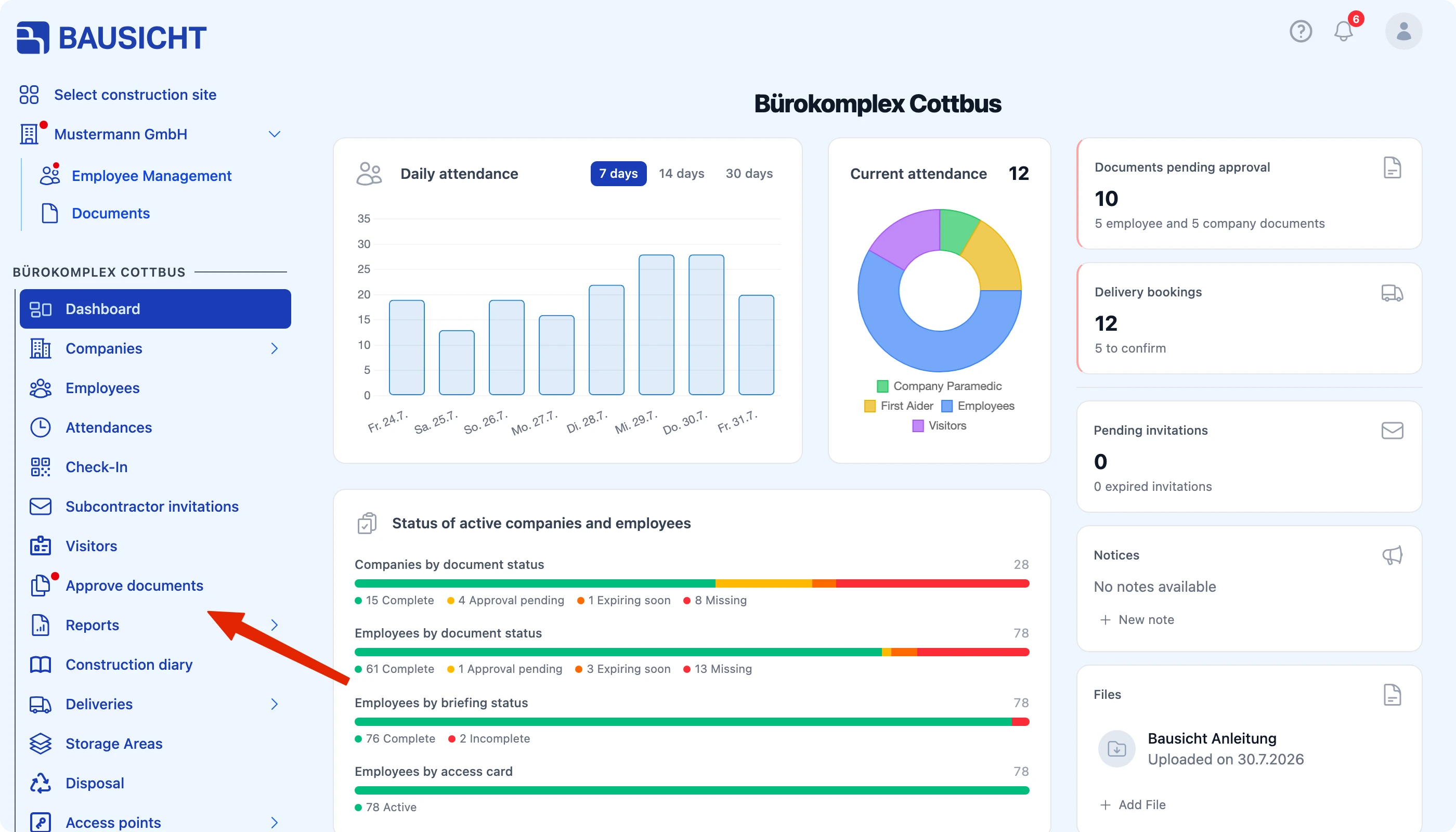
| 1 | In the left navigation, open Approve documents |
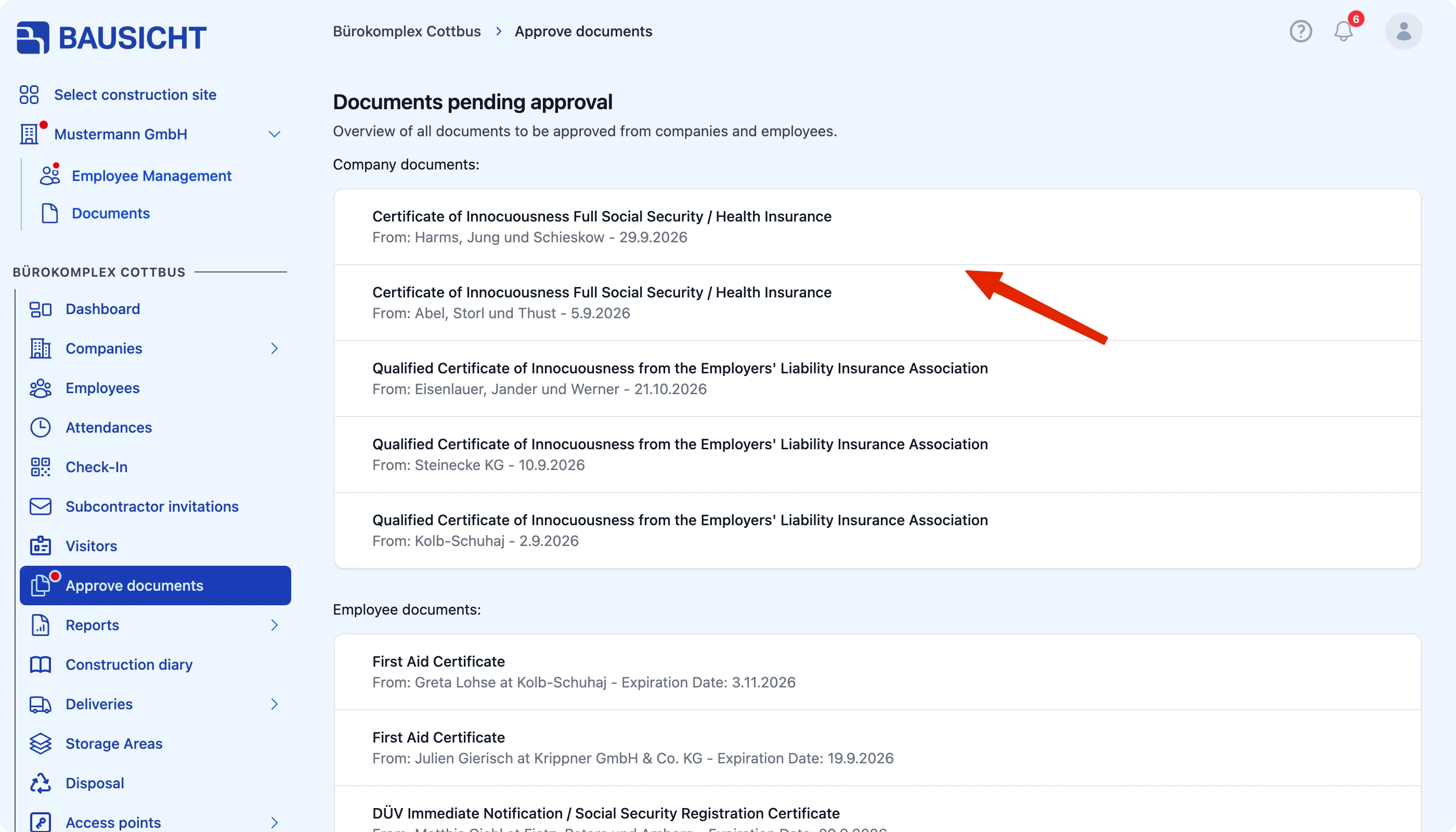
| 2 | Click the document you want to review |
| 3 | Check the file and the details in the Preview |
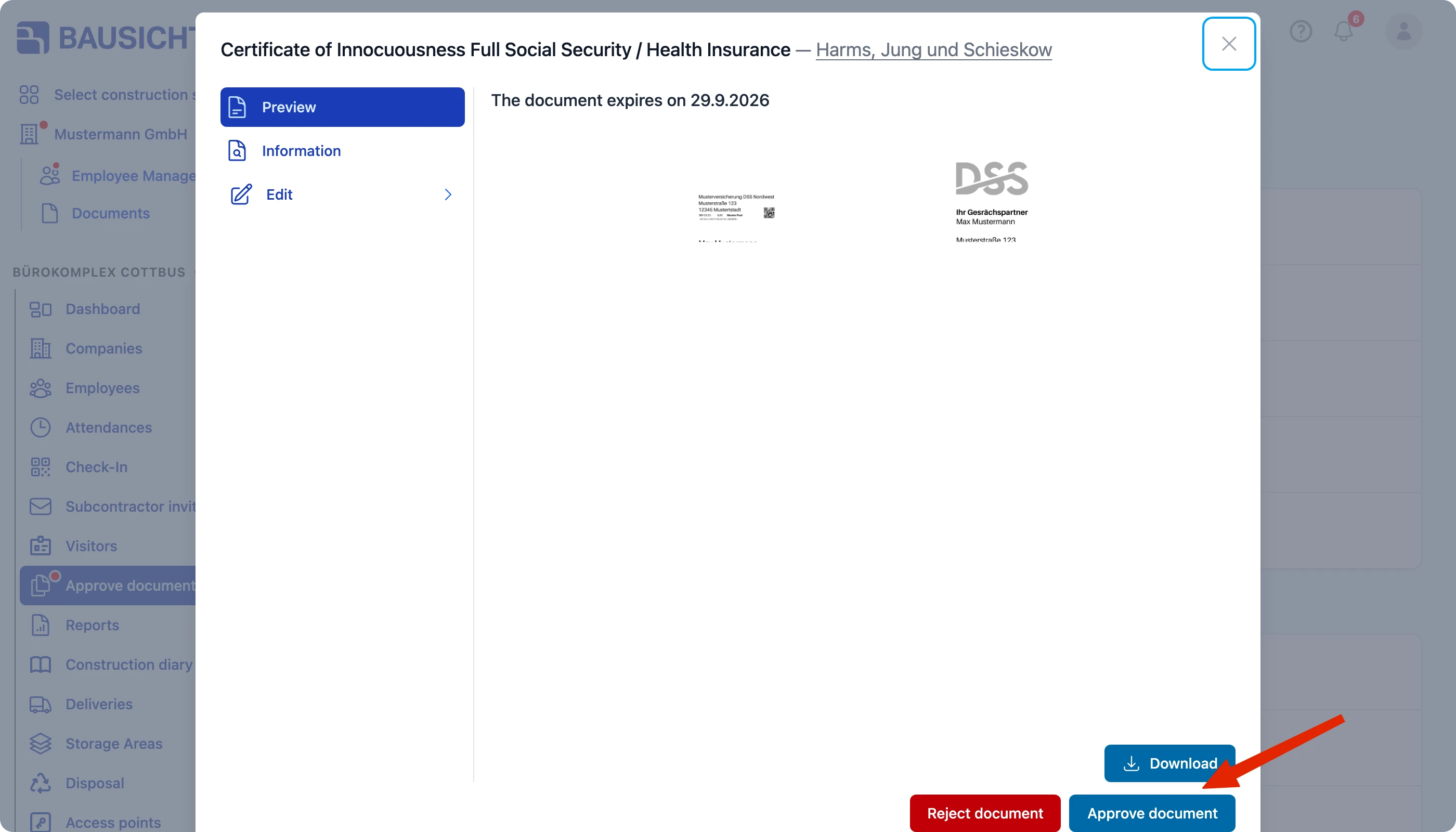
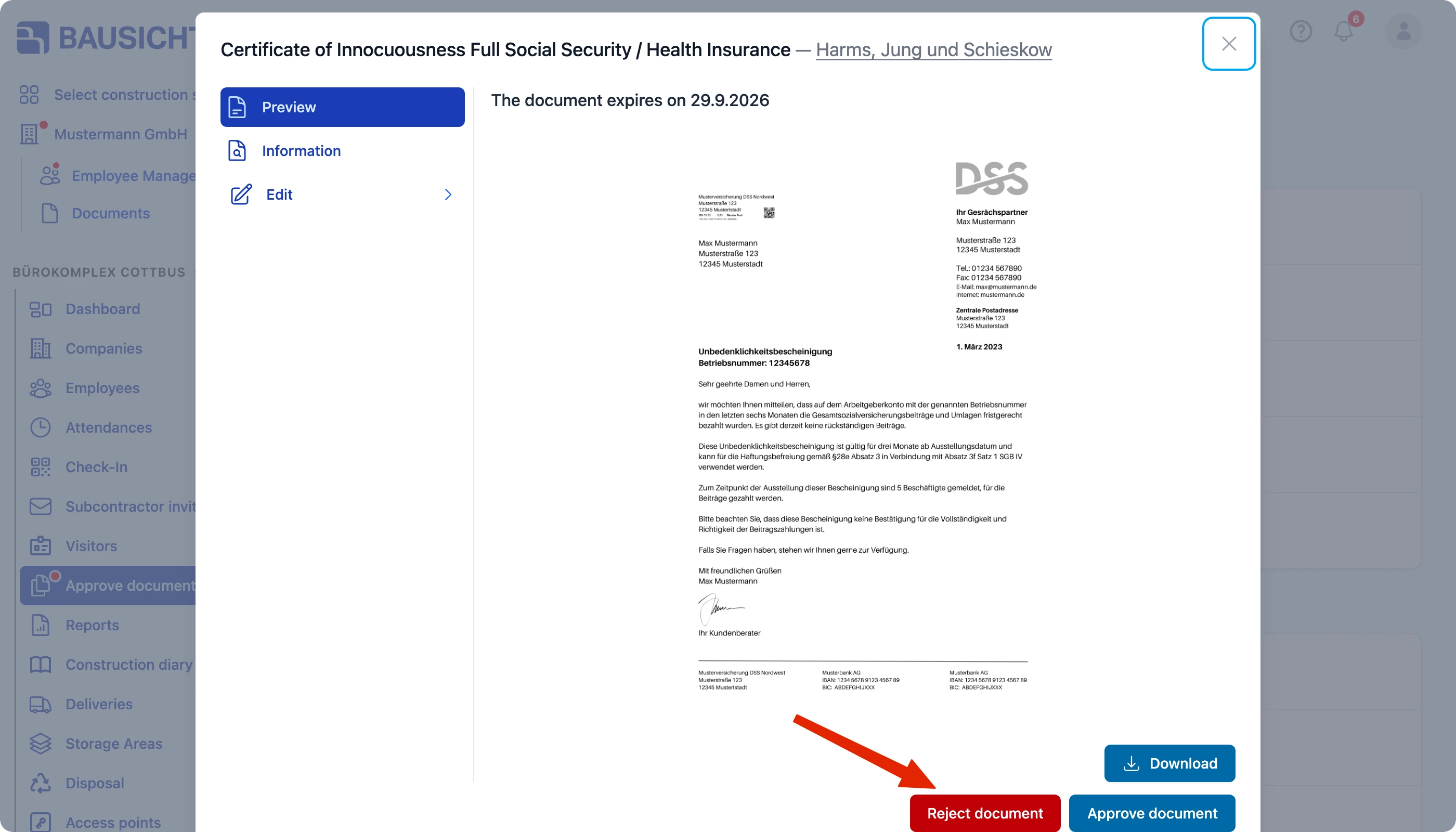
| 4 | Click Approve document or Reject document |
Step 1: Open “Approve documents”
The list shows every document waiting for your review – including the document type, the submitting company and the expiration date.
Step 2: Open the document for review
The document details open. The tabs give you access to:
- Preview – view the uploaded file
- Information – issue date, expiration date and the submitting company
- Edit – use Document to correct the details of the document or Archive to archive the document
You can also Download the document.
Step 3: Approve the document
If everything is correct, click Approve document. The document becomes valid and counts towards the access check for that company or person from then on.
Step 4: Reject the document
If the file is unreadable, expired or simply wrong, click Reject document. The subcontractor is informed about the rejection and can submit a corrected document.

Tip: When rejecting, state as precisely as possible what is missing or wrong. That saves you from rejecting the same document a second time.
What happens after approval?
The document status of a company or person is shown as a traffic light. It only turns green once every required document has been approved.
Need further help?
If you need further assistance with document approval, our support team is happy to help.