
More articles and topics
How do I see the subcontractor hierarchy of a construction site?
- Where to find it
- Companies → Hierarchy
- How to check the result
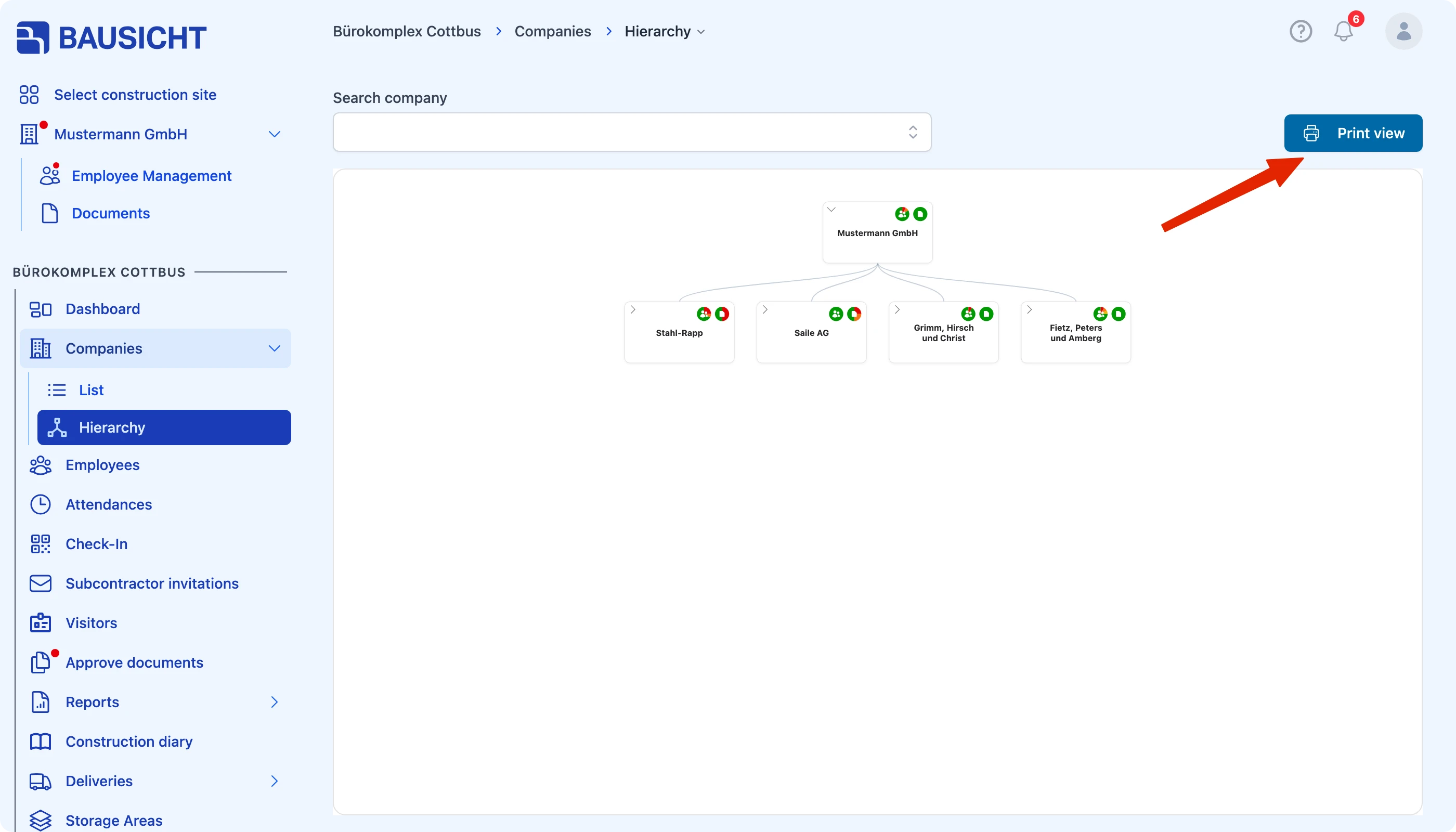
- The subcontractor structure can be searched and is available as a printable version through Print view.
On this page
On larger construction sites, subcontractors invite subcontractors of their own. The Hierarchy view shows that chain as a structure: you can see at a glance which company was engaged by which contracting company.
Quick answer
| Step | Description |
|---|---|
| 1 | Open Companies → Hierarchy |
| 2 | Use the Search company field to find a specific company |
| 3 | Use Print view to create a printable version of the structure |
Step 1: Open “Companies → Hierarchy”
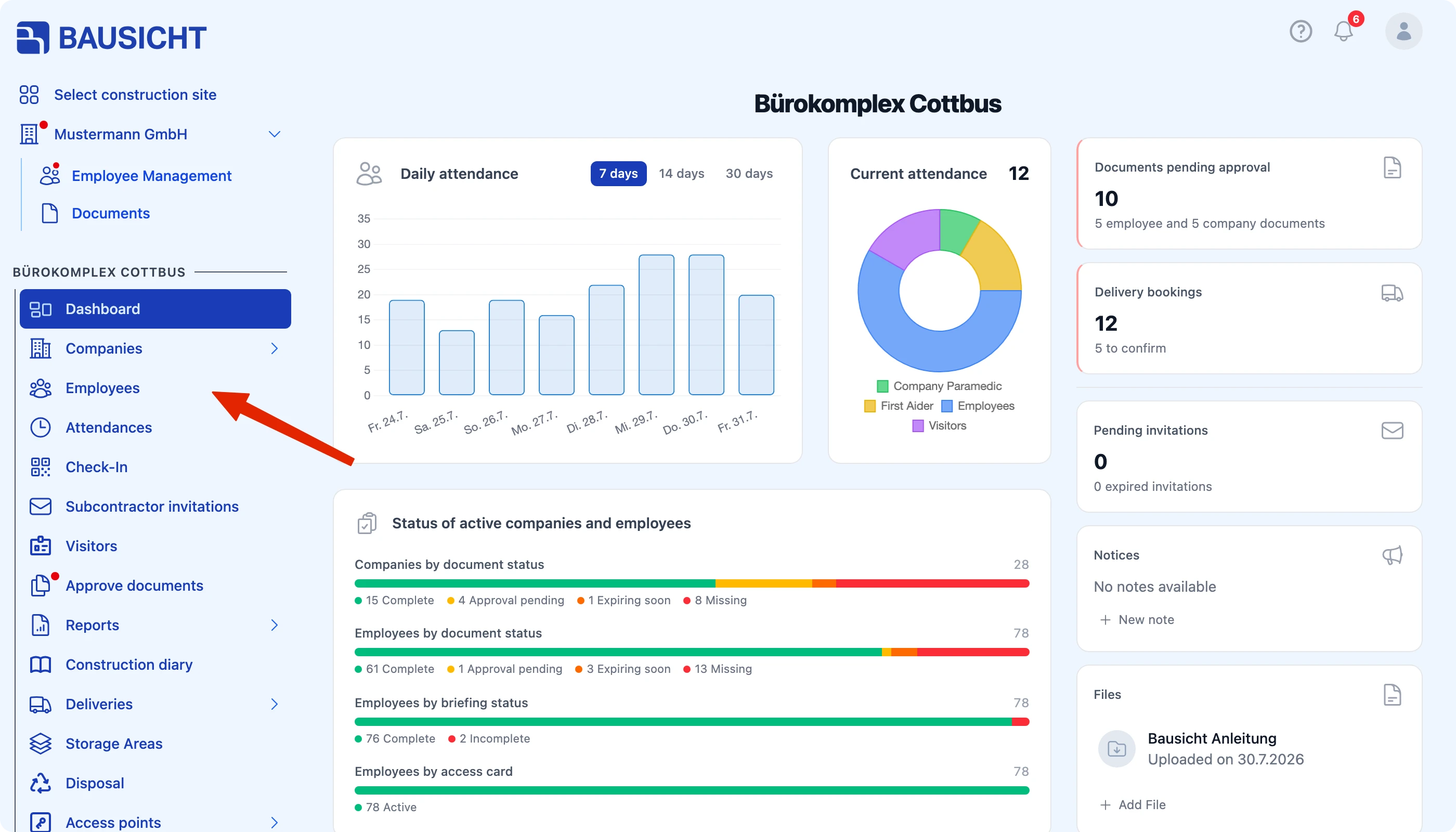
The view shows the companies of the construction site as a tree. It starts with the contracting company, with the engaged subcontractors below.
Step 2: Search for a specific company
The Search company field takes you straight to a company instead of scanning the whole structure – useful on sites with many companies involved.
Step 3: Use the print view
Print view creates a representation of the hierarchy prepared for printing – for site meetings, for example, or for the project file.

Note: The hierarchy is derived from the client that is set when a company is invited or created. If an assignment is wrong, it can be corrected with the permissions “Can edit project data of other companies.” and “Can change companies’ clients.”: open the company → Edit → Project data (or Client).
Need further help?
If you need further assistance, our support team is happy to help.