
More articles and topics
How do I create reports (daily, weekly and monthly)?
- Where to find it
- Reports → Generate report
- How to check the result
- The generated report is stored under Existing reports.
On this page
Bausicht evaluates the recorded access events and master data for you. In the Reports section you turn them into evidence for a single day, a week, a month or any period you choose.
Quick answer
| Step | Description |
|---|---|
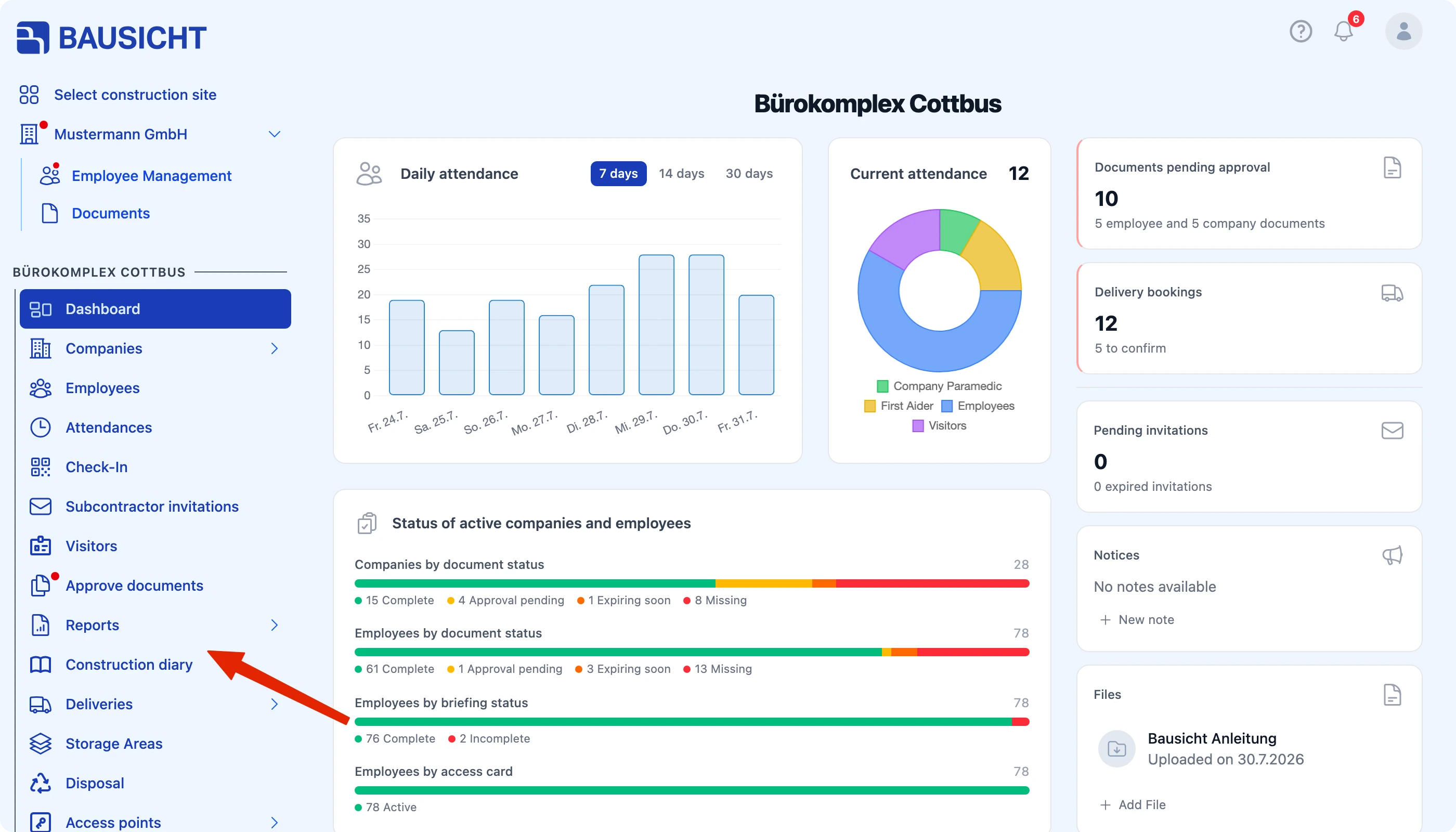
| 1 | In the left navigation, open Reports → Generate report |
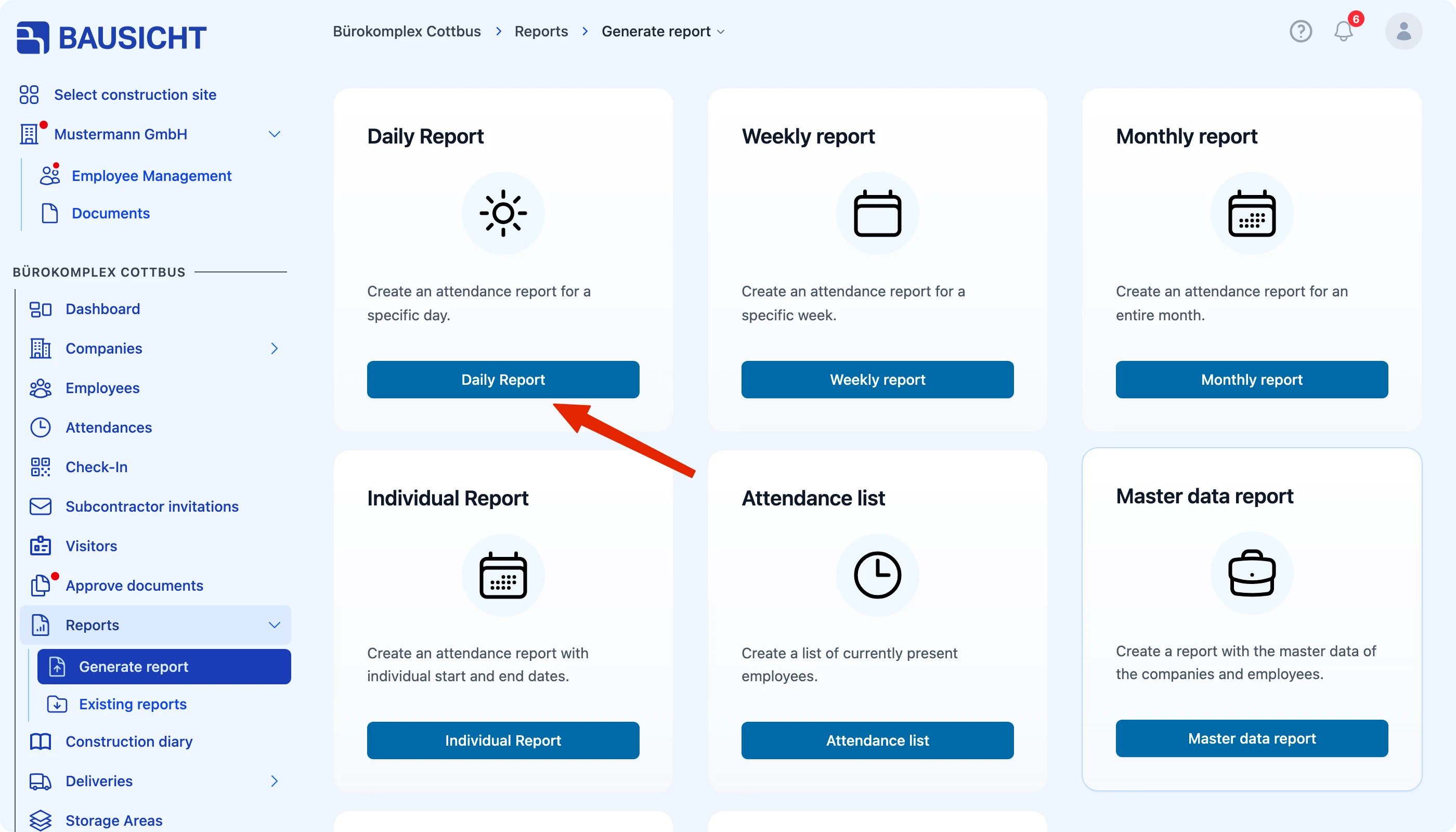
| 2 | Select the report type you need, for example Daily Report |
| 3 | Set the period, file format and the companies to include |
| 4 | Click Create … – the report is stored under Existing reports |
Step 1: Open “Reports” in the left navigation
Step 2: Select the report type
The Generate report page offers these report types:
| Report type | Content |
|---|---|
| Daily Report | All access events of a single day |
| Weekly report | All access events of a calendar week |
| Monthly report | All access events of a month |
| Individual Report | All access events of a freely chosen period |
| Attendance list | A snapshot of who is currently on the construction site |
| Master data report | Master data of the recorded people and companies |
| Employees | List of the employees on the construction site |
| Access cards | Overview of the access cards issued |
Step 3: Set the period and scope
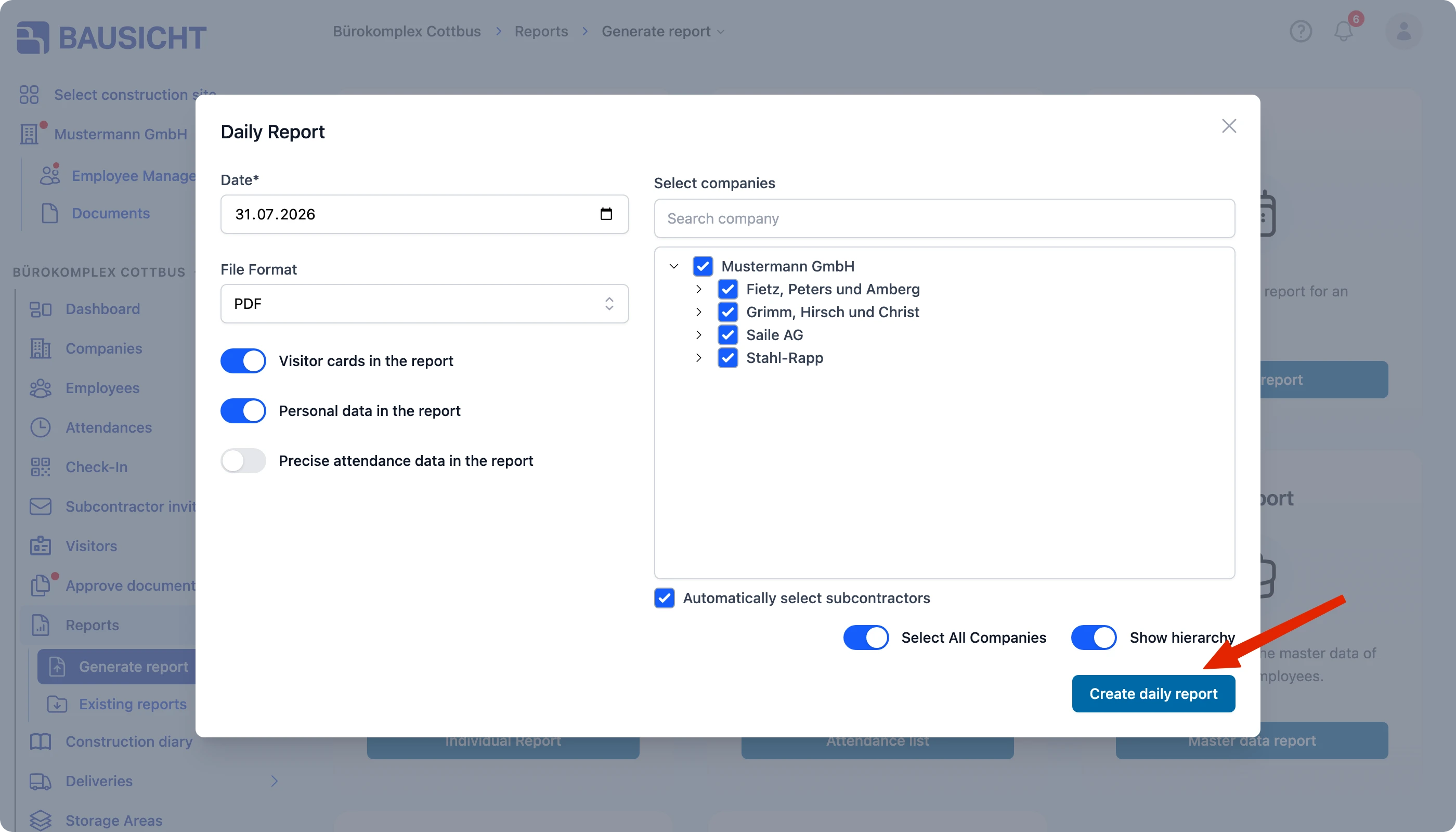
A dialog opens after your selection. On the left you define the period and scope:
| Setting | Meaning |
|---|---|
| Date or Start Date / End Date | The period the report covers |
| File Format | Format of the report, for example PDF |
| Visitor cards in the report | Include access events via visitor cards |
| Personal data in the report | Include personal details |
| Exact attendance data in the report | Exact timestamps instead of summarised figures |
On the right you choose which companies to include. You can select the entire list at once or display the subcontractor hierarchy.

Tip: With Automatically select subcontractors enabled, selecting a company also selects all of its subcontractors, and deselecting it deselects them. The selection applies only to the current report and is not saved.
Step 4: Create the report
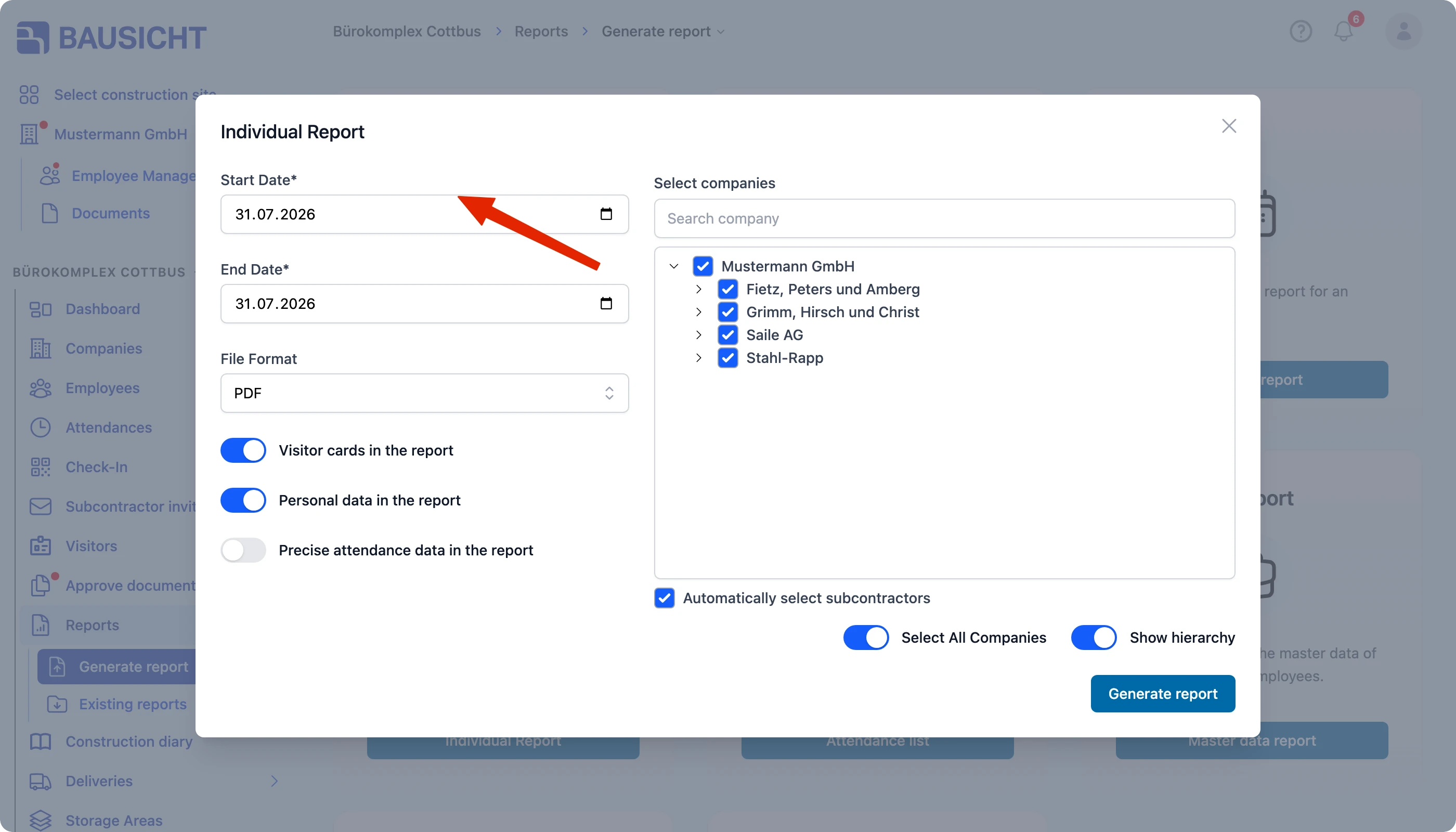
Finally click the create button – for the daily report it is called Create daily report, for the individual report Generate report.
For the Individual Report you first enter a Start Date and an End Date. This covers periods that do not fit a single day, week or month.
Where do I find the finished report?
Reports are not downloaded straight away. They are stored under Reports → Existing reports, where you can open and download them at any time – even weeks or months later.
They are separated by type there: Attendance Reports, Current attendance lists, Master data reports, Employee list and Access Card Reports. Every list shows Name, Issue date, Type, Period and File Type.
Need further help?
If you need further assistance with reports, our support team is happy to help.