
More articles and topics
Notifications 2.0 – adjusting your notifications
- Where to find it
- Profile picture → Settings → Notifications
- How to check the result
- The saved selection defines generally or per construction site which events are reported by email or in the app.
On this page
The notifications have been completely redesigned (Notifications 2.0). They are now better grouped and support you more precisely in your daily work. In the settings you can define exactly where you want to receive emails and where you want to receive notifications in the app – even per construction site if you wish.
Quick answer
| Step | Description |
|---|---|
| 1 | Click your profile picture in the top right and open Settings → Notifications |
| 2 | Define where you want to receive emails and where you want to receive notifications in the app |
| 3 | At the very bottom of the menu, you can additionally specify these settings per construction site |
Step 1: Open the notification settings
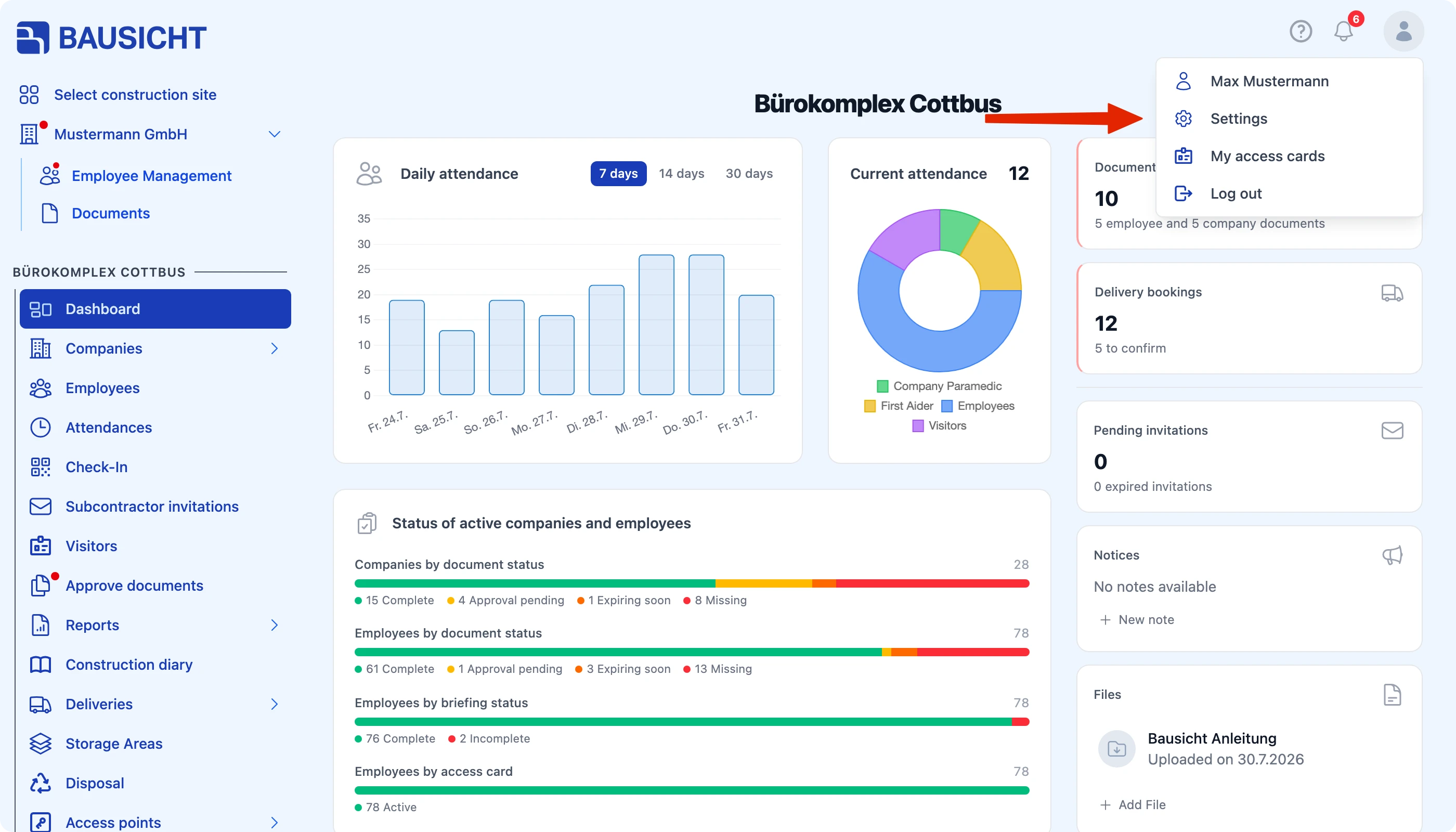
Click your profile picture in the top right and select Settings → Notifications.
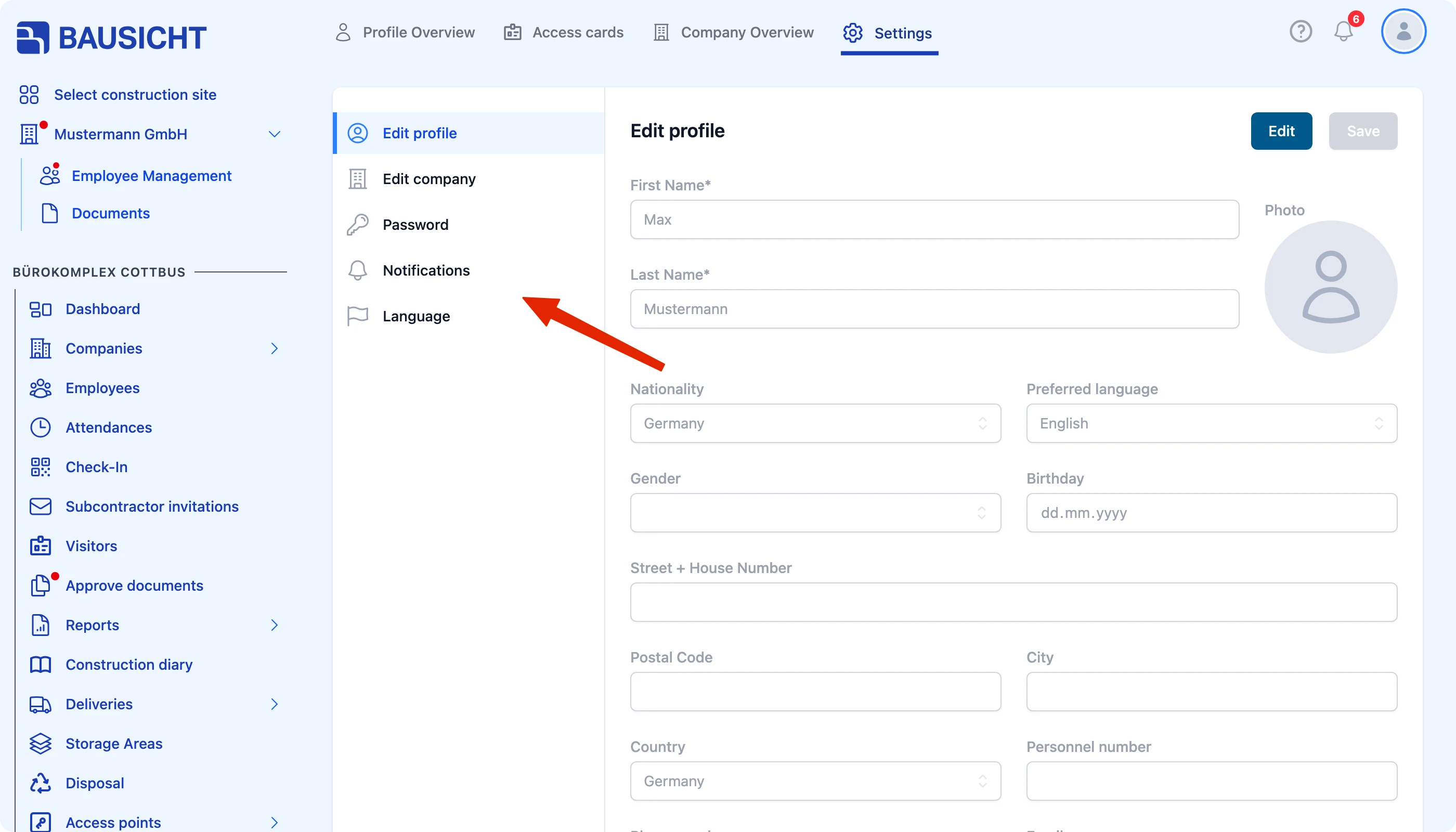
There you will find the redesigned, better-grouped overview of all notifications.
Step 2: Define where you want to be informed
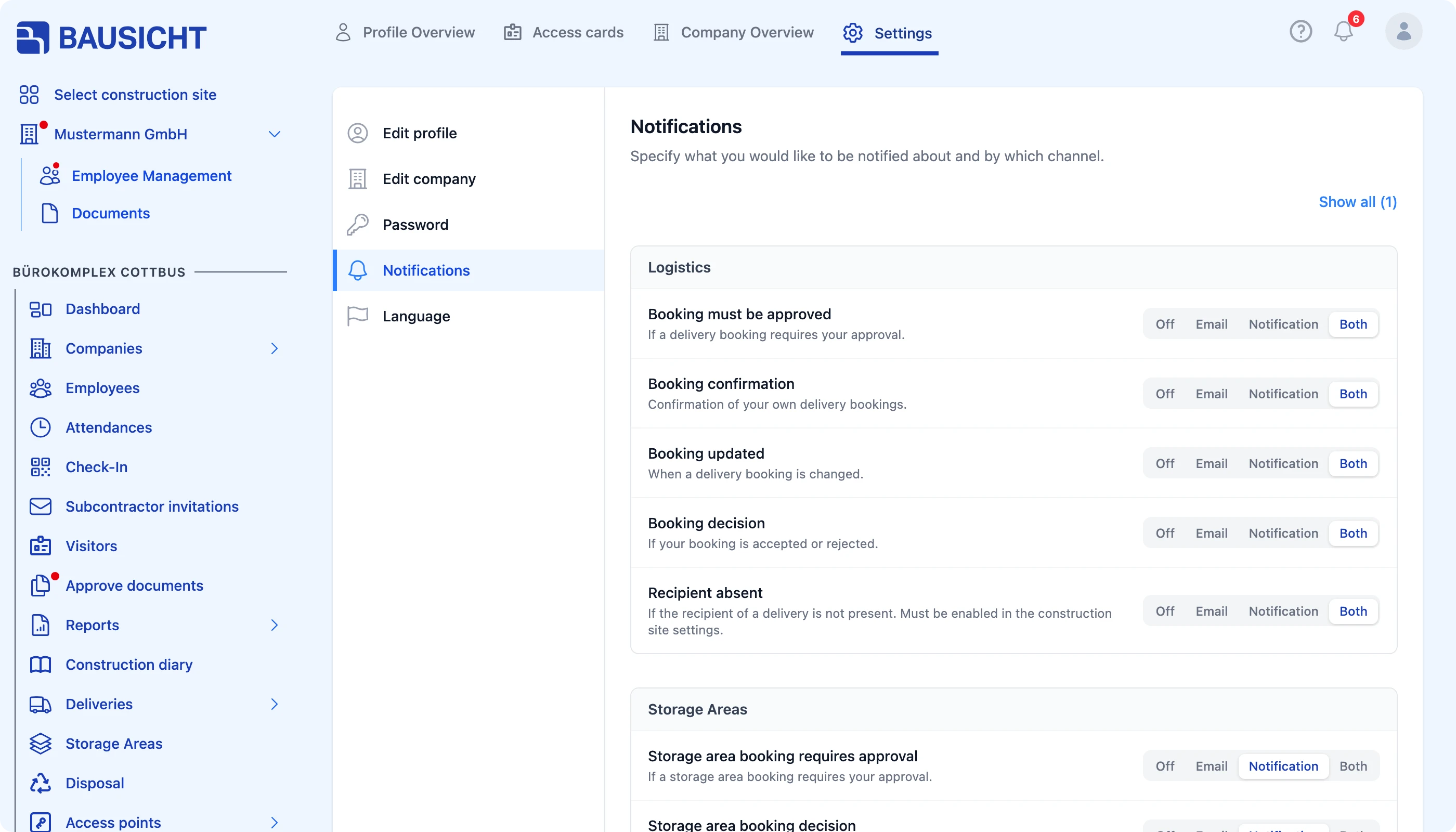
In the overview, you decide exactly how you want to be informed:
- where you want to receive emails and
- where you want to receive notifications in the app.
This way you receive exactly the alerts that are relevant to your daily work, through the channel you prefer.
Step 3: Specify settings per construction site
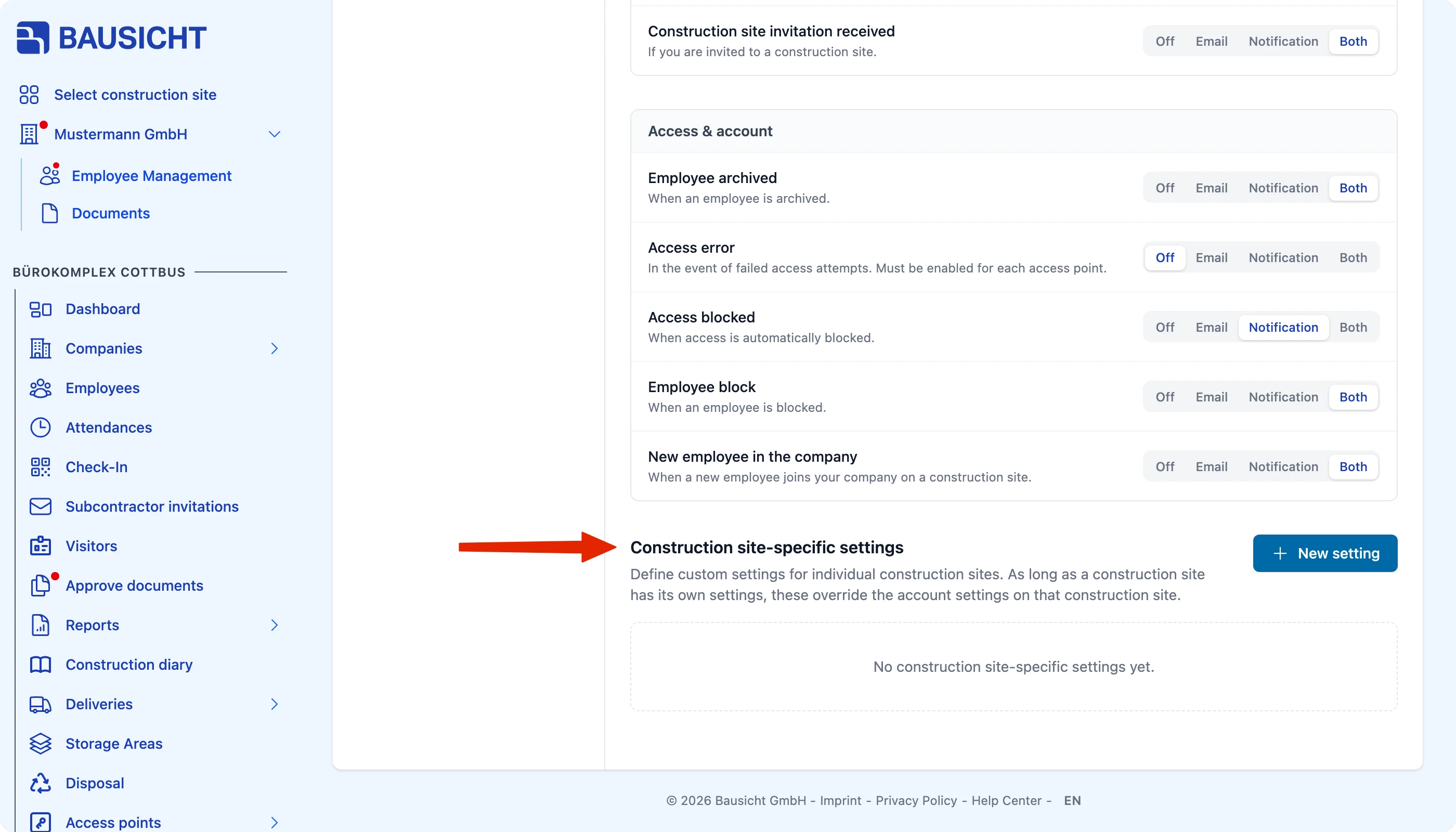
At the very bottom of the menu, you can additionally configure your notifications per construction site. This lets you override your general settings specifically for individual sites.
For example, you can receive more or fewer notifications for one particular construction site than for your other sites.
Need further help?
If you need further assistance, our support team is happy to help.