
More articles and topics
How do I delete documents submitted by subcontractors?
- Where to find it
- Companies → subcontractor → Documents, or Companies → subcontractor → Employees → person → Documents → Edit
- How to check the result
- After Delete is selected and confirmed, the chosen company or employee document is removed.
On this page
Quick answer for company documents
| Step | Description |
|---|---|
| 1 | Go to the “Companies” section in the left-hand navigation |
| 2 | Select the subcontractor you want to open the detail view |
| 3 | Click the “Company documents” section in the left-hand sidebar |
| 4 | Select the document you want from the list |
| 5 | Click “Edit”, then “Archive” and “Delete”, and confirm the action |
Quick answer for employee documents
| Step | Description |
|---|---|
| 1 | Go to the “Companies” section in the left-hand navigation |
| 2 | Select the subcontractor you want to open the detail view |
| 3 | Go to the “Employees” section and select the relevant person |
| 4 | Click the “Documents” section and select the relevant document |
| 5 | In the tab, click “Edit”, then “Archive” and “Delete”, and confirm the action |
I. Deleting a subcontractor’s company documents
Step 1: Open “Companies” in the left-hand navigation
Go to the “Companies” section in the left-hand navigation.
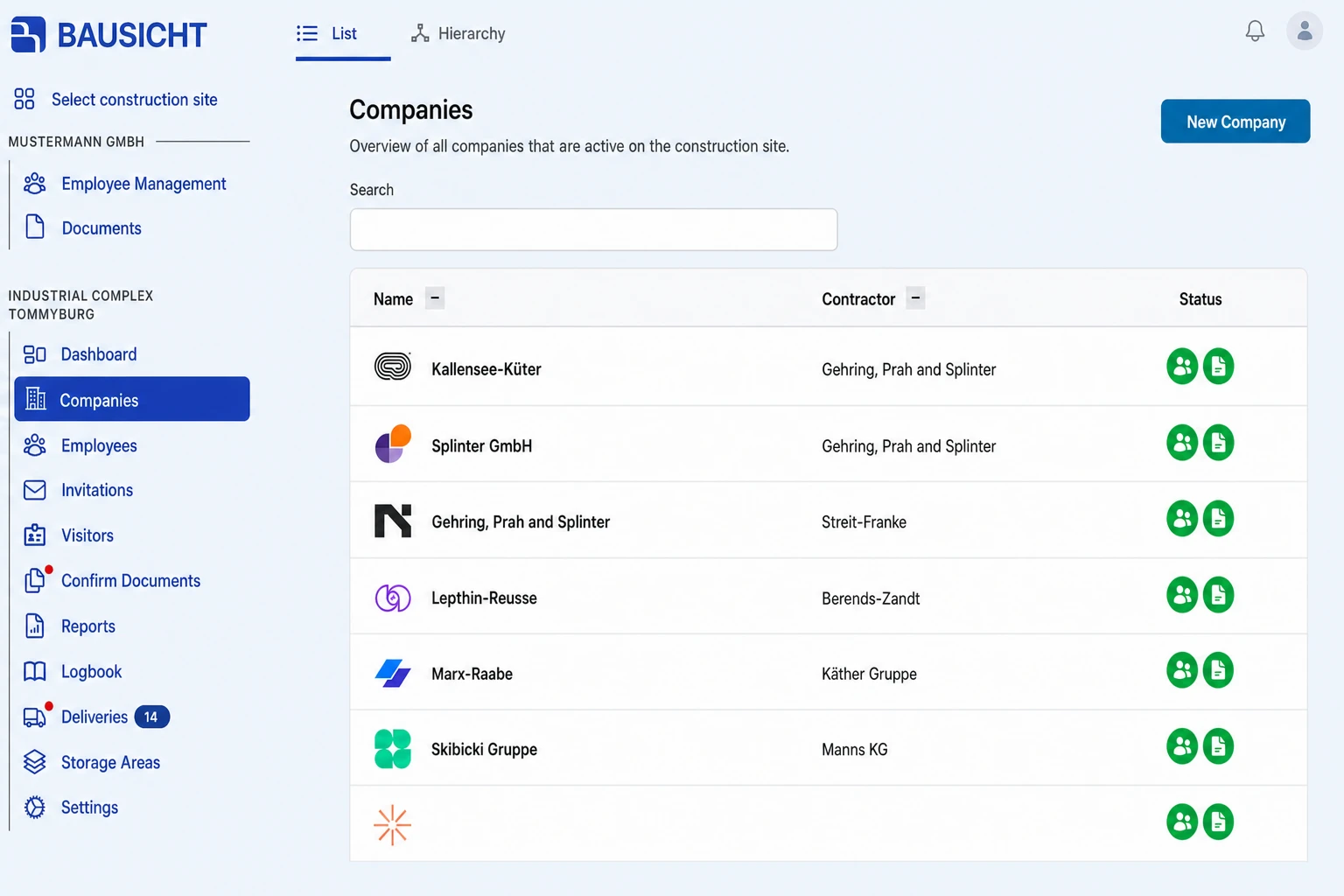
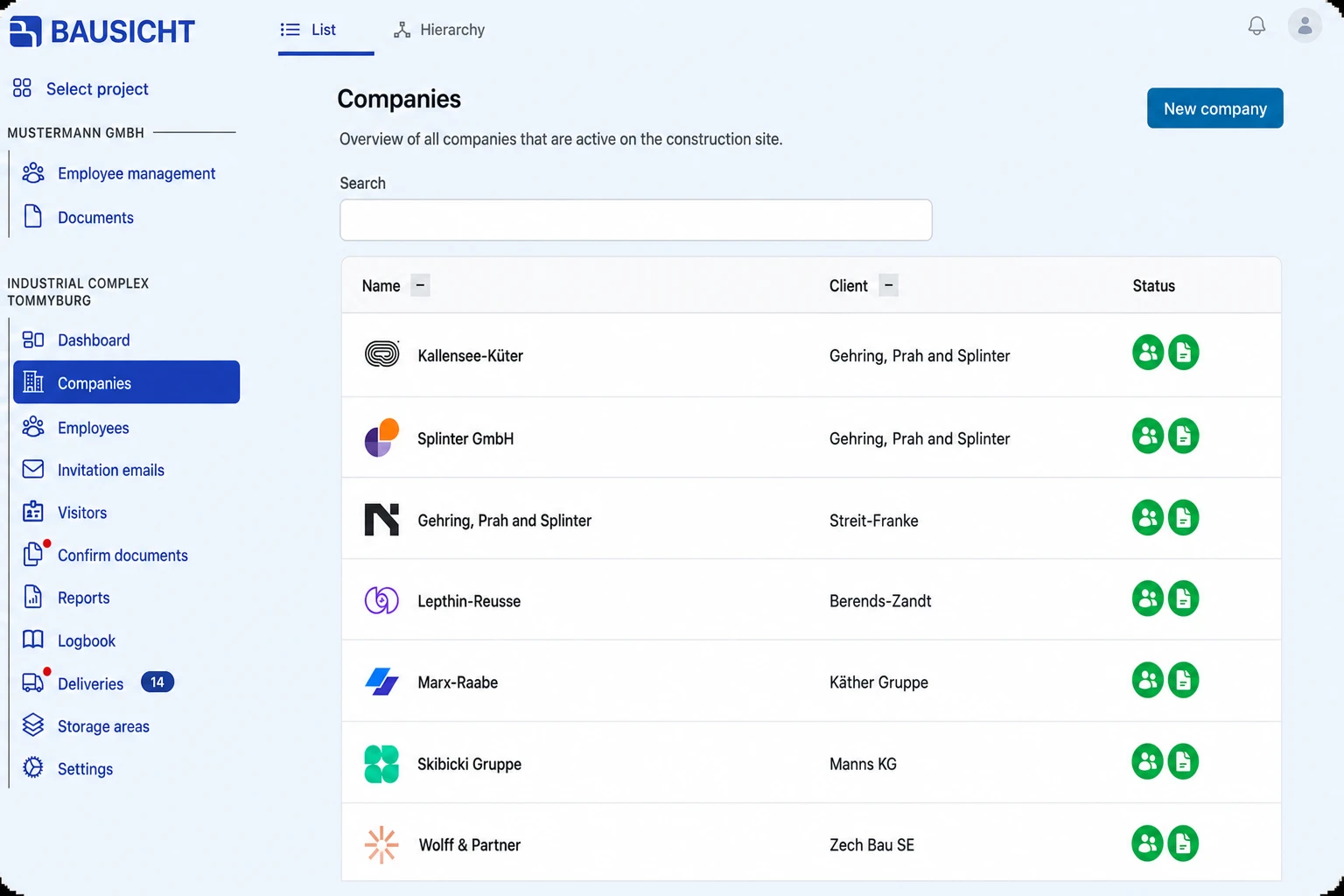
Step 2: Select the subcontractor
Select the subcontractor you want to open the detail view.
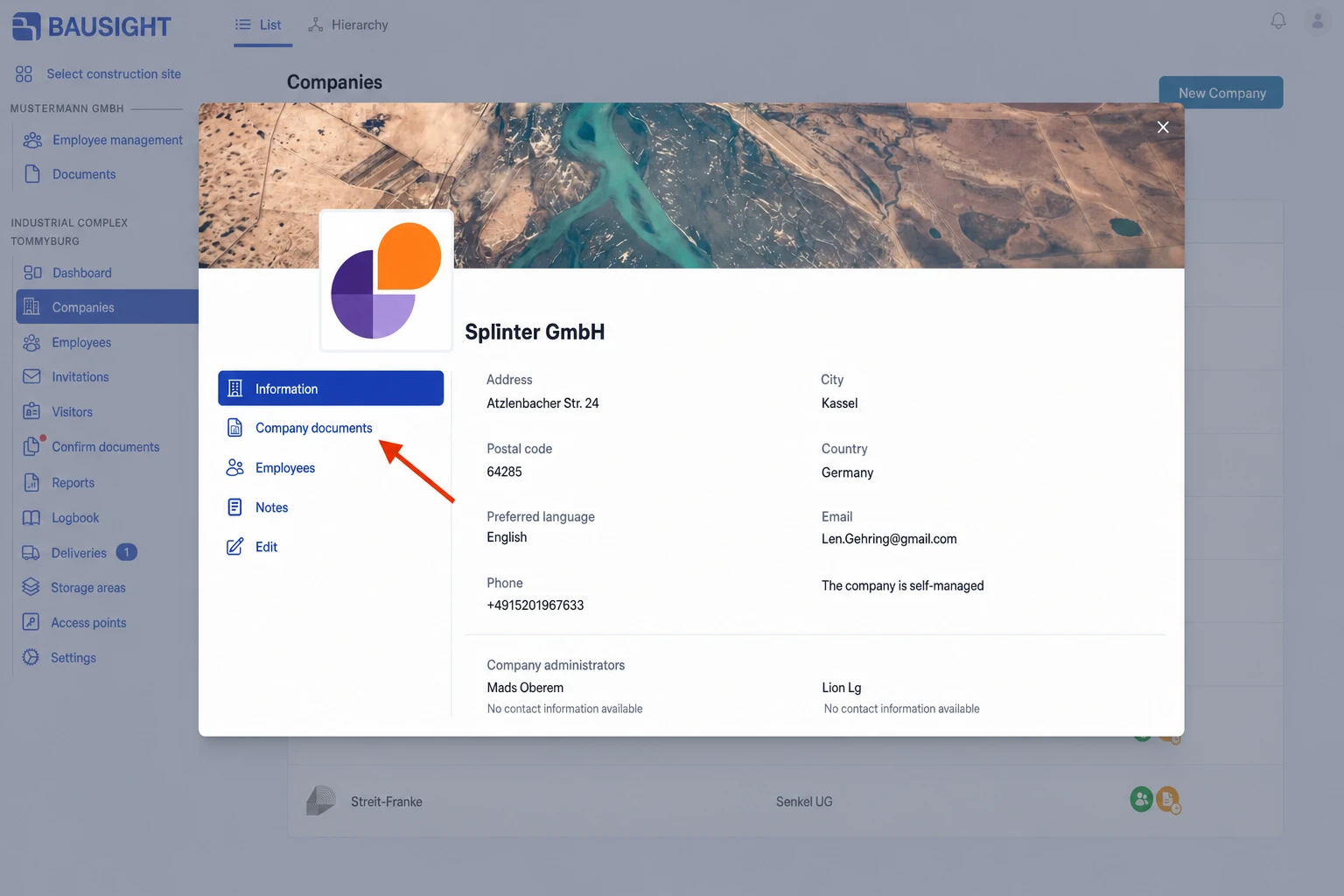
Step 3: Click Company documents
Click the “Company documents” section in the left-hand sidebar.
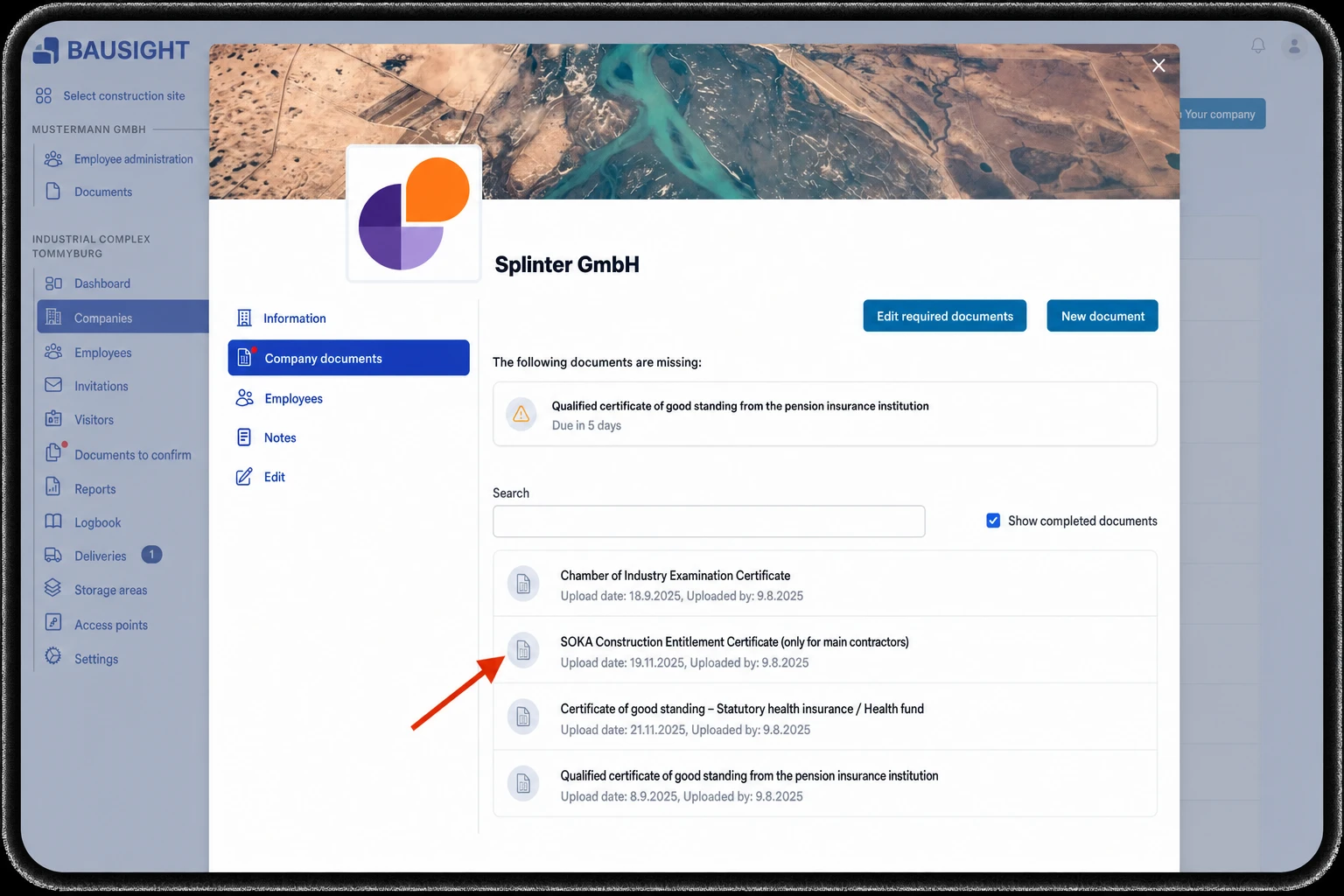
Step 4: Select the document
Select the document you want from the list.
Step 5: Choose Delete and confirm
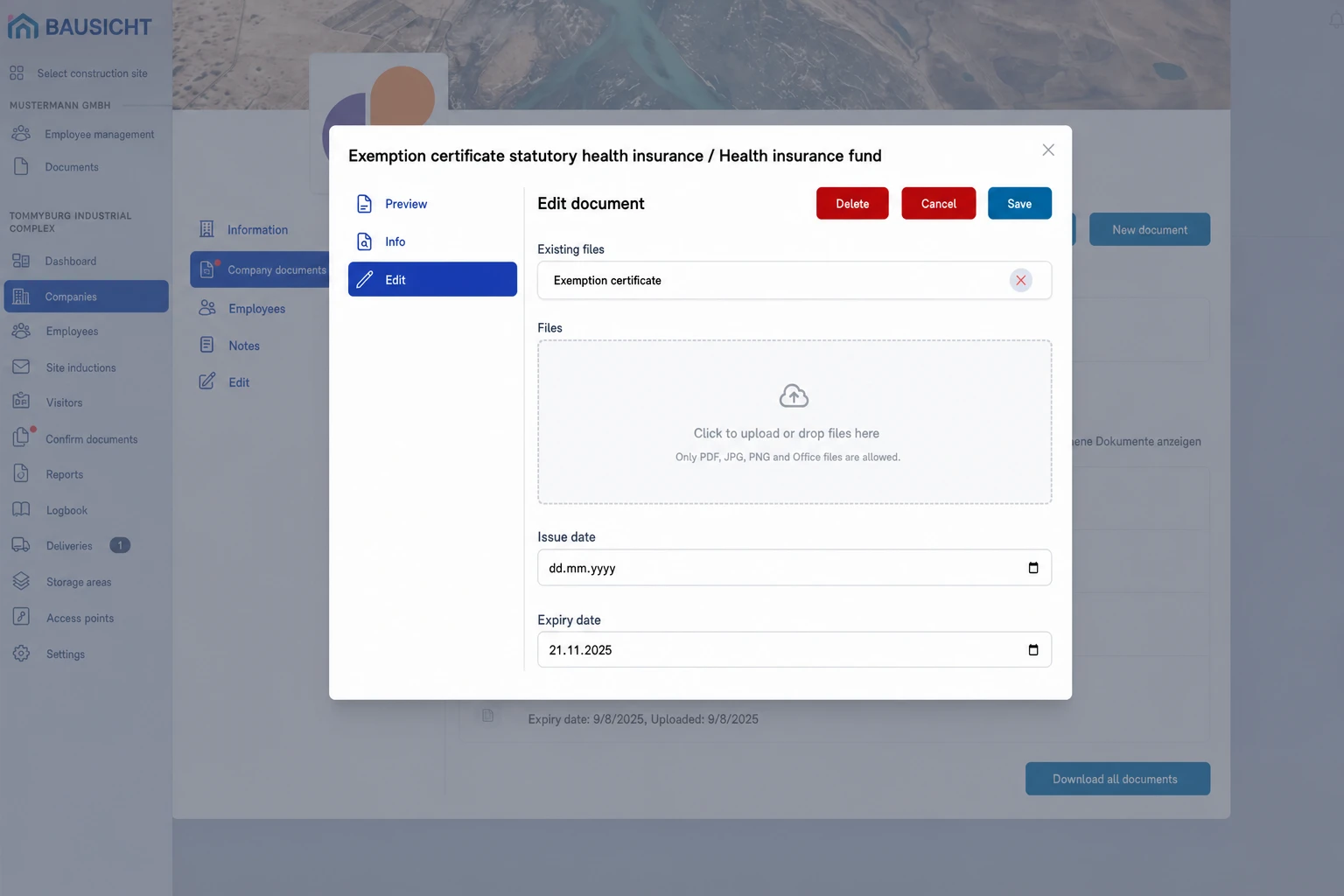
In the document, click “Edit”, select “Archive”, click “Delete” and confirm the action. The document is archived and is then no longer visible.
II. Deleting a subcontractor’s employee documents
Step 1: Open “Companies” in the left-hand navigation
Go to the “Companies” section in the left-hand navigation.
Step 2: Select the subcontractor
Select the subcontractor you want to open the detail view.
Step 3: Click Employees and select the person
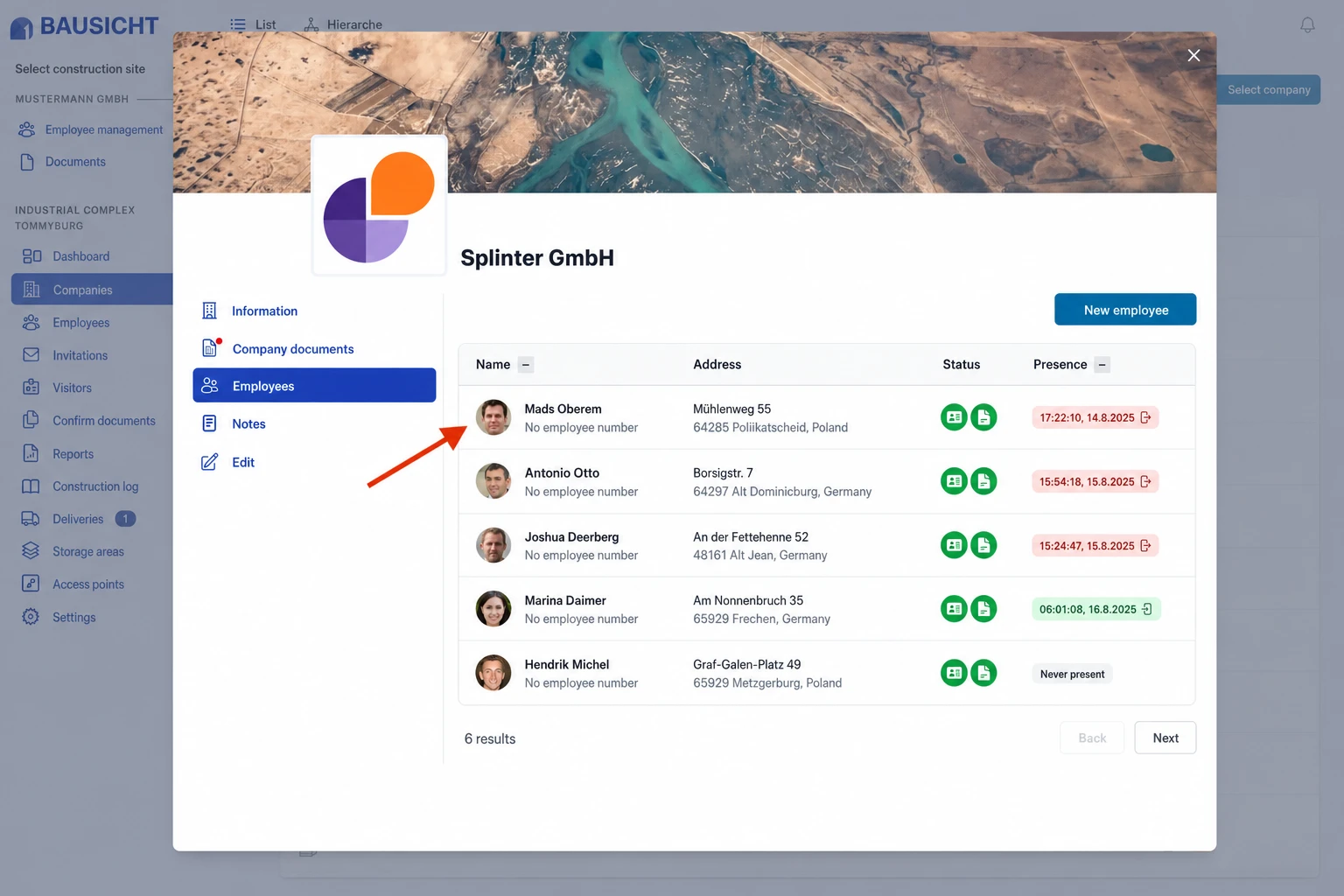
Go to the “Employees” section and select the relevant person.
Step 4: Open the documents and click the document you want
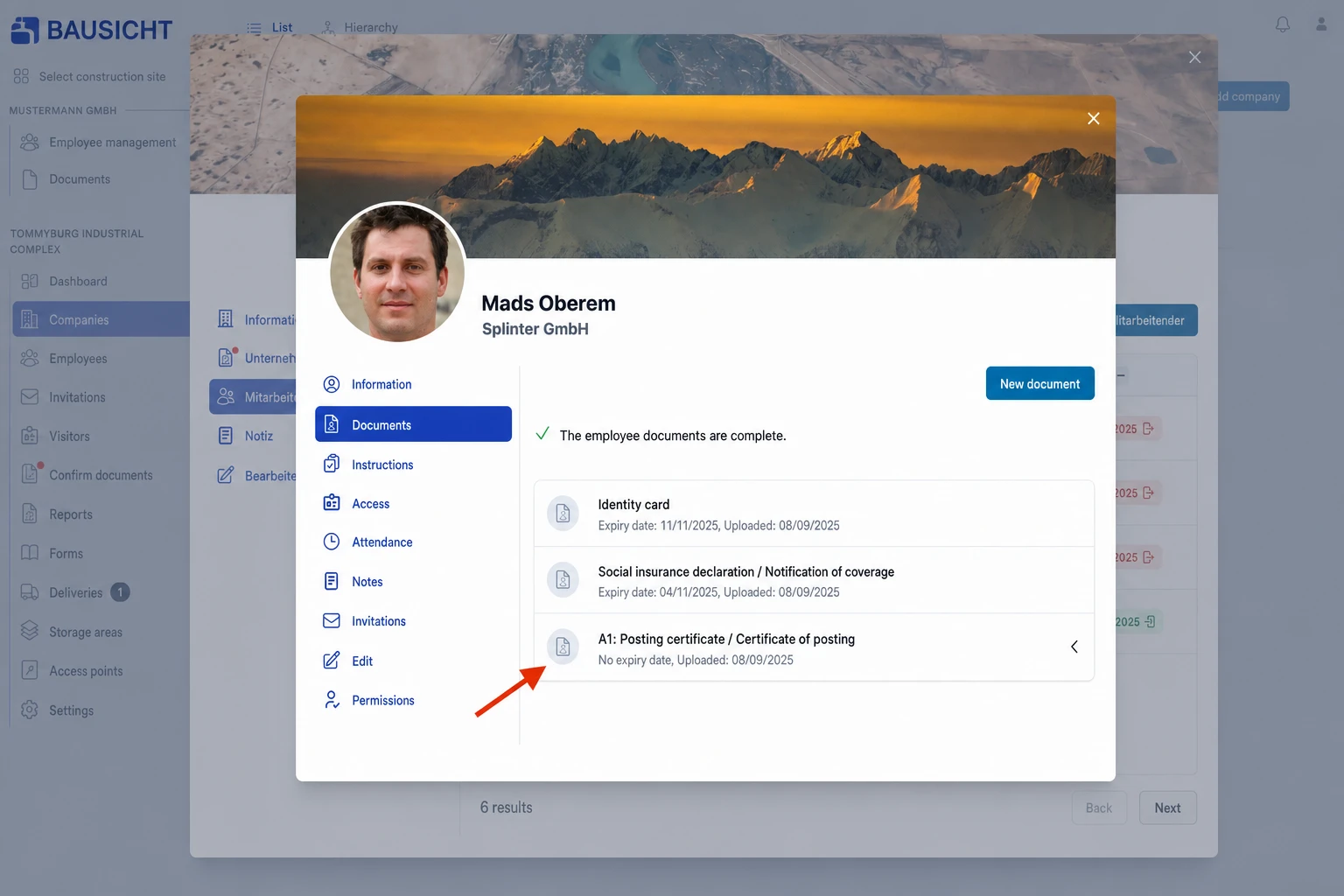
Click the “Documents” section and select the relevant document.
Step 5: Choose Delete and confirm
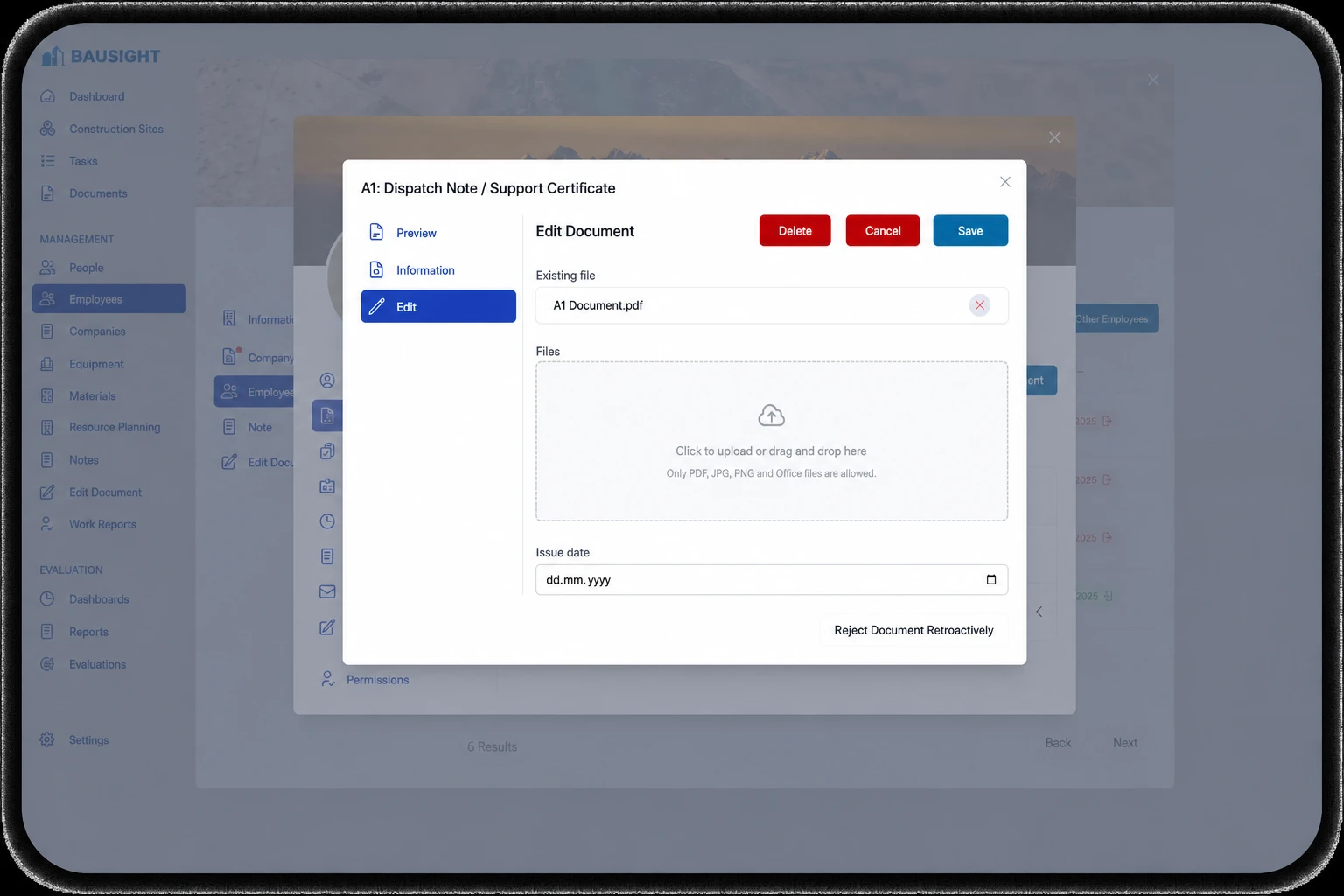
In the tab, click “Edit”, select “Archive”, click “Delete” and confirm the action. The document is archived and is then no longer visible.
Need further help?
If you need further assistance with deleting subcontractor documents, our support team is happy to help.