
More articles and topics
Attachments for delivery bookings (photos and files)
- Where to find it
- Deliveries → Bookings → booking → File → Add file
- How to check the result
- The uploaded image or document is attached to the delivery booking.
Quick answer
Open Deliveries → Bookings → [Booking] → Files → New file and upload the image or document. Attachments can be added when creating or accepting a booking.
When creating or accepting a booking, you can now add images and documents, for example of the condition of the goods or the delivery note. This keeps the process traceable if problems arise and lets you document evidence.
When can you attach files?
You can add attachments at two points:
- When creating a booking.
- When accepting a booking.
This way, relevant documents are stored directly with the matching process and can be found again at any time.
Add a file to a booking
Follow this path to attach a file to a booking:
Deliveries → Bookings → Open booking → Files → New file
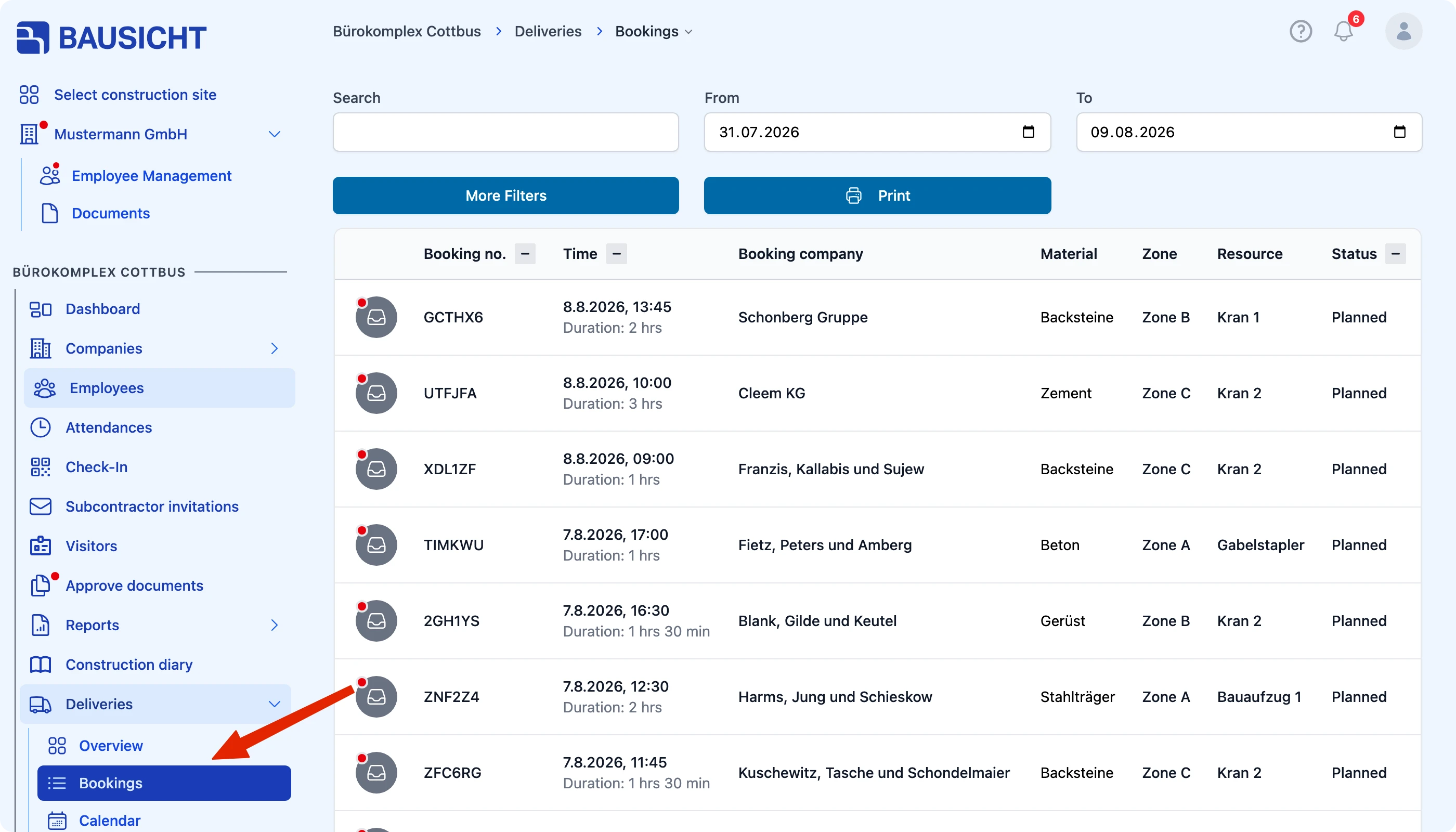
| Step | Description |
|---|---|
| 1 | In the navigation, open Deliveries → Bookings. |
| 2 | Open the booking you want. |
| 3 | Switch to the Files tab. |
| 4 | Click New file and upload the image or document. |
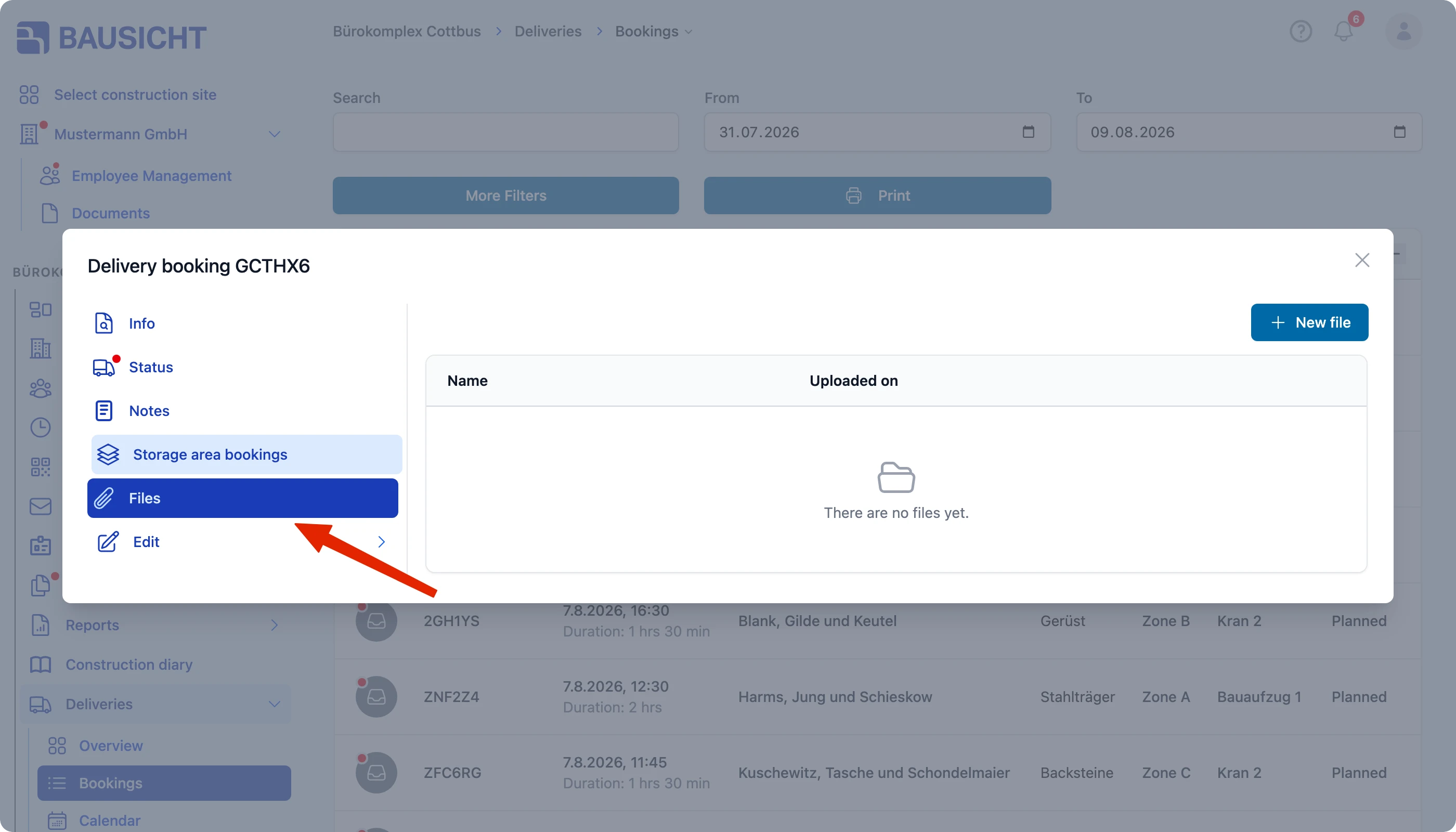
Note: Attach meaningful documents such as photos of the condition of the goods or the delivery note, so the process stays traceable if problems arise.
Need further help?
If you need further assistance, our support team is happy to help.