Before you start, collect as much information as possible: card, construction site, controller ID, time, affected direction and the entry under Failed access attempts.
Where to find it
Employees or Visitors → Failed access attempts; then the hardware at the affected access point
How to check the result
After each step, check the online status, reader colour, mechanical movement or relay response.
Guided quick diagnosis
Answer up to two short questions. You will get matching first checks and a link to the complete instructions.
On this page
Quick answer
Record the card, construction site, controller ID, time, affected direction and the reason shown under Attendances → List (filter Failed entry attempts only). Then choose the matching symptom in the quick diagnosis; if the problem remains, check power, mechanics, DIP switches, manual opening and relay wiring in order.
First: gather information
Before you start troubleshooting, collect as much information as possible:
Which card was used?
At which turnstile/barrier (controller ID) did the problem occur?
On which construction site is the device located?
At exactly what time did the error occur?
Is only the entry failing, or is the exit affected as well?
Which reason is shown under Attendances → List? Under More filters, choose the type Failed entry attempts only; the list includes both employees and visitors.
Quick diagnosis: Which symptom are you seeing?
Turnstile is offline
Under Access points → List, the Online status column shows whether the controller reports to Bausicht regularly (e.g. Online, Briefly offline, Offline, Offline for a long time). An offline status means that the connection between the controller and Bausicht is missing.
Steps to check:
Check the power: Are the card readers lit? If not, check the power outlet, the cables and both RCD breakers.
Check the router and WAN port: Does the router have power and is a SIM card inserted? The WAN port must remain empty. If a cable is connected there, move it to a LAN port, such as LAN1. On the RUT200, connect the i-door controller to port 1 (LAN) and leave port 2 (WAN) empty.
Check your own SIM card: Test the card in a phone with Wi-Fi off and mobile data on. Disable any active SIM PIN lock in the phone’s SIM settings.
Check the antennas: Are both mobile antennas properly screwed onto the “mobile” connectors, mounted outside the turnstile and aligned?
Is the device still in operation? A dismantled turnstile remains offline in the list until the access point is moved or deleted.
Then check at app.bausicht.com > Access points → List whether the turnstile is shown as Online again. After switching on, this can take 3–5 minutes.
One reader lights up red, the other yellow
Example: the exit reader lights up red, the entry reader lights up yellow.
Cause: The reader lit yellow has no connection to the controller (e.g. broken or loose cable).
Solution: Check the cable connection at the yellow-lit reader and reattach it correctly.
Card readers light up green-yellow
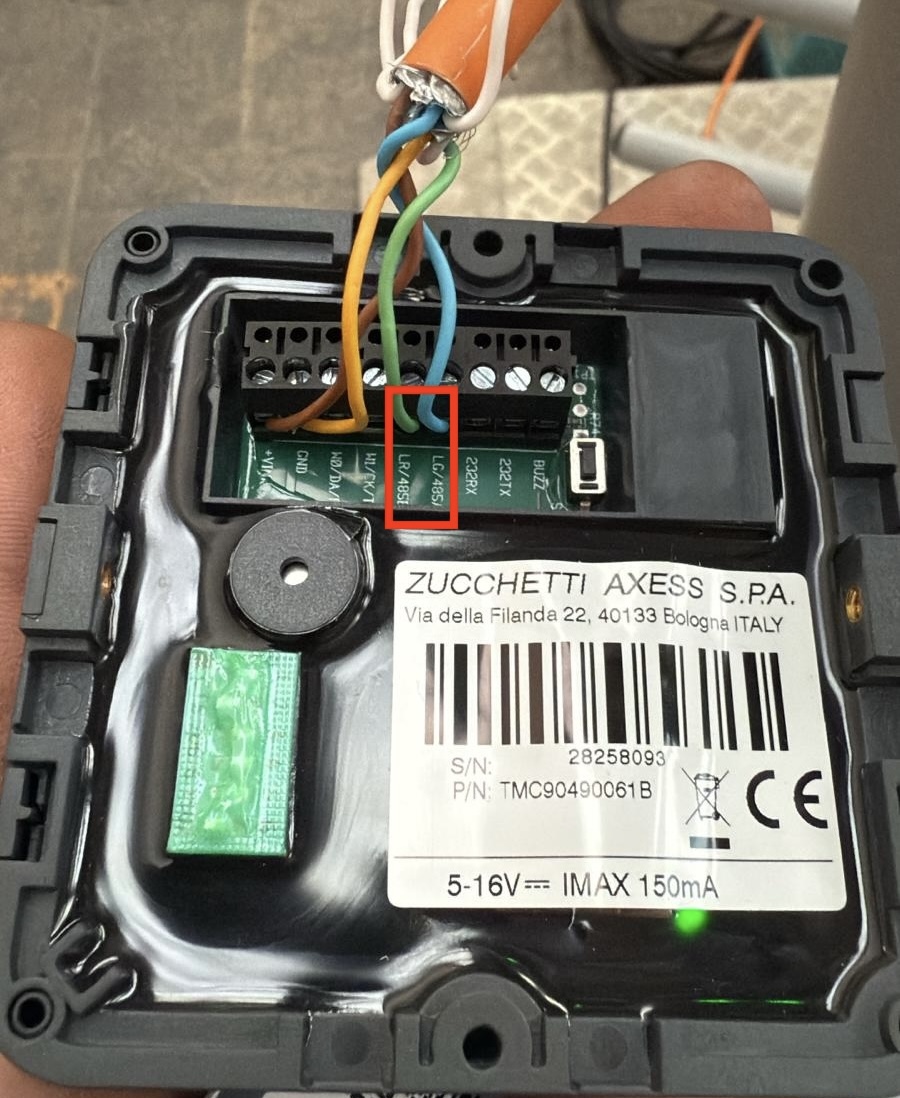
Cause: Most likely the controller has no power, or D+ and D- on the controller are swapped.
Steps to check:
Check the power supply: Is the controller receiving power?
Check the wiring: Inspect D+ and D- on the controller - they may be swapped and need to be switched.
If power and wiring have already been checked: A configuration file on the controller may have reset itself. Re-upload the following files via Teltonika RMS:
PARAMETERS.TXT
SLAVE1_READER1.TXT
SLAVE2_READER1.TXT
One reader lights up purple and the other blue - or both light up blue without responding
Cause: A cable on D+ or D- has a loose contact.
Steps to check:
Check the cables on D+ and D- at the controller and at the card reader - are they seated firmly in the terminal?
Reconnect loose cables correctly and check for damaged wires.
Only the exit works, the entry does not
Cause: Most likely, access is being deliberately denied by Bausicht. Common reasons:
Missing or expired documents of the person or their company
Missing or expired safety briefing
Access attempt outside opening hours
Missing authorisation for the access area
Duplicate access or anti-passback (according to the system, the person is already on the construction site)
Lockout period (e.g. no re-entry possible for XX minutes after exiting)
Access card not active (card blocked), Person’s access expired or, for visitor cards, Access card expired
Solution: Check the exact reason under Attendances → List with the filter Failed entry attempts only. The cause is displayed there.
Card is read, but no passage (failed access attempt in Bausicht)
Cause: The controller is not receiving a passage signal from the turnstile or barrier.
Steps to check:
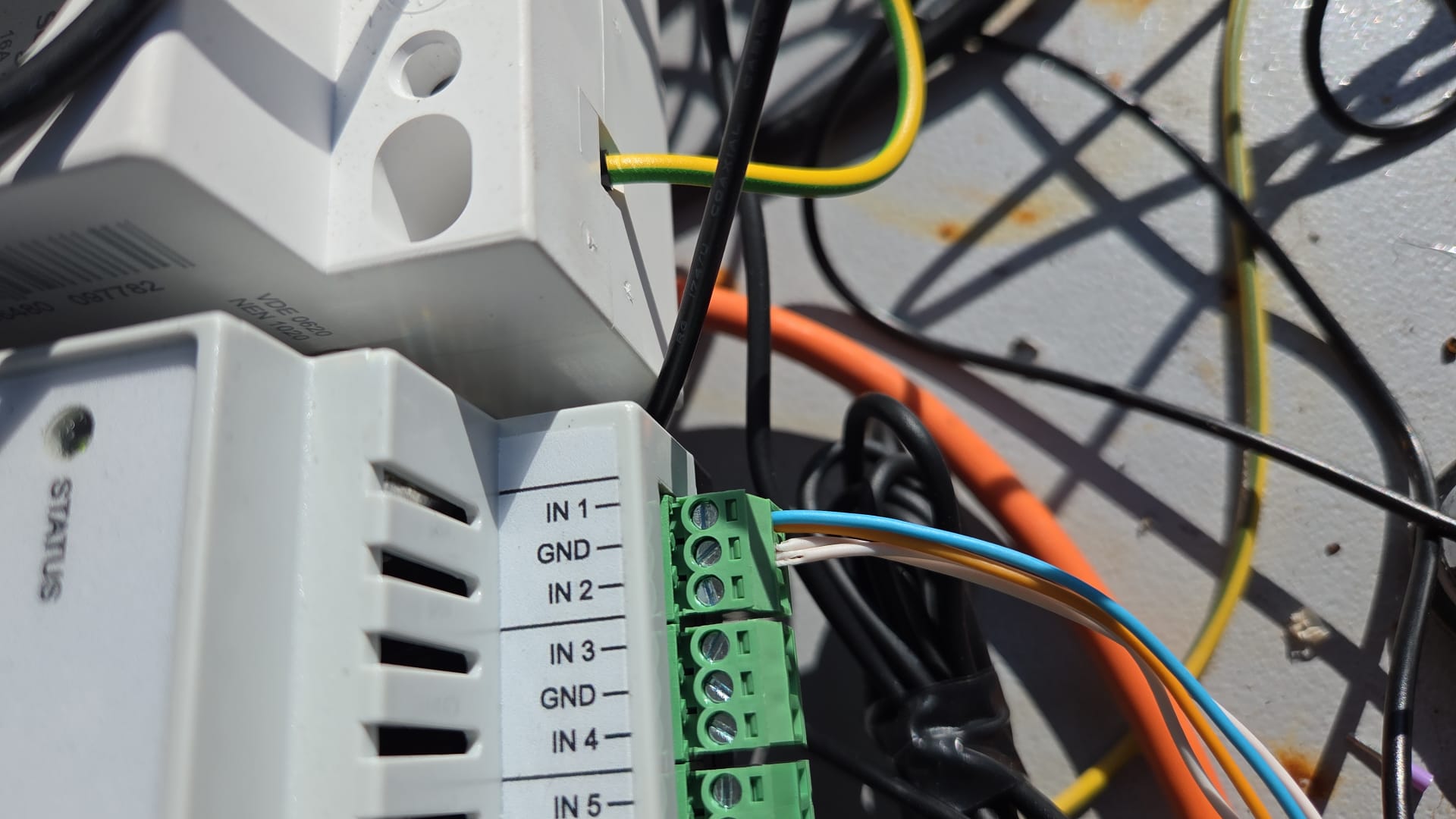
Check the signal cable: Inspect In1 / GND on the controller.
If no return signal arrives (e.g. with a door or barrier without a passage sensor): Send an email to support@bausicht.com with the construction site and controller ID, asking to change the GateType from 2 to 0.
Nothing happens when holding up the card - but everything has power and is connected
Check first: In app.bausicht.com, under Attendances → List with the filter Failed entry attempts only, is the reason “Card read, no entry” displayed?
If yes: The return signal from the turnstile is missing. There are two options:
Connect the return signal: Connect the signal cable to IN1 and GND on the controller.
Adjust the GateType: In the parameters, set gate1 → gateType = 0.
Advanced administrators can change this setting directly in Bausicht.
Everyone else should contact Bausicht support.
If no: Continue with the following checks.
Possible cause: The turnstile was recently disconnected from power.
Steps to check:
Was the turnstile disconnected from power in the last few minutes?
If yes: The turnstile may be offline or may not have the current time yet (e.g. the clock battery has not been inserted yet or is empty).
Solution if the time is missing: Simply wait 60-90 minutes - the turnstile synchronizes automatically.
Check at app.bausicht.com > Access points → List whether the turnstile is shown as Online. If it is offline, work through the steps under Turnstile is offline.
Turnstile spins freely in one direction
Possible cause 1: No power.
Solution:
Check the power outlet - is the outlet working?
Check the cables - are all cables connected correctly?
Check the RCD breakers - the RCD breakers may have tripped. There are 2 RCD breakers; both must be checked and switched back on if necessary.
Possible cause 2: The key at the bottom of the turnstile was turned.
This mechanically unlocks the turnstile in one or both directions.
Solution:
Stand under the turnstile and look up.
From below, insert the key and turn it to undo the mechanical release.
Turnstile spins several times
Possible cause 1: The relay on the controller releases for too long, so the turnstile allows several rotations.
Under Access points → List, select the affected turnstile.
Open the Configuration tab and click Retrieve parameters.
Wait a moment until the parameters have loaded.
Search for “Gate1” with CTRL + F.
Check the value of RelayActivation there.
Normal value: The usual value is 5 (corresponds to 0.5 seconds). If the value is significantly higher, the relay releases for too long and the turnstile spins several times.
Solution: Set RelayActivation back to 5.
Advanced administrators can change this setting directly in Bausicht on the Configuration tab (permission Can edit parameters of access points.).
Everyone else should contact Bausicht support (with the construction site and controller ID).
Possible cause 2: The pressure points do not make contact because something in the turnstile’s mechanics is not seated correctly.
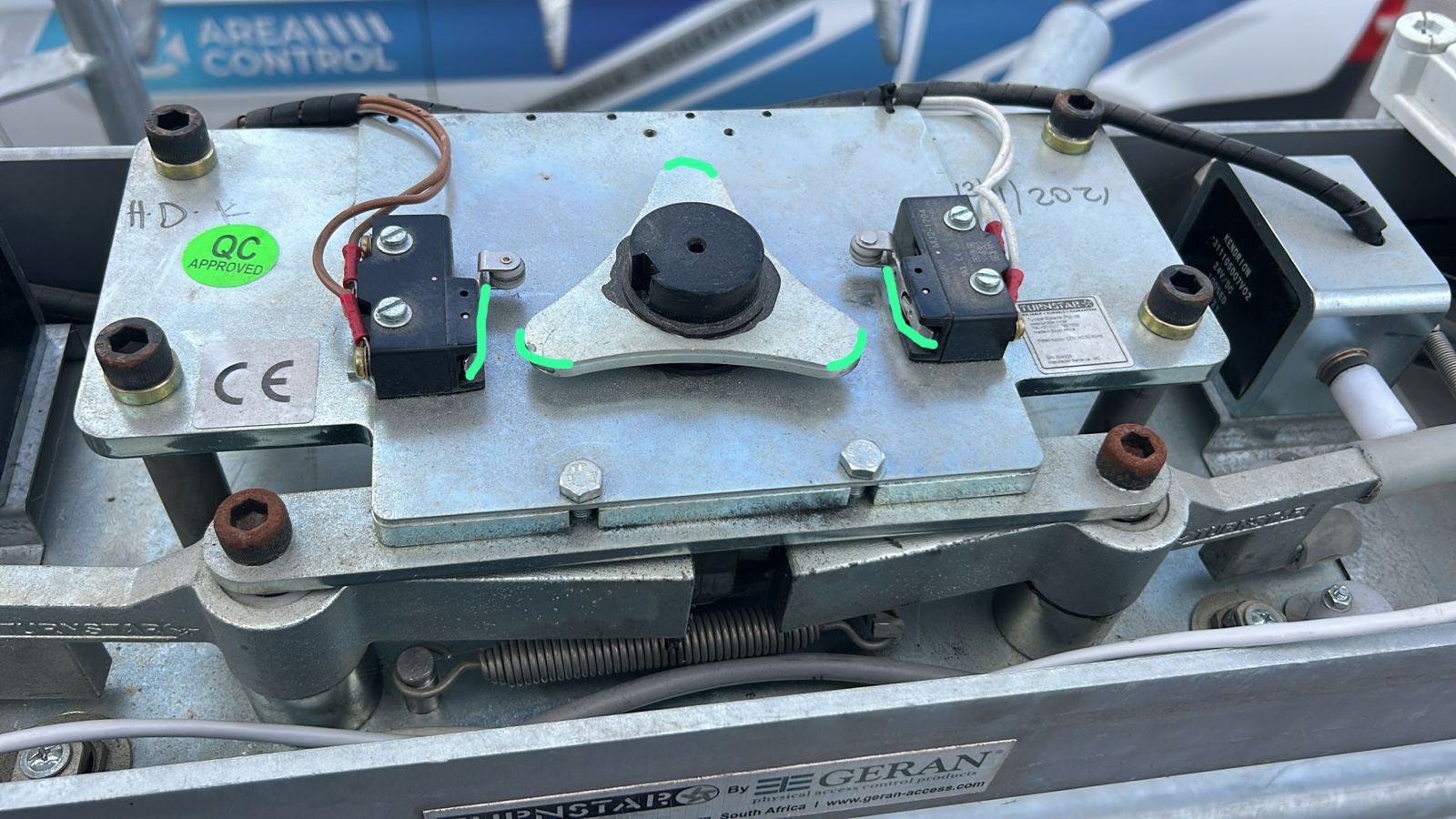
For the turnstile to lock again after one rotation, the levers of the microswitches must be actuated cleanly by the central cam (triangle). If the mechanics are not seated correctly, the pressure points are no longer triggered - the turnstile does not lock and spins several times.
Solution: Check the mechanics at the top of the turnstile and make sure that the pressure points of the microswitches (marked green in the image) are correctly touched and triggered by the cam.
Watch the mechanics live: To narrow down the problem further, you can stand on top of the turnstile and trigger the mechanics manually (possible on some turnstiles) or hold a card against the reader and then observe where it gets stuck.
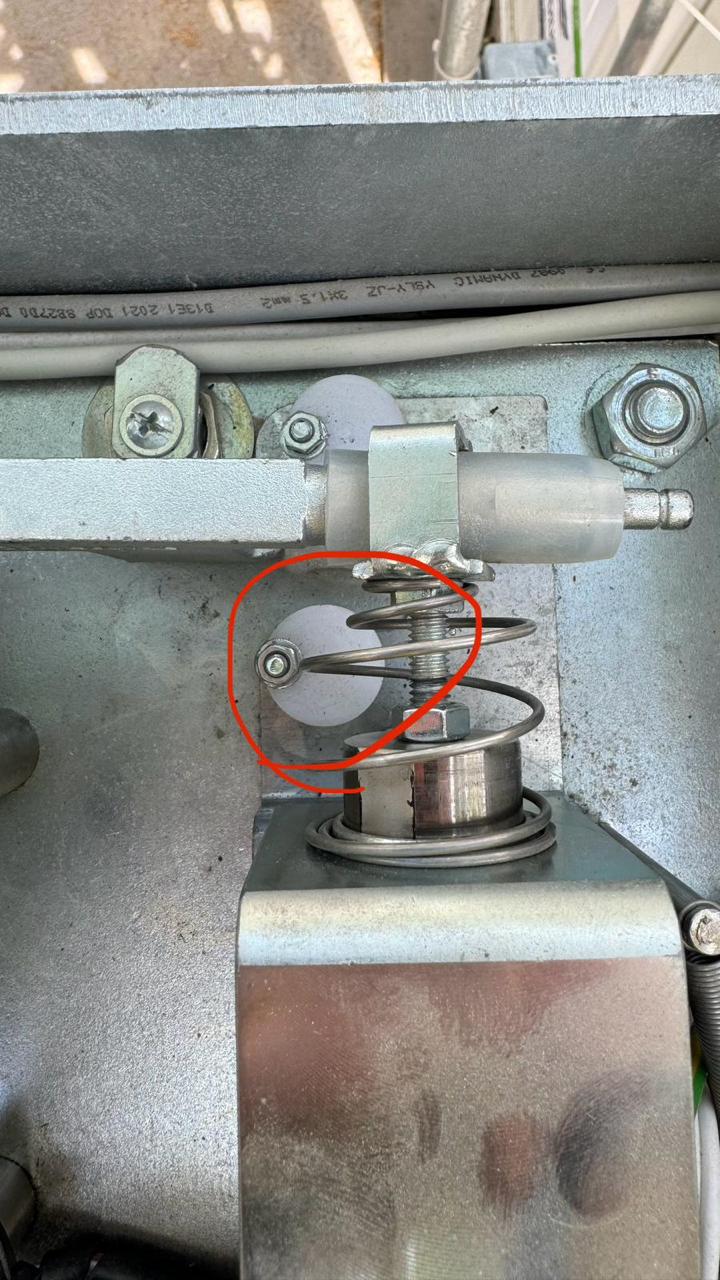
Possible cause 3: The roller/spool does not engage properly. Often a spring in the mechanism has slipped or come loose and no longer comes out properly.
Solution:
Unscrew the affected part.
Tension the spring again and hook it in correctly.
Additionally, spray a little WD-40 onto the pressure points.
Both card readers flash red and beep
Cause: Probably a short circuit in the turnstile’s return signal.
Steps to check:
On the controller, pull out the green IN1 and GND connector.
Check whether the beeping stops.
If yes: The GateType must be adjusted. Set gate1 → gateType = 0.
Advanced administrators can change this setting directly in Bausicht.
Everyone else should contact support and be sure to include this information (construction site, controller ID, and that the GateType must be set to 0).
If no: Continue with the systematic troubleshooting below.
Systematic troubleshooting (step by step)
If the quick diagnosis above did not help, work through the following steps in order.
Step 1: Check the power supply
Does the turnstile spin freely? (In one or both directions?)
Are the card readers lit?
No: The power is probably off. Restore the power supply.
Yes: Continue with step 2.
Step 2: Check the mechanics - does the turnstile lock properly?
If the card readers are lit but the turnstile spins freely (without a card):
A mechanical part of the turnstile may be bent.
In rare cases: a short circuit keeps the turnstile permanently unlocked (unlikely).
Step 3: Check the DIP switch settings
Check the DIP switch settings on the turnstile:
Fail-safe vs. fail-secure: Determines the behavior during a power outage.
N.C. vs. N.O.: We use N.C. (Normally Closed).
Note: Some turnstiles (e.g. Turnstar) have keyholes on the underside that can be used to change the settings. A key is inserted from below and turned.
Step 4: Test manual opening
Many turnstiles have a lever or button that lets you simulate an entry or exit.
How to test:
Locate the levers on the turnstile (one lever for entry, one for exit).
Pull one of the levers and check whether the turnstile opens far enough.
Don’t worry about breaking anything - simply pull the lever and test.
Step 5: Short circuit test (relay test)
Perform a short circuit test on both the entry and exit relay (where Rly1 and Rly2 are connected).
You can find instructions for the short circuit test on the tools explanation page.
If the short circuit test does not work: Continue with step 6.
Step 6: Check the relay wiring
Check the Rly1 and Rly2 connections:
Are the cables seated correctly on the controller?
Are the cables seated correctly on the turnstile?
Are any cables loose or damaged?
Special case: turnstile cannot be opened far enough manually
If the turnstile cannot be opened far enough even manually (using the lever), there is a mechanical problem. This is rare and should be considered a last resort.
Solution (using Turnstar as an example):
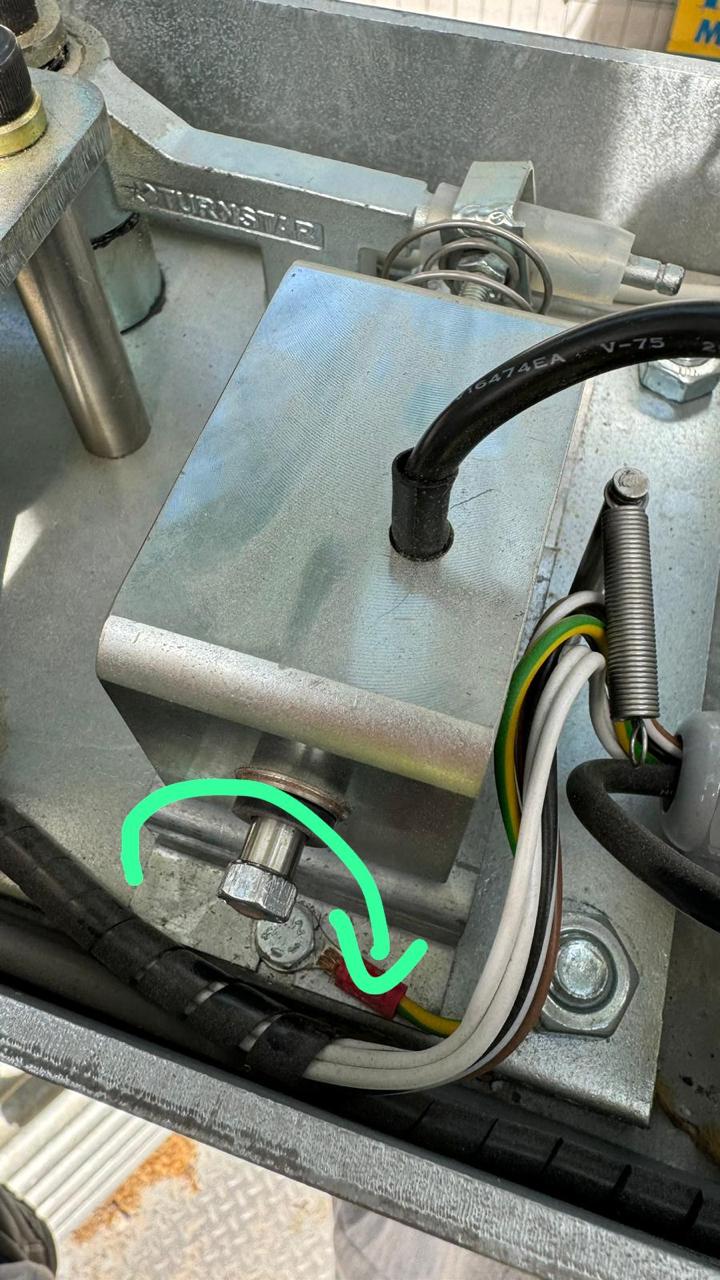
Locate the hex nut on the rotation mechanism (see image 1, marked in red).
Turn the hex nut.
Then turn and adjust the white adjustment element to set the lever correctly.
Need further help?
If you could not solve the problem with the steps above, contact our support team. Please have the following information ready: