
More articles and topics
Special opening hours per employee group
- Where to find it
- Settings → Employees → Employee groups
- How to check the result
- The group opening hours apply to assigned people; everyone else continues to follow the access points' default opening hours.
On this page
You can define opening hours that apply only to a specific employee group. All other employees continue to follow the access points’ default opening hours. This lets you grant individual groups different access without changing the general opening hours.
Quick answer
| Step | Description |
|---|---|
| 1 | Open Settings → Employees → Employee groups and create a group or open an existing one |
| 2 | Define the opening hours for this group |
| 3 | Assign the employees to the group in the person’s dialog under Edit in the Group field |
Step 1: Create or open a group
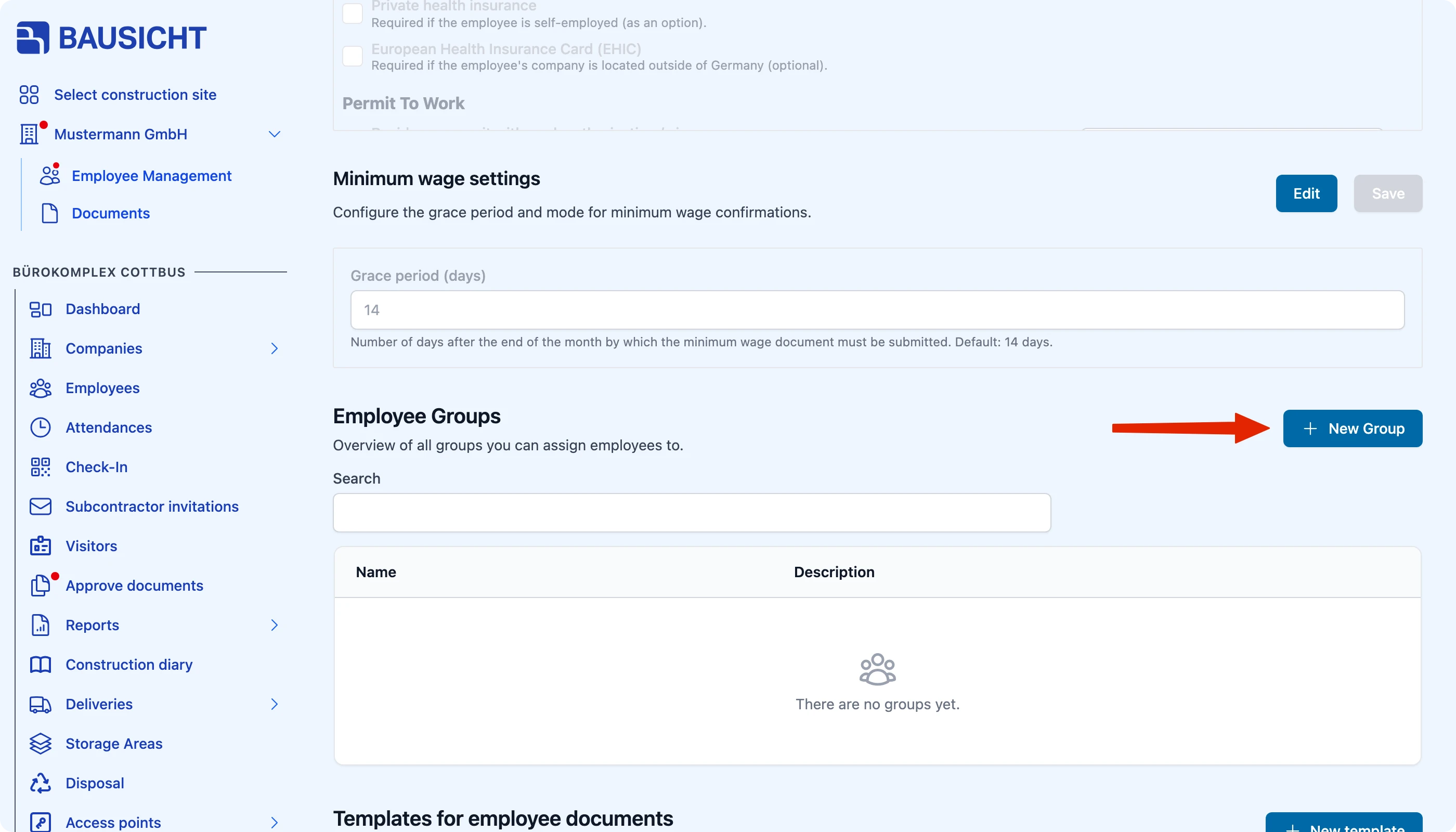
Open Settings → Employees → Employee groups.
There, create a new employee group or open an existing group for which you want to set special opening hours.
Step 2: Define the opening hours for the group
In the group, under Edit → Opening hours, define the times that should apply to this group.
These group-specific opening hours apply only to the members of the group. As soon as opening hours are entered for the group on any day, only these times apply to its members. Without entries, the general opening hours apply. All other employees continue to follow the access points’ default opening hours.
Step 3: Assign employees to the group
You do not make the assignment in the group but on the person: under Employees, open the person’s dialog, click Edit and select the group in the Group field. Then save.
The Group field only appears once at least one group has been created on the construction site and you are allowed to assign groups.
As soon as a person is assigned to the group, the group’s defined opening hours apply to them.
Need further help?
If you need further assistance, our support team is happy to help.