
More articles and topics
How do I use the permissions table?
- Where to find it
- Settings → Permissions table
- How to check the result
- The saved table shows permissions by construction site role; Download Excel exports the complete table.
On this page
The Permissions table puts all roles of your construction site side by side and shows, for every permission, which role holds it. Instead of opening each role individually, you compare them all in a single view – and adjust permissions directly in the table.
Quick answer
| Step | Description |
|---|---|
| 1 | Open Settings → Permissions table |
| 2 | Filter via Search for permission or Category |
| 3 | Click Edit to adjust permissions, then Save |
Step 1: Open “Settings → Permissions table”
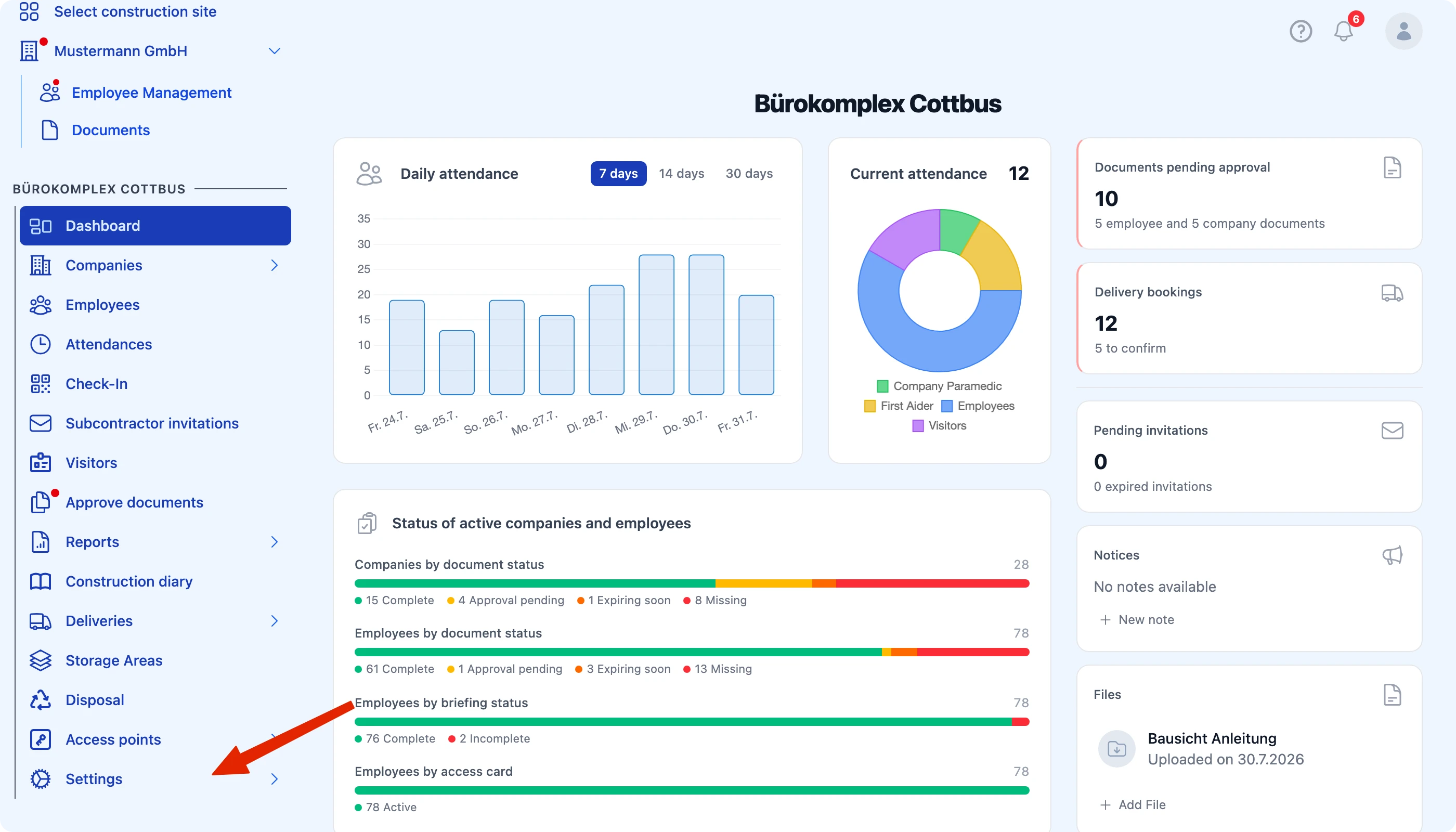
The first column contains the Permission, every further column stands for a role on the construction site.
Step 2: Filter deliberately
With several hundred permissions, filtering helps:
- Search for permission – full-text search across the permission names
- Category – restrict the view to one topic area
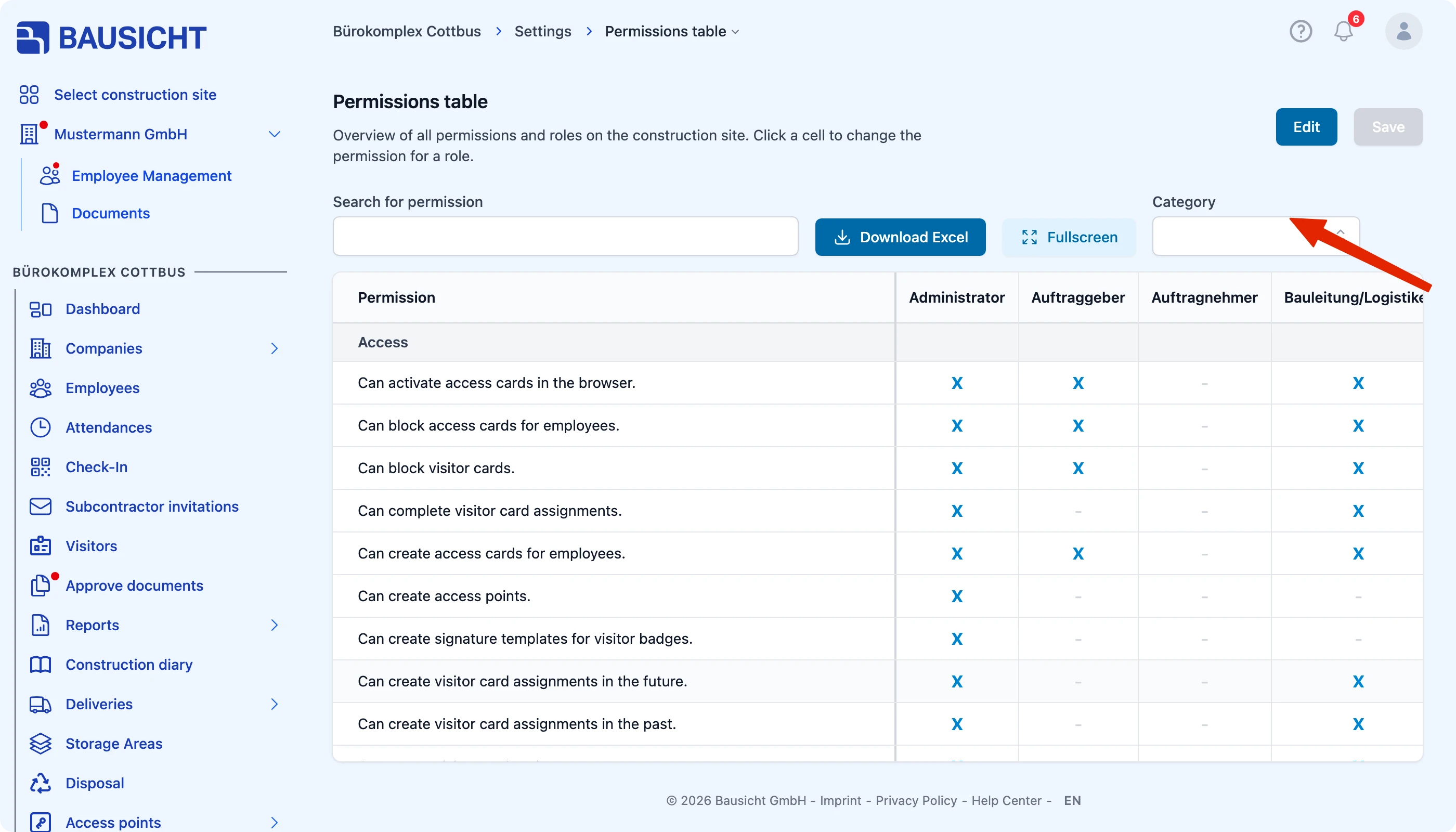
Fullscreen hides the navigation and gives the table more width.

Note: The table needs a wide screen. If the window is too narrow, the note Table view not available appears instead of the table. In that case use a larger window, the fullscreen view or the Excel export.
Step 3: Adjust permissions
Click Edit, set or remove the permissions you want and confirm with Save.
Exporting permissions to Excel
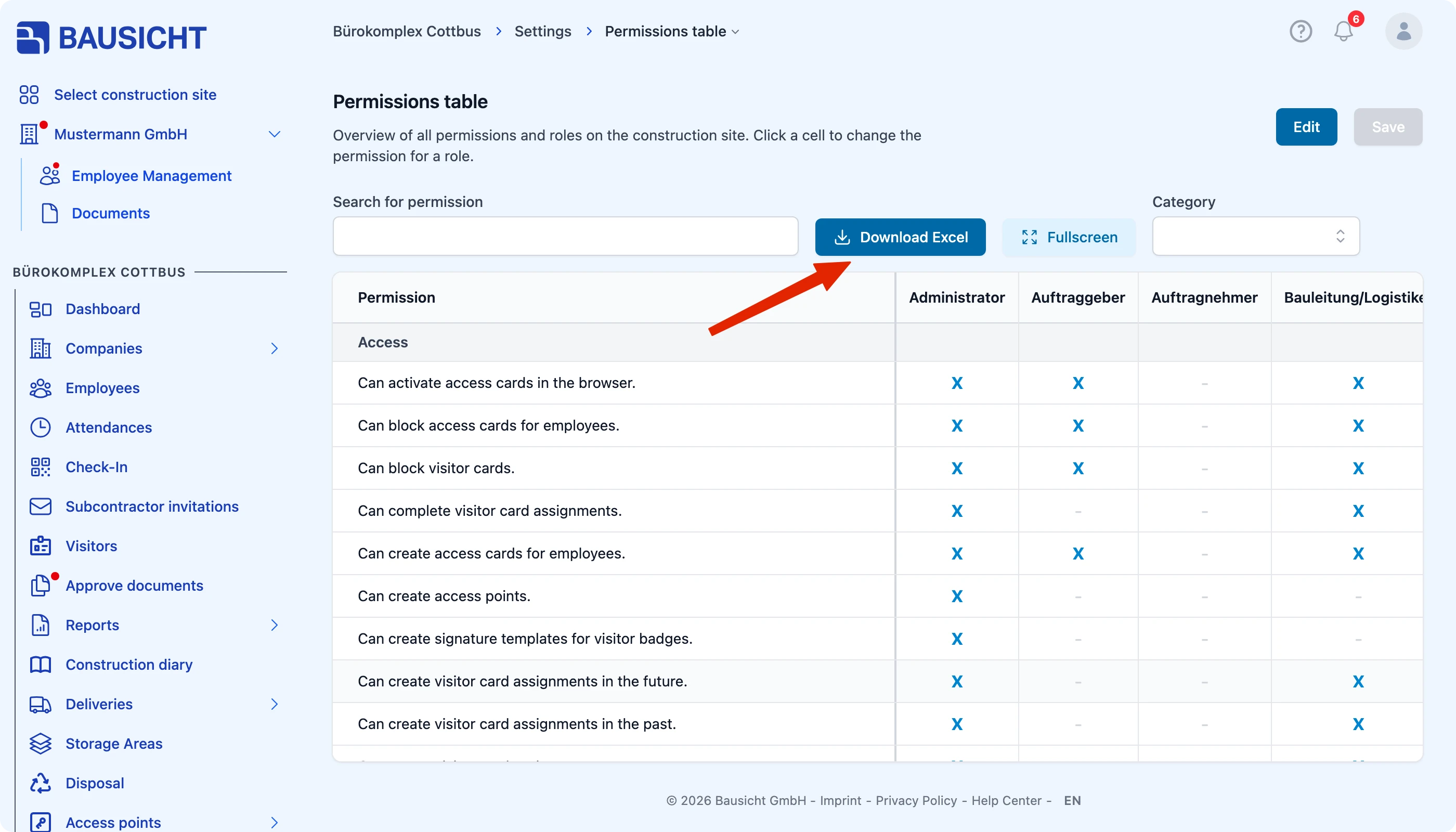
Download Excel exports the complete table. That is useful for team discussions, for audits or to document the permission state of a construction site.
Need further help?
If you need further assistance with roles and permissions, our support team is happy to help.