
More articles and topics
SSO: Setting up Microsoft Entra ID
- Before you start
- A Microsoft IT administrator account to link the company; the Bausicht password to link the user's own account
- Where to find it
- Profile settings → Microsoft account → Set up Entra ID
- How to check the result
- Entra ID is linked; the user import shows imported people for linking or creation.
Quick answer
Open Profile settings → Microsoft account → Set up Entra ID and link the company while signed in as a Microsoft IT administrator. Then enable Microsoft sign-in, link your own account and configure user import to link or create employees.
Video tutorial
Text
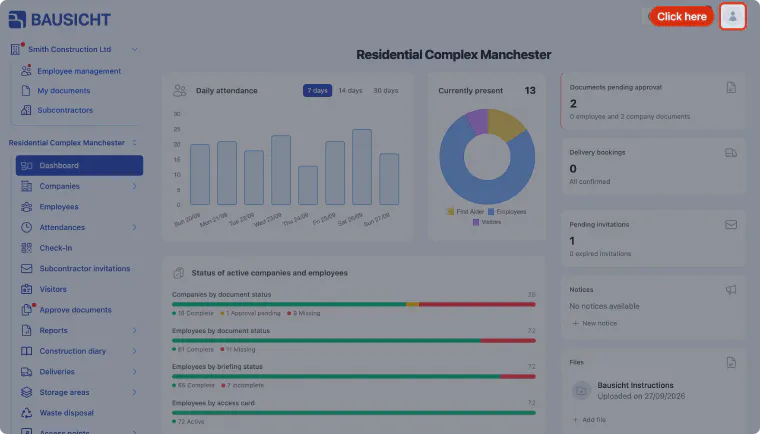
Step 1: Open the user menu
Click your profile picture in the top right corner to open the user menu.
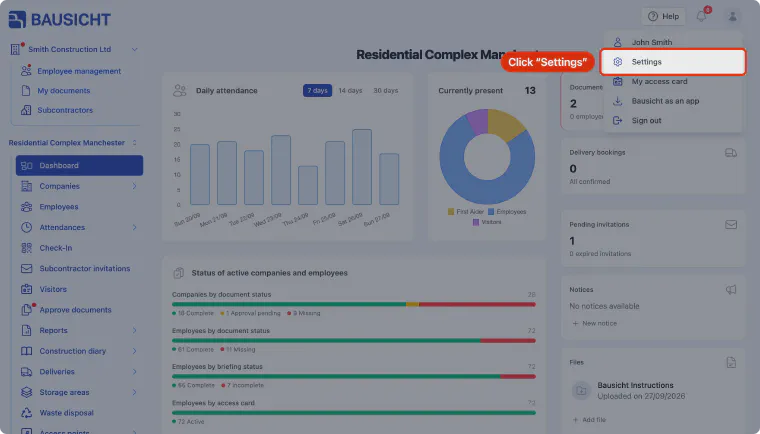
Step 2: Open the settings
Click Settings in the user menu.
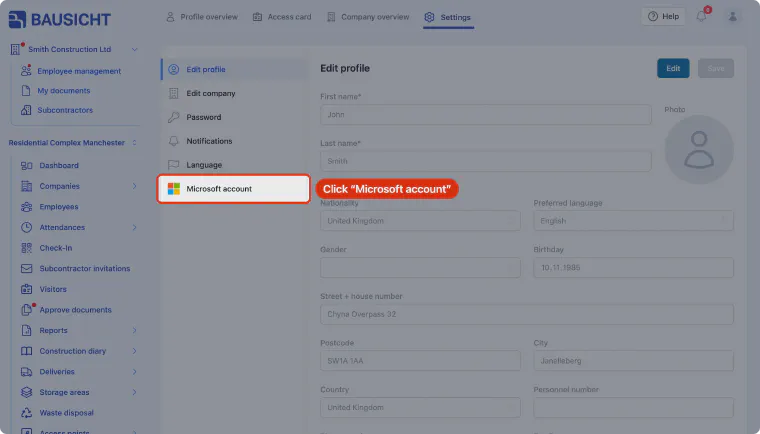
Step 3: Select Microsoft account
In the settings, select Microsoft account to start the SSO setup. The entry is only shown if your role in the company is allowed to set up or link Microsoft sign-in.
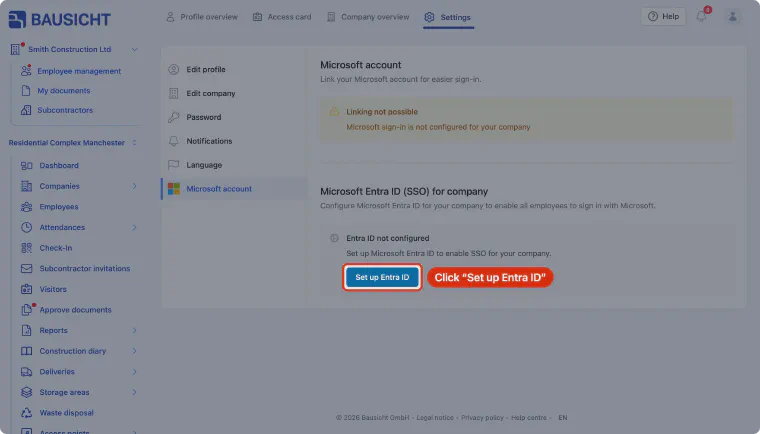
Step 4: Set up Entra ID
In the “Microsoft Entra ID (SSO) for company” section, click Set up Entra ID to establish the connection with Microsoft Entra.
Step 5: Link Microsoft Entra ID
Sign in to Microsoft as an IT administrator and link your company's Entra ID with Bausicht.
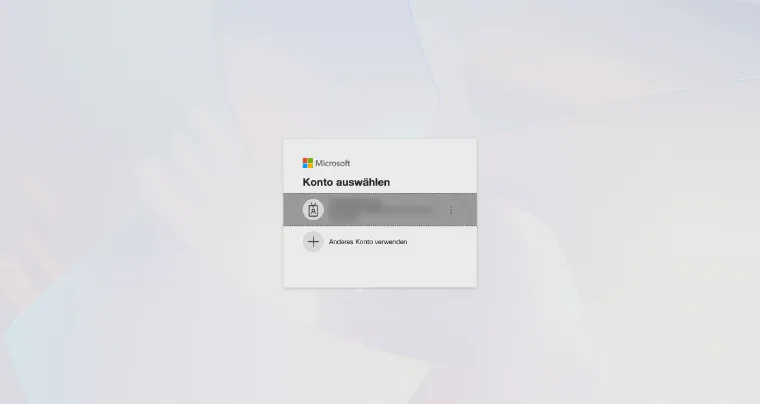
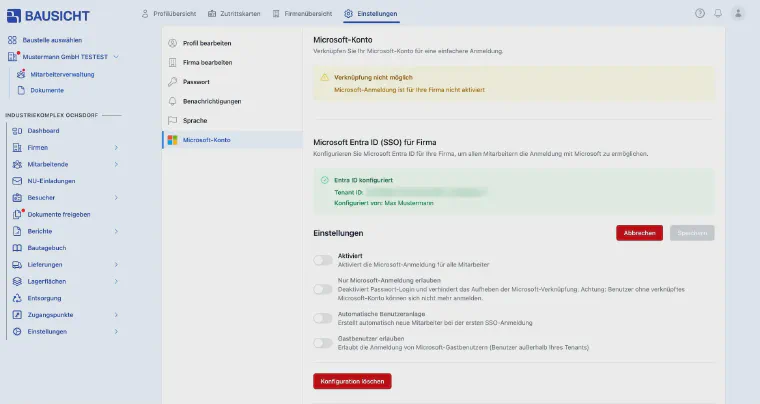
Step 6: Entra ID successfully configured
Your company's Microsoft account is now successfully linked with Bausicht.
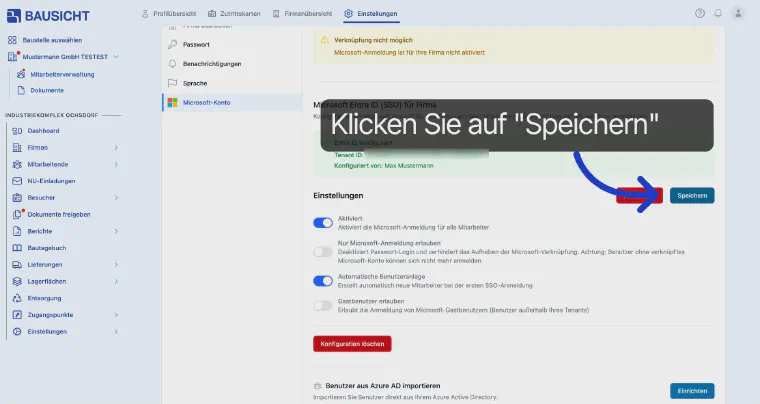
Step 7: Enable and configure SSO
Click Edit to adjust the SSO settings. Enable Microsoft sign-in for all employees and then click Save.
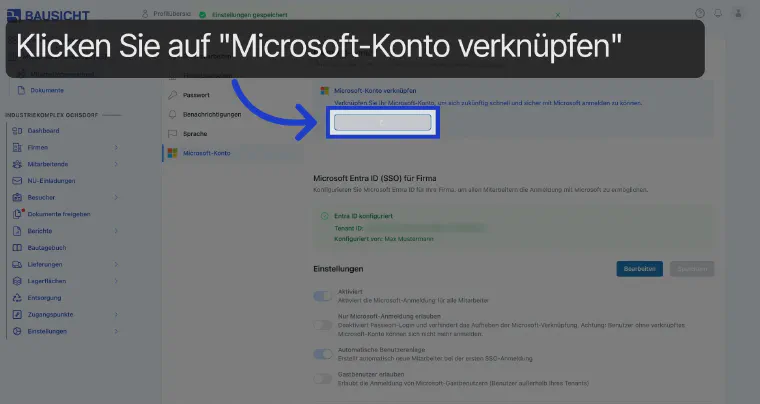
Step 8: Link your Microsoft account
Click Link Microsoft account to connect your own Microsoft account for SSO sign-in.
Step 9: Sign in with your personal Microsoft account
Sign in with your personal Microsoft account and accept the link.
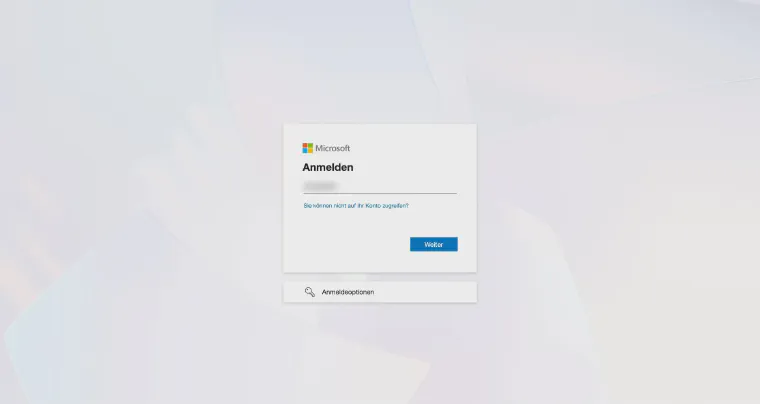
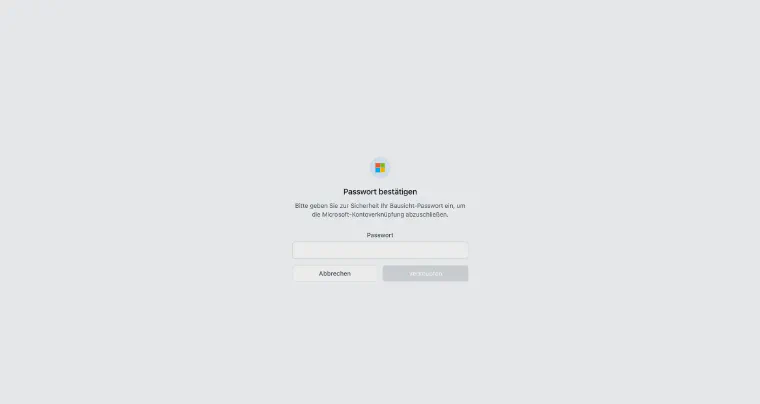
Step 10: Confirm with your Bausicht password
Enter your Bausicht password to authorize the link.
Step 11: SSO successfully connected
SSO is now successfully connected for your Entra ID. In the next step, you import your company.
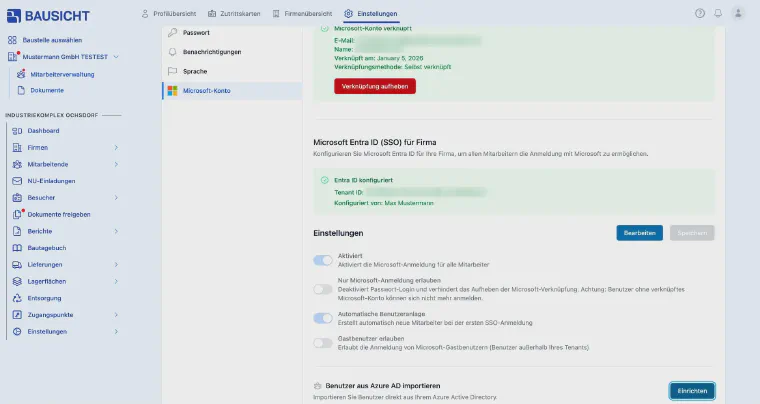
Step 12: Import your company
Click Set up to configure the SSO import.
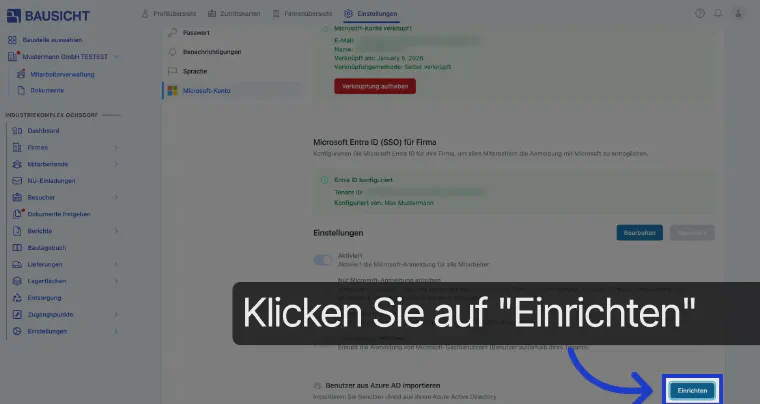
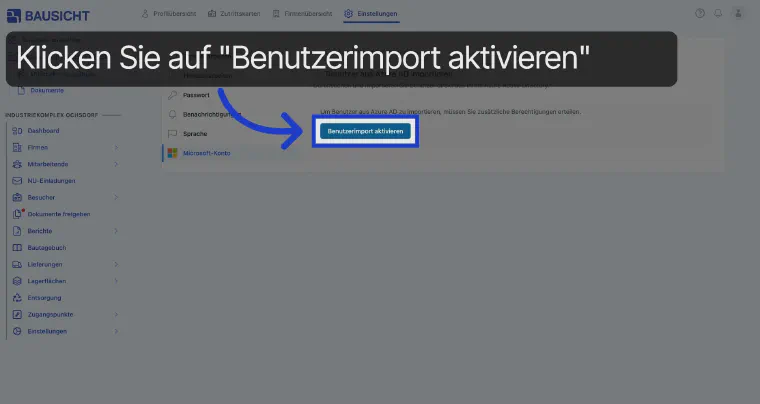
Step 13: Enable the user import
Enable the user import to import employee data from Microsoft.
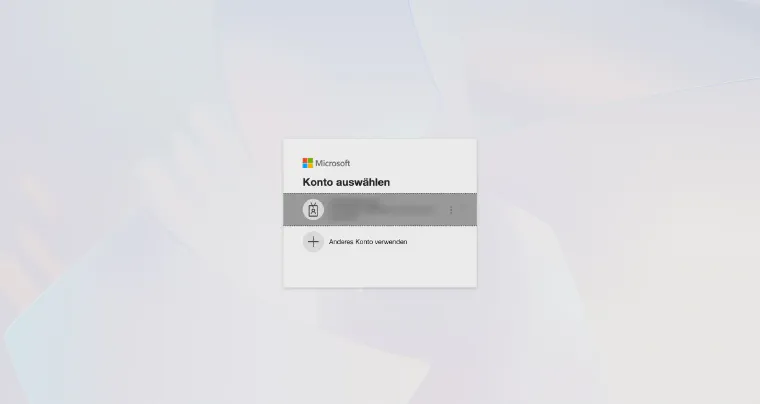
Step 14: Sign in to Microsoft again
Sign in to Microsoft again to import the employee master data.
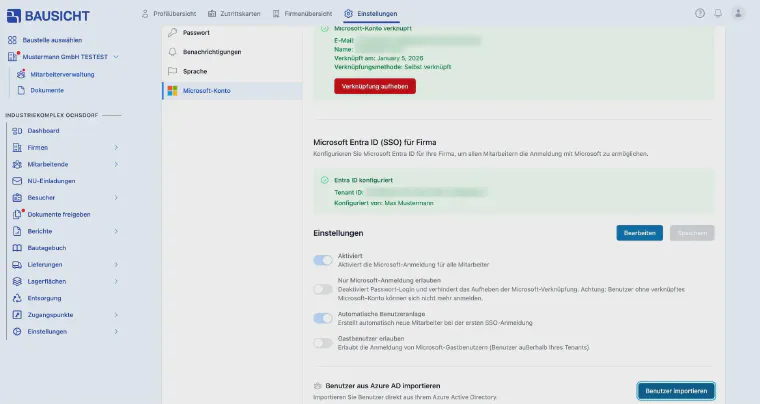
Step 15: Employee master data imported
The employee master data has been imported successfully.
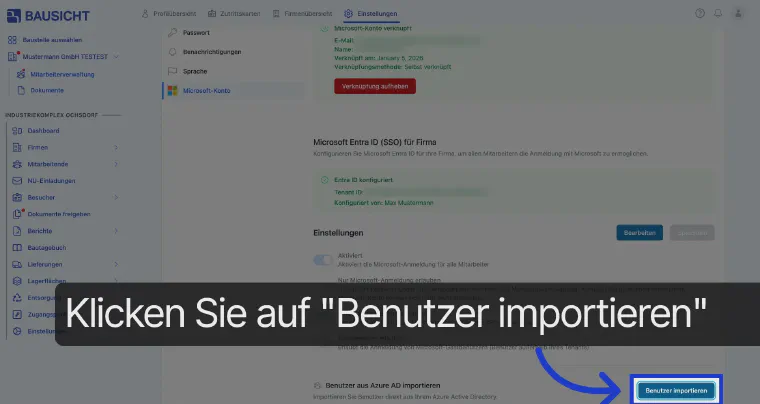
Step 16: Open the user import again
Click Import users again to link or create the employees.
Step 17: Confirm the link
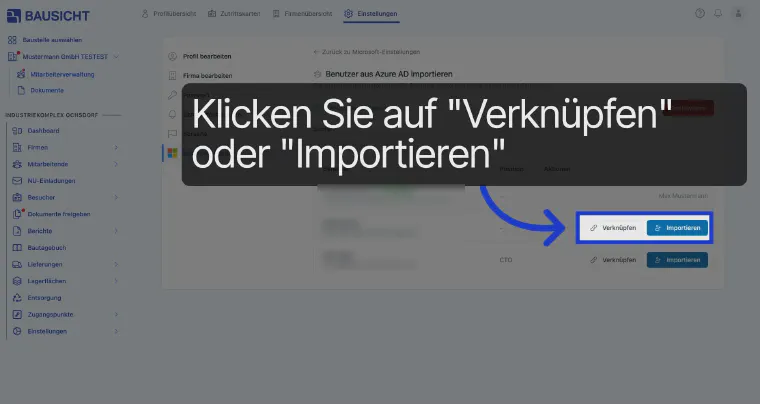
You will see a list of all employees imported from Microsoft. Click Link for users who already exist in Bausicht, and Import to create a new user for employees who do not yet exist in Bausicht.
Need further help?
If you need further assistance with the SSO setup, our support team is happy to help.