
More articles and topics
Use an X3BIO biometric reader: enrol fingerprints
- Before you start
- Connected X3BIO, the person's access card and the current device password (default 00000, changeable in Bausicht).
- Where to find it
- X3BIO → double-tap the time → Biometrie → Finger erfassen
- How to check the result
- After confirming the fingerprint capture, the device displays Weiteren Finger erfassen? (Capture another finger?).
On this page
Instructions in 11 images
Use Previous and Next to browse the instructions, or select a number to jump to a step. Tap an image to enlarge it.
The photos and video show the device interface in German. The instructions retain the German labels so you can match each control to the images.
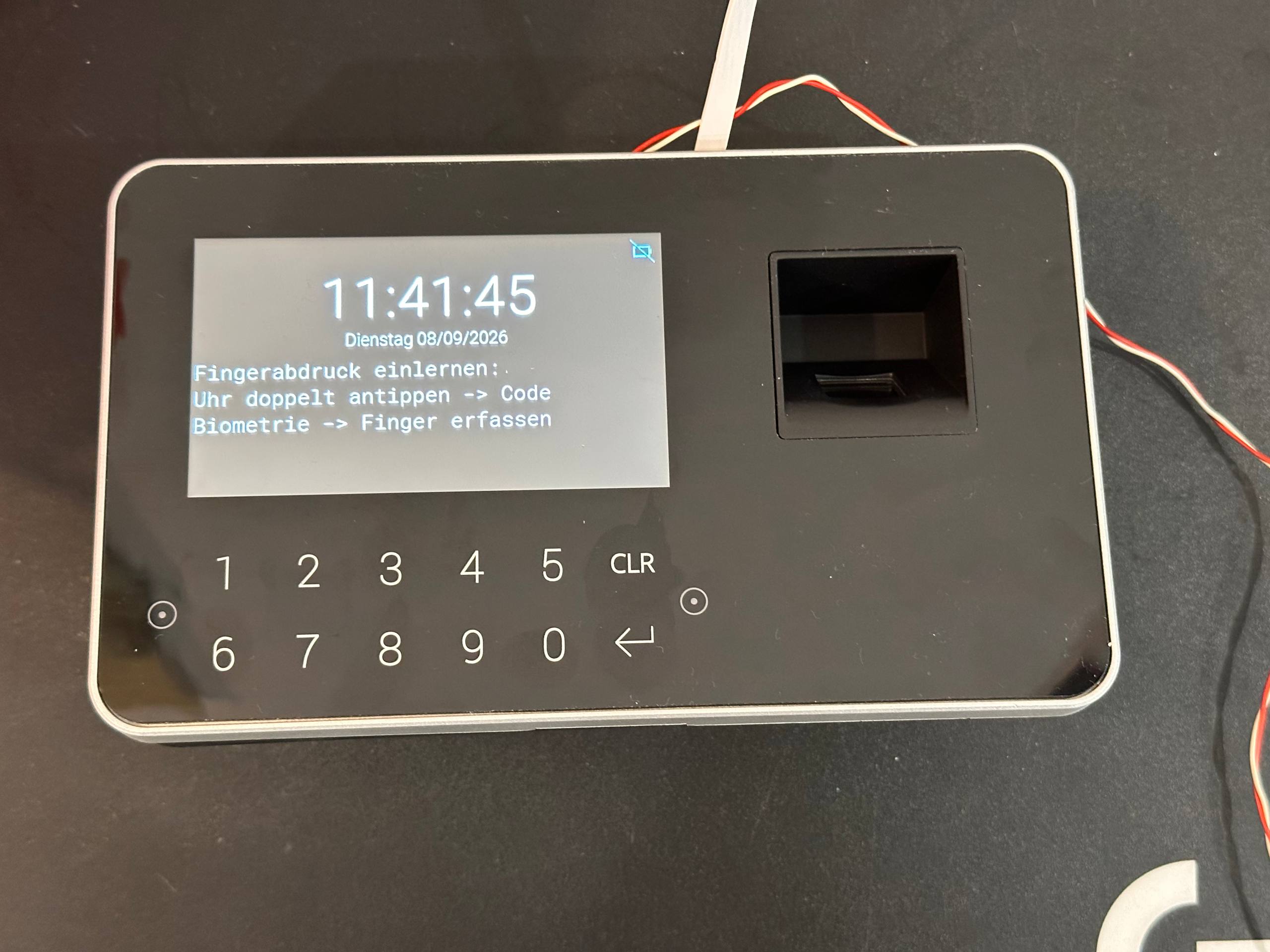
Step 1: Double-tap the time
On the home screen, tap the time twice in quick succession to open the password screen.
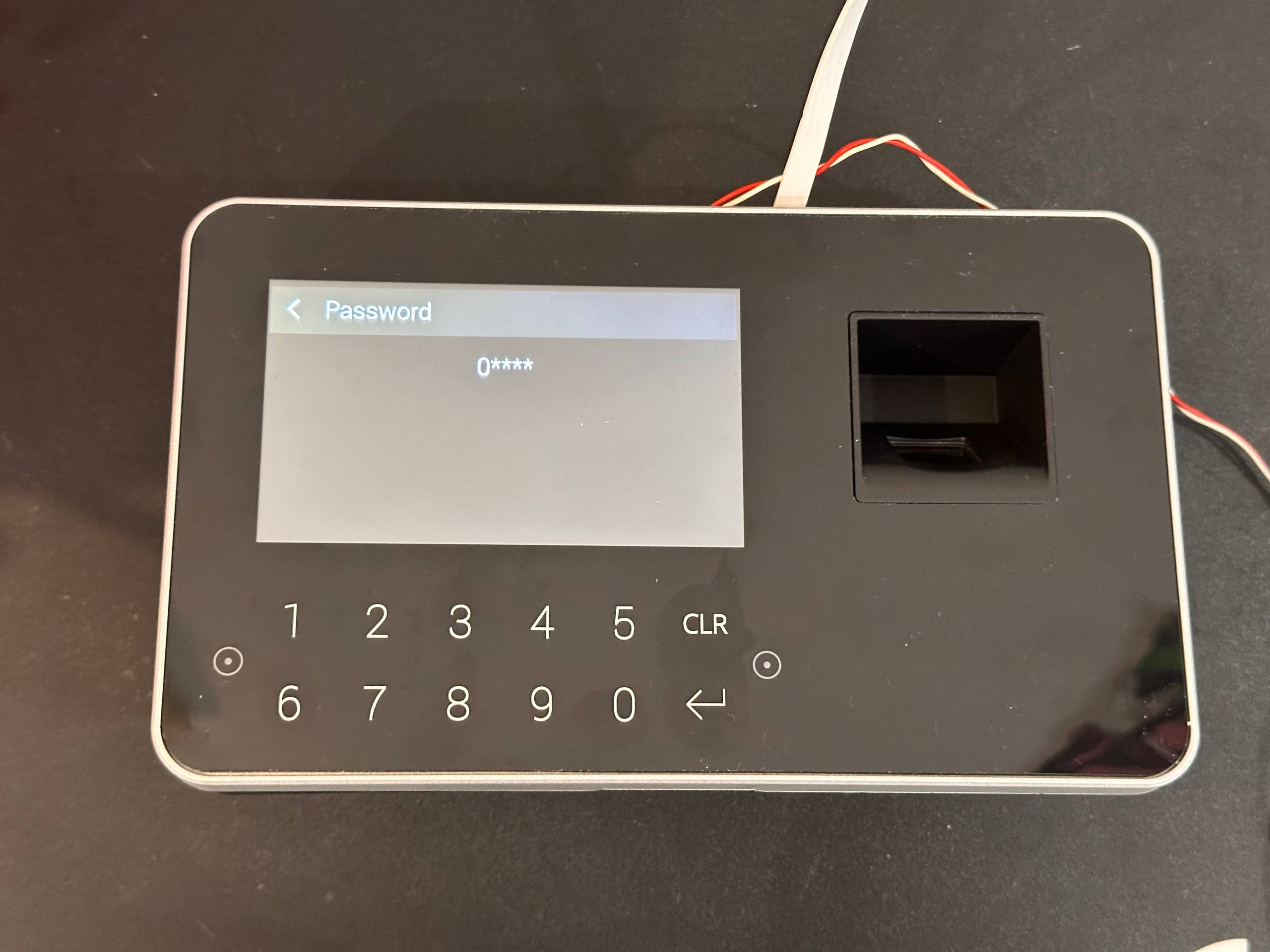
Step 2: Enter the password
Enter 00000 using the number keys on the device. If the password has been changed in Bausicht, enter the current password instead.
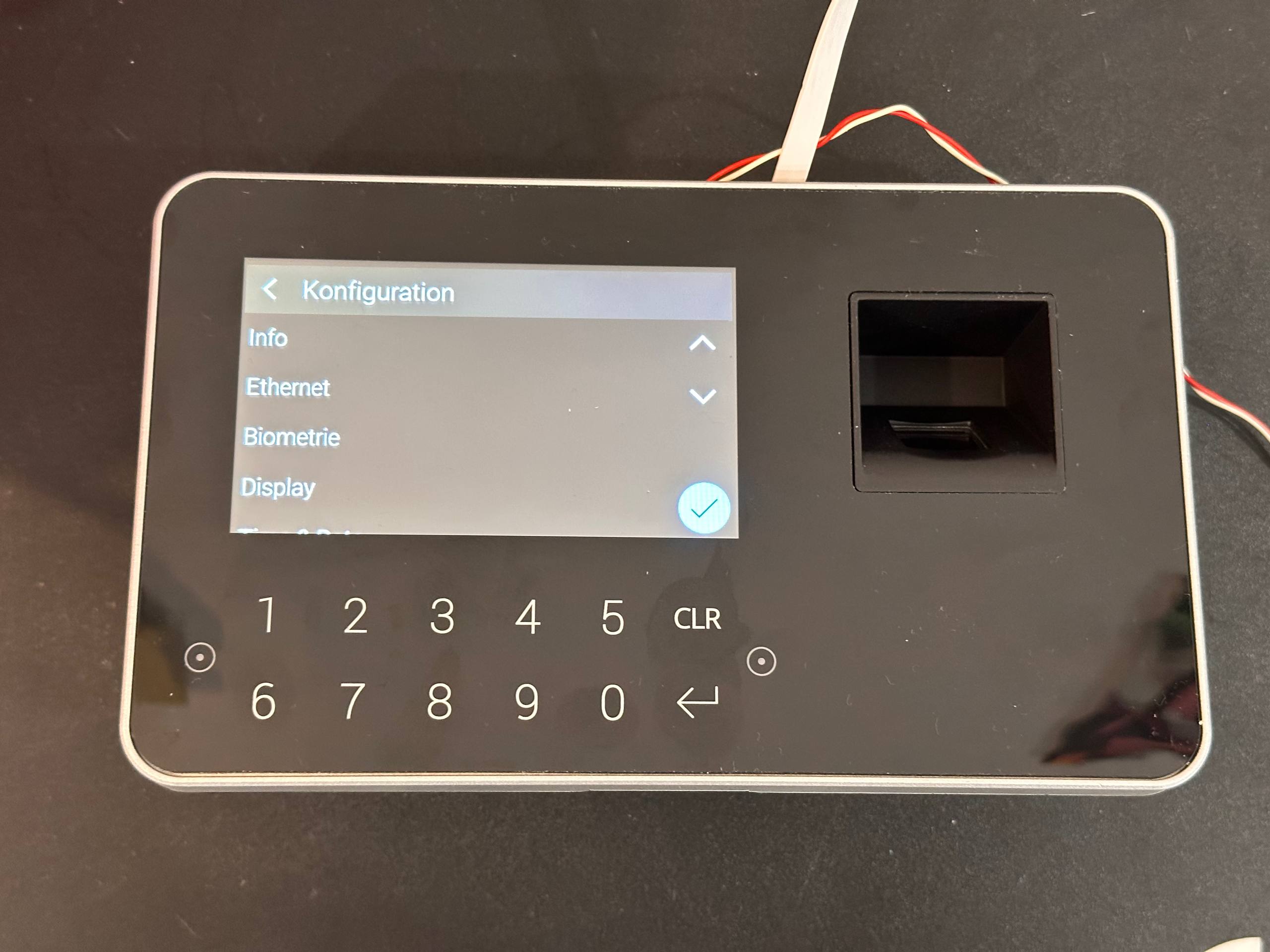
Step 3: Select Biometrie
In Konfiguration (Configuration), tap Biometrie (Biometrics).
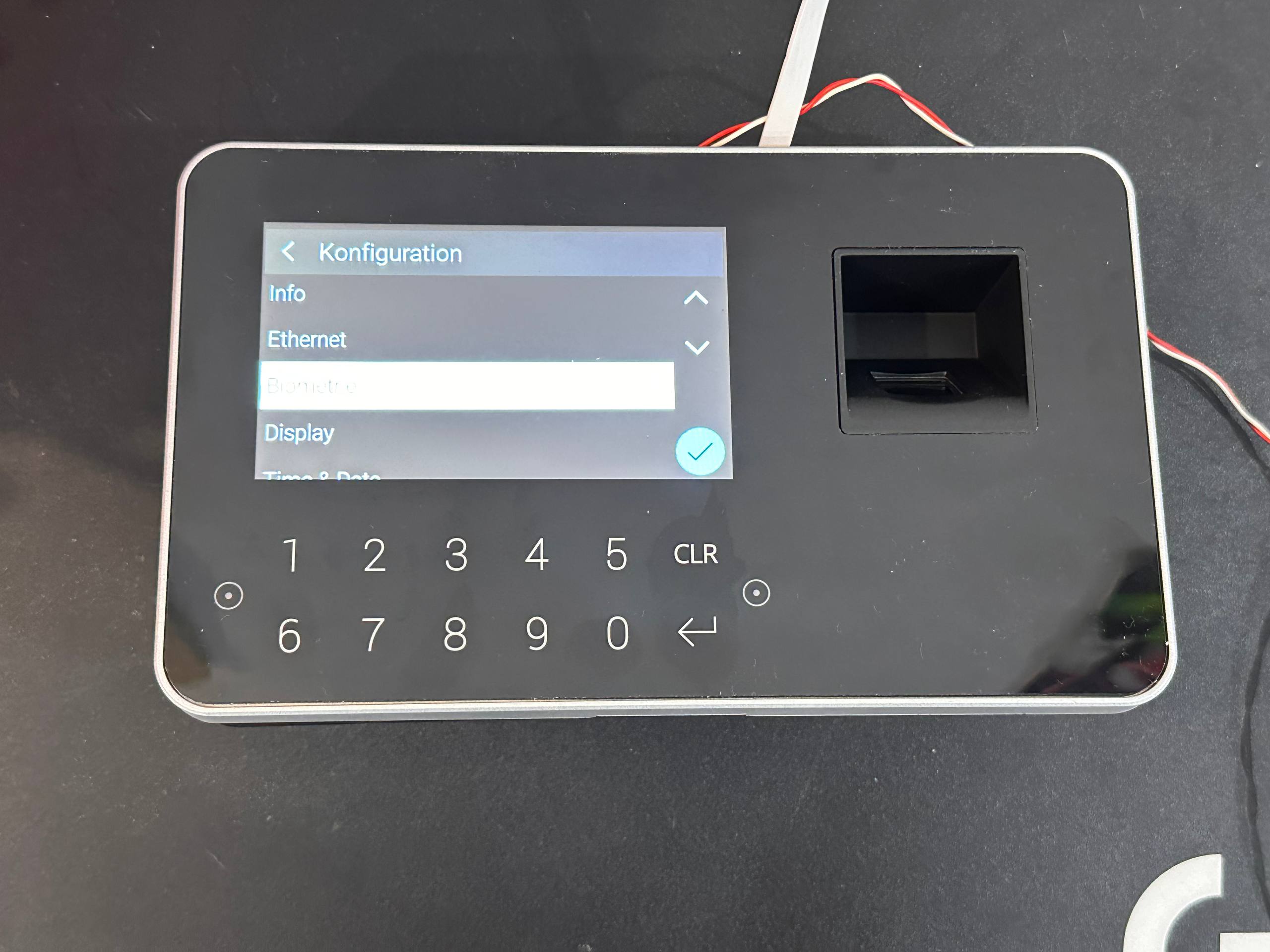
Step 4: Confirm the selection
Tap the checkmark at the bottom right of the display to open Biometrie.
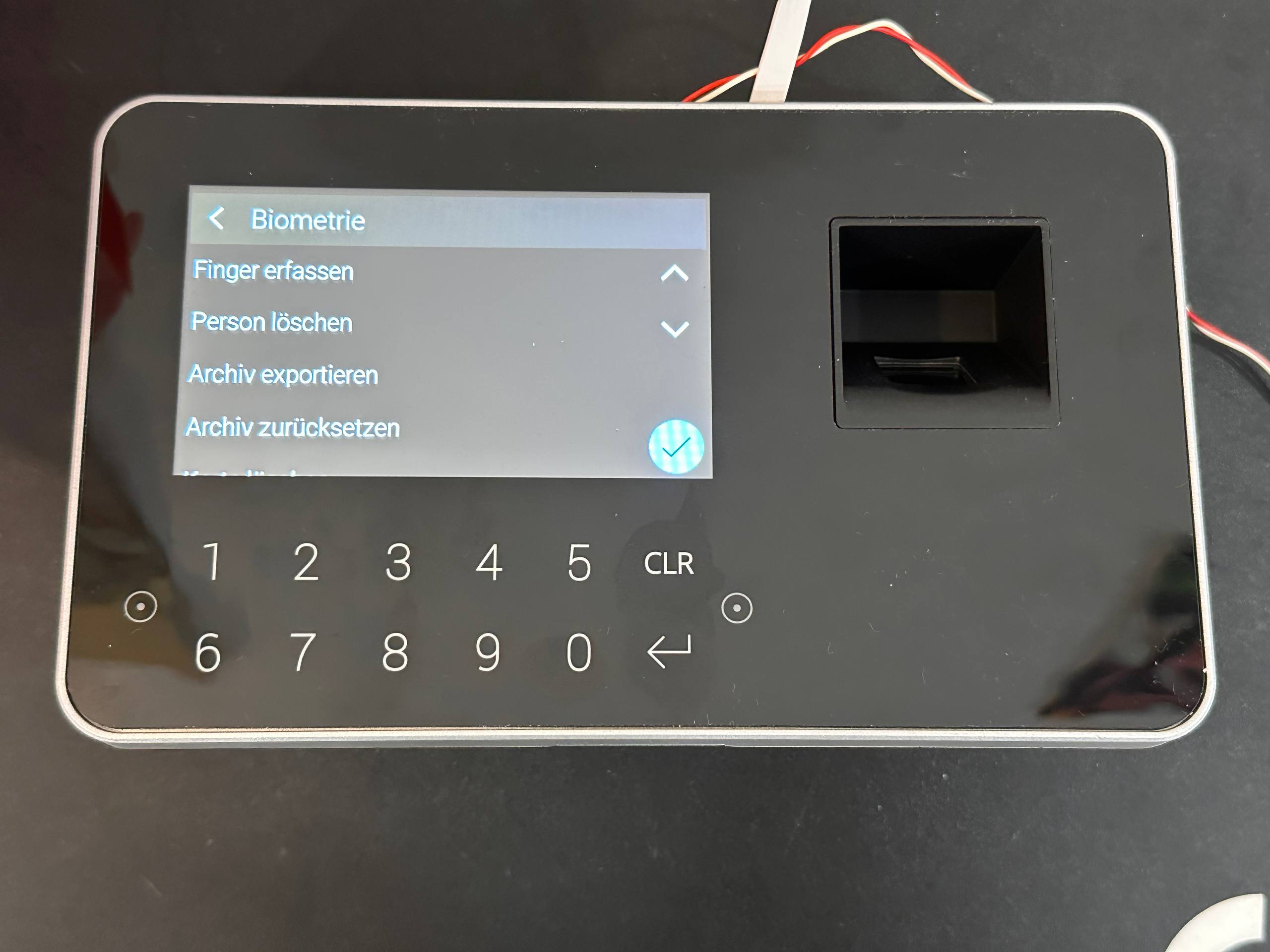
Step 5: Select Finger erfassen
In Biometrie, tap Finger erfassen (Capture finger).
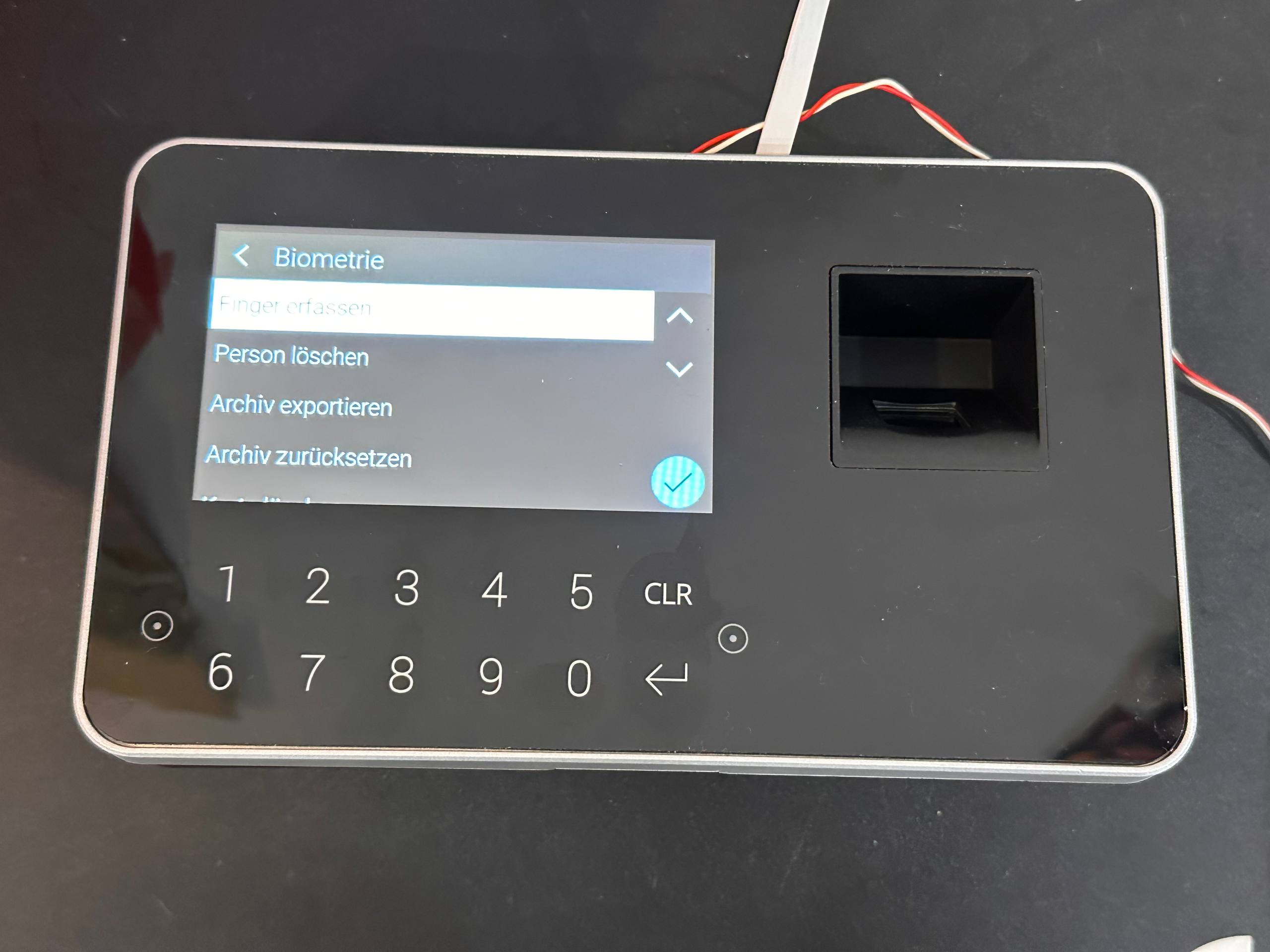
Step 6: Confirm Finger erfassen
Tap the checkmark at the bottom right of the display to confirm the selection.
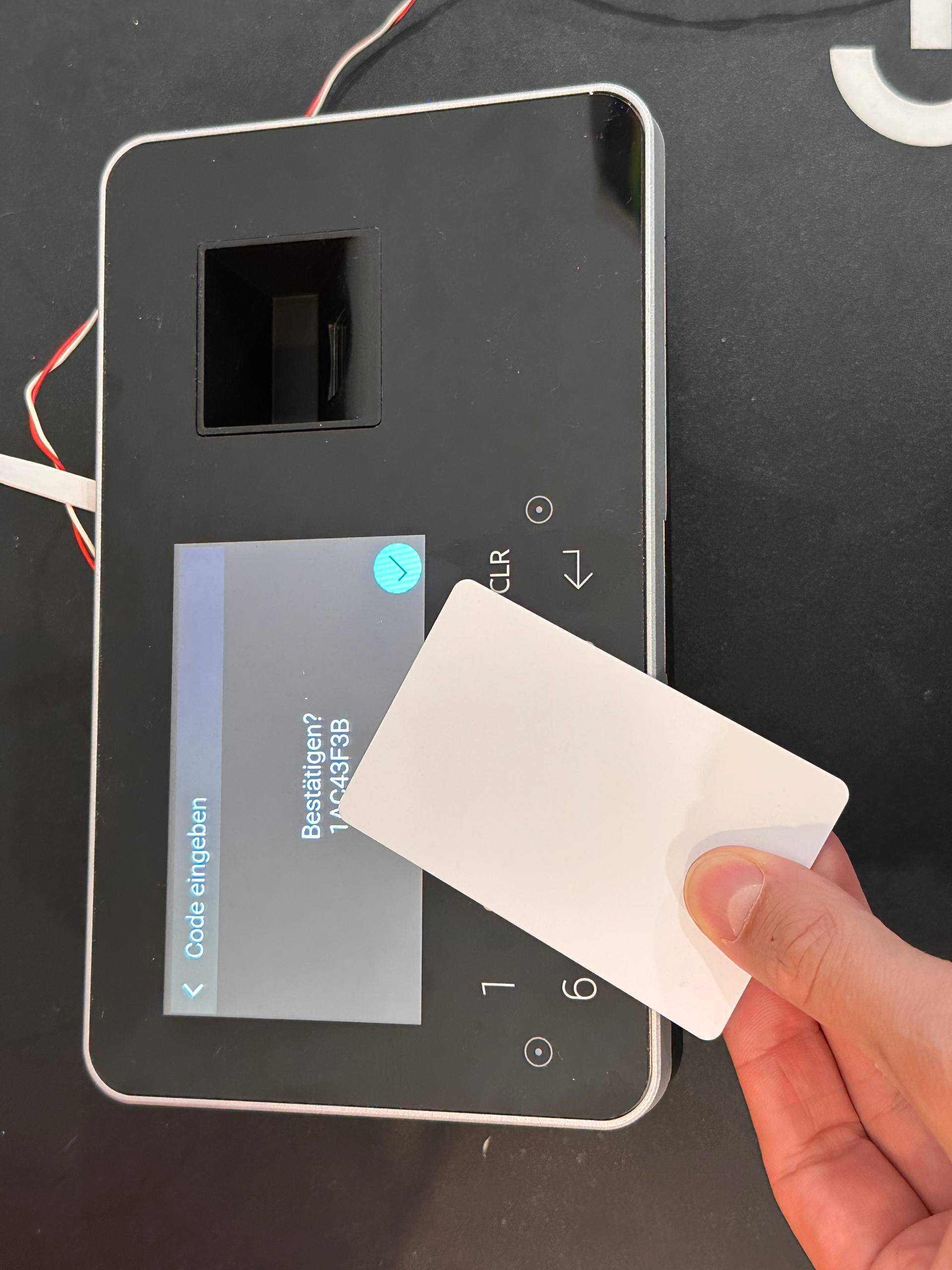
Step 7: Present the access card
Hold the person’s access card in front of the lower part of the reader, directly in front of the number keys. The card code appears on the display. Confirm it with the checkmark at the bottom right.
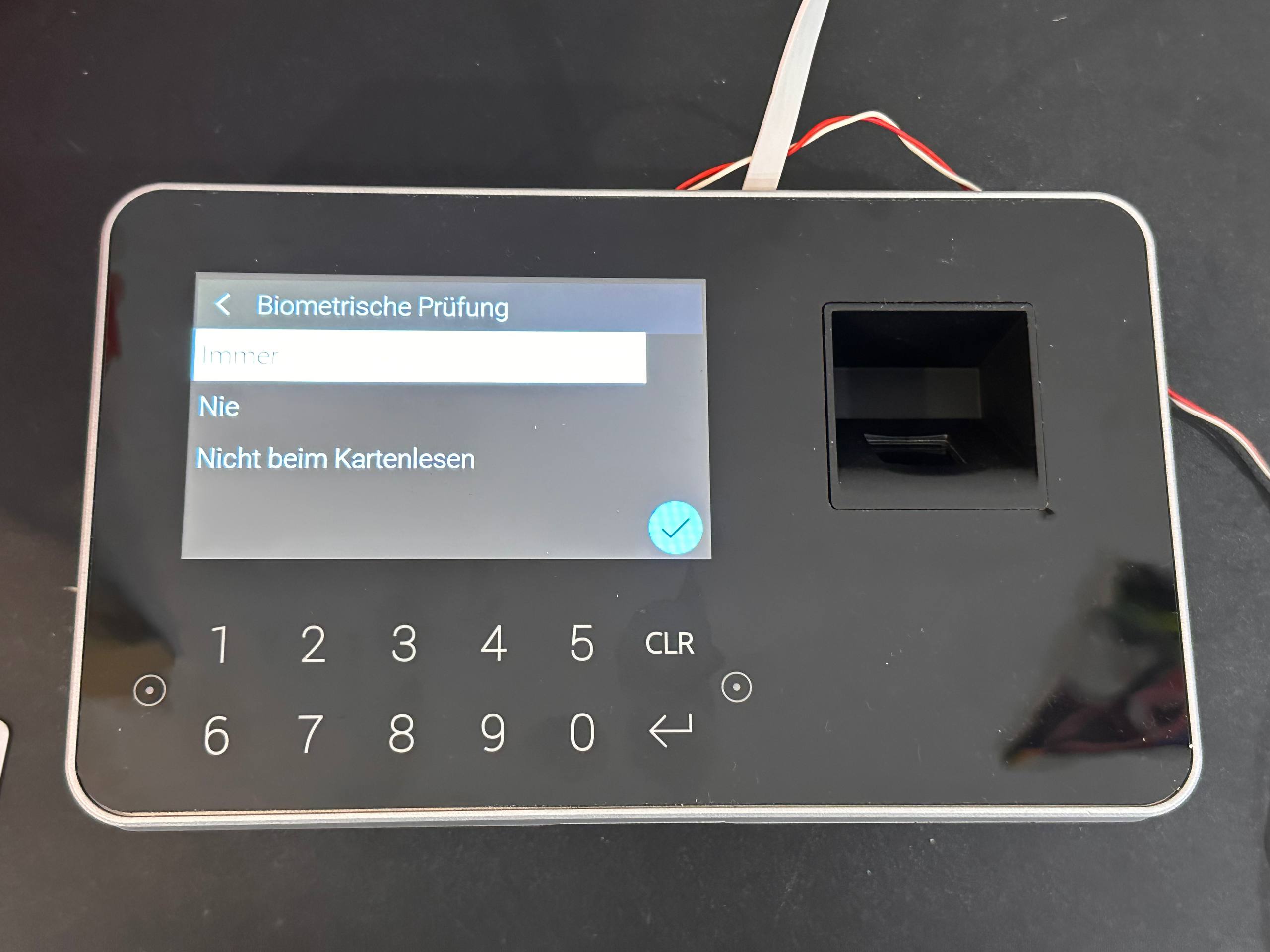
Step 8: Set biometric verification to Immer
Under Biometrische Prüfung (Biometric verification), tap Immer (Always). Then confirm with the checkmark at the bottom right of the display.
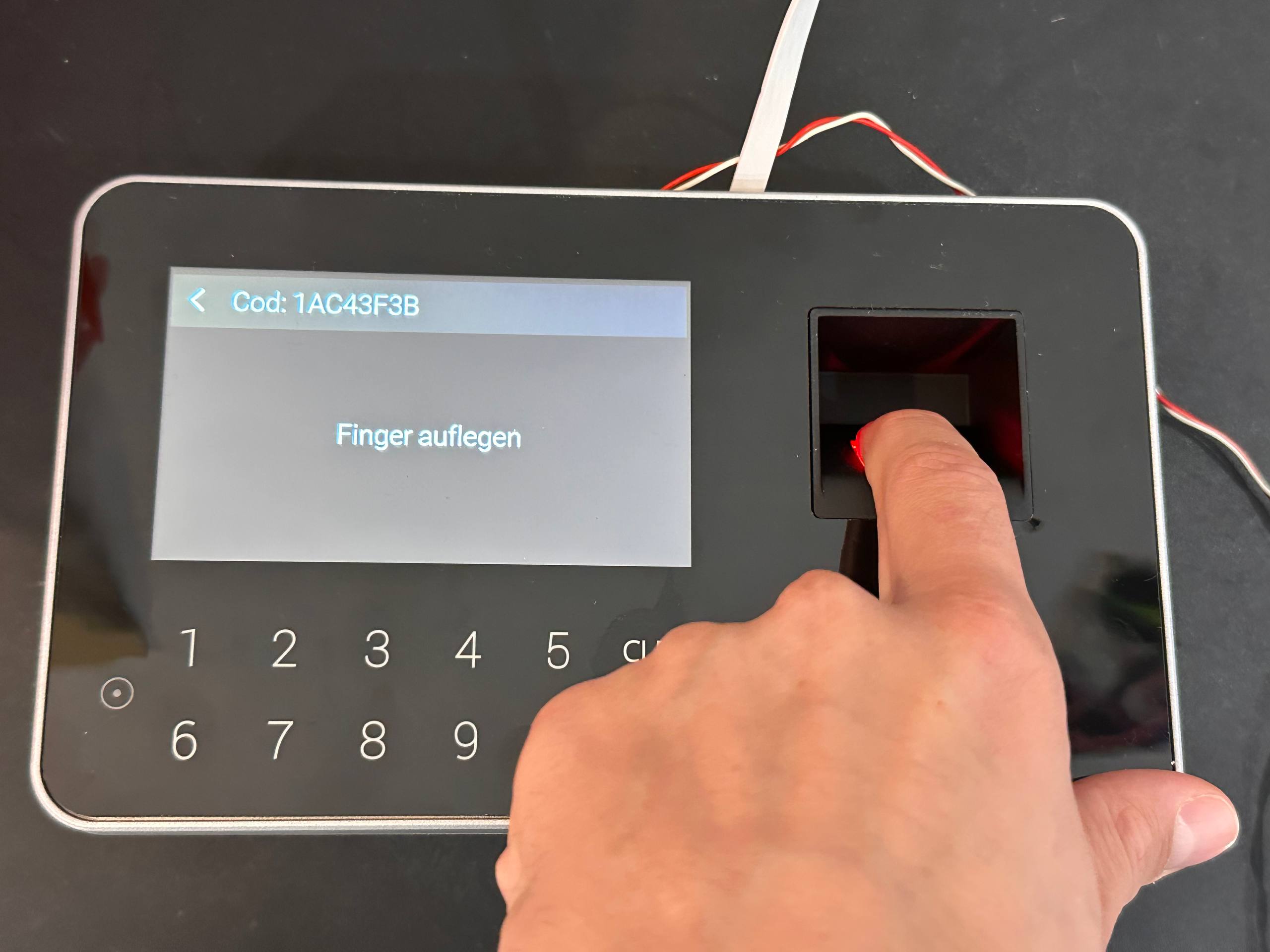
Step 9: Place the finger on the sensor
When Finger auflegen (Place finger) appears, place the finger on the fingerprint sensor to the right of the display.
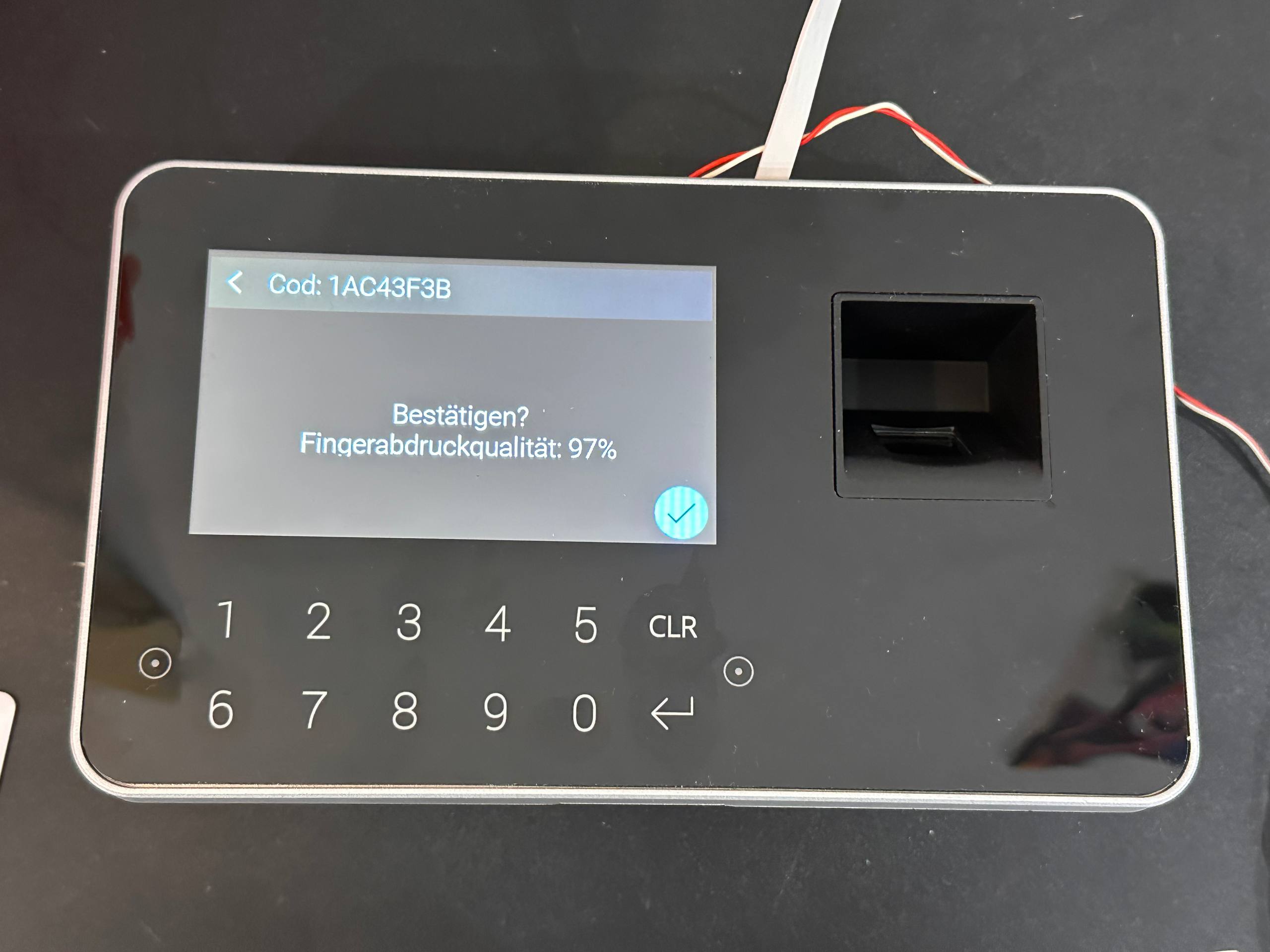
Step 10: Confirm the fingerprint
The device displays Bestätigen? (Confirm?) and the measured Fingerabdruckqualität (Fingerprint quality). Tap the checkmark at the bottom right to confirm the capture.
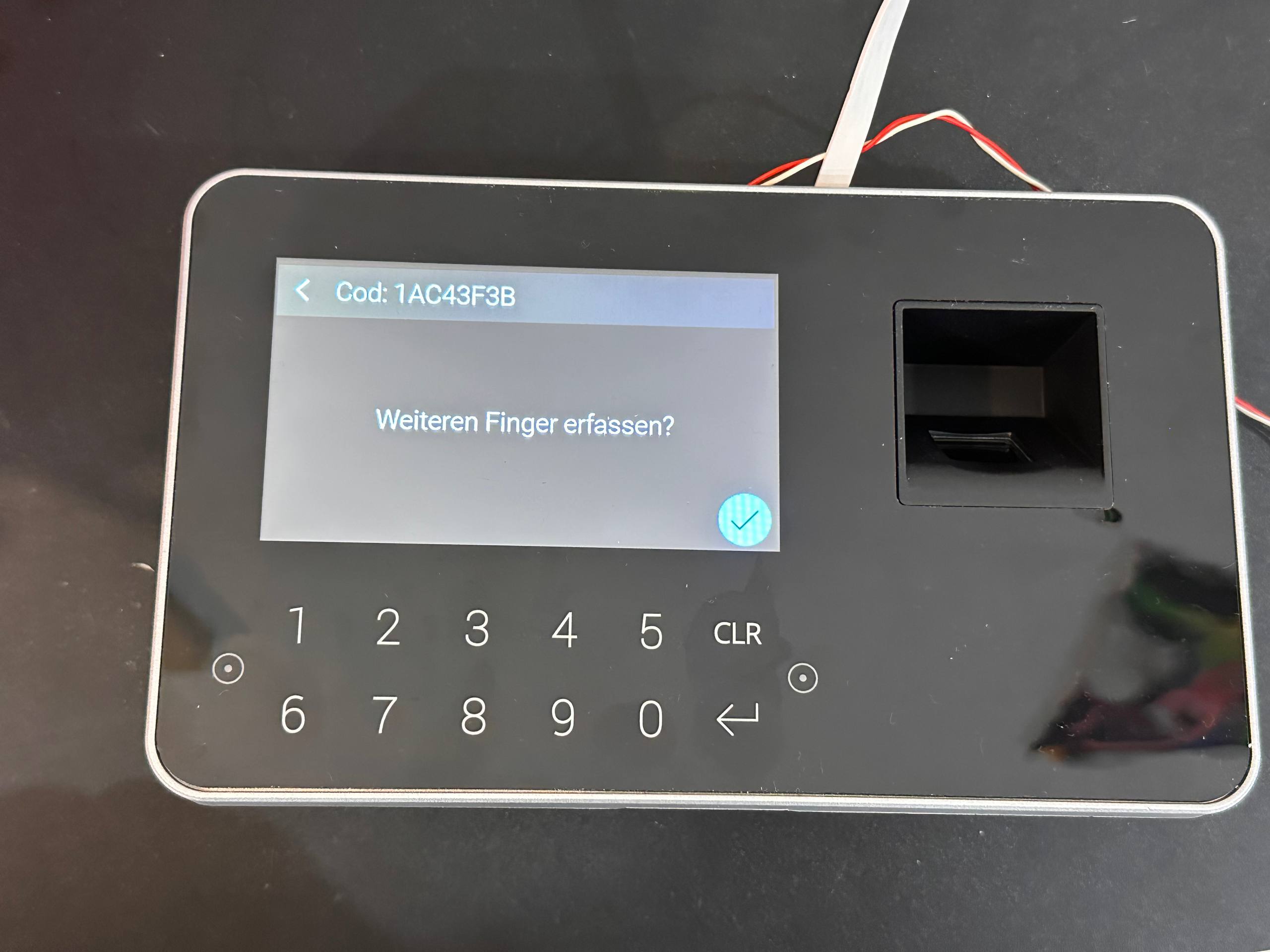
Step 11: Enrol another finger
When Weiteren Finger erfassen? (Capture another finger?) appears, tap the checkmark at the bottom right to enrol another finger.
Prerequisites
- A connected X3BIO biometric reader, such as the enrolment reader at the guard station.
- The access card of the person whose fingerprints you want to enrol.
- The current device password. The default is
00000; it can be changed in Bausicht. If it has been changed, use the password set there.