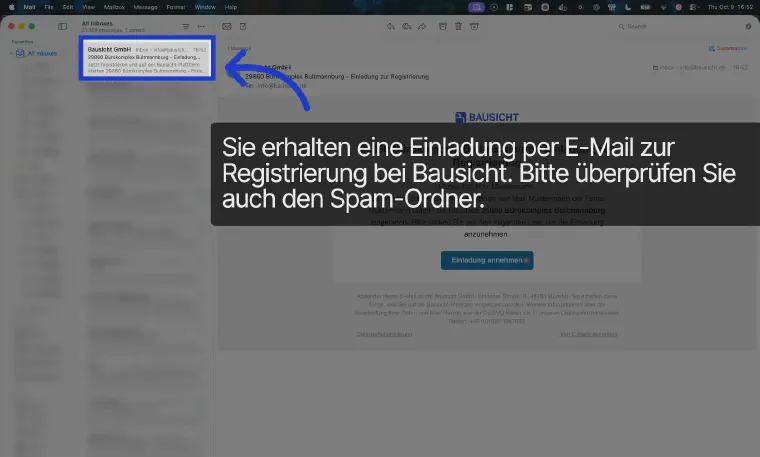
You receive an email from Bausicht with the subject “Invitation to register”. Important: please also check your spam folder if the email does not appear in your inbox.
02
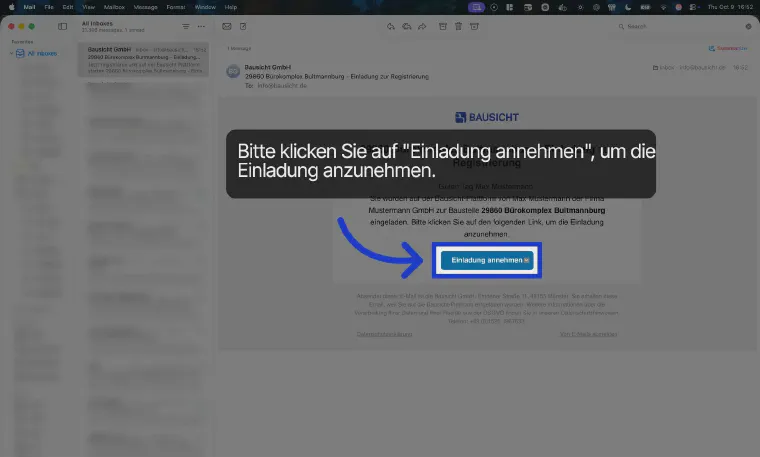
Step 2: Accept the invitation
The email contains an “Accept invitation” button. Click it to open the registration in Bausicht.
03
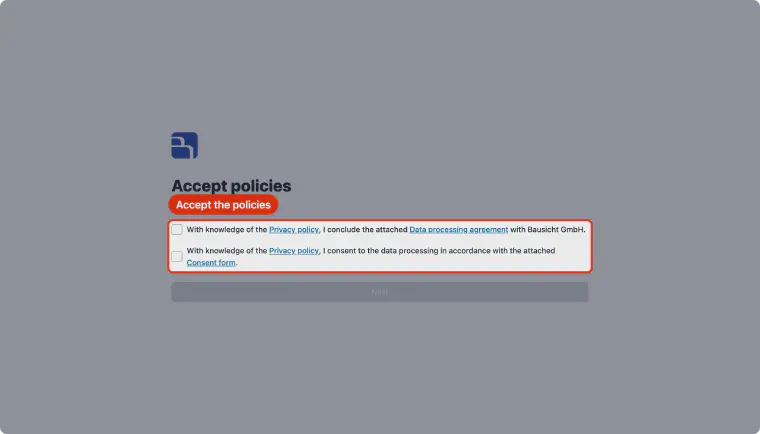
Step 3: Accept policies
Under “Accept policies”, tick both boxes to agree to the data processing agreement and the declaration of consent, then click “Next”.
04
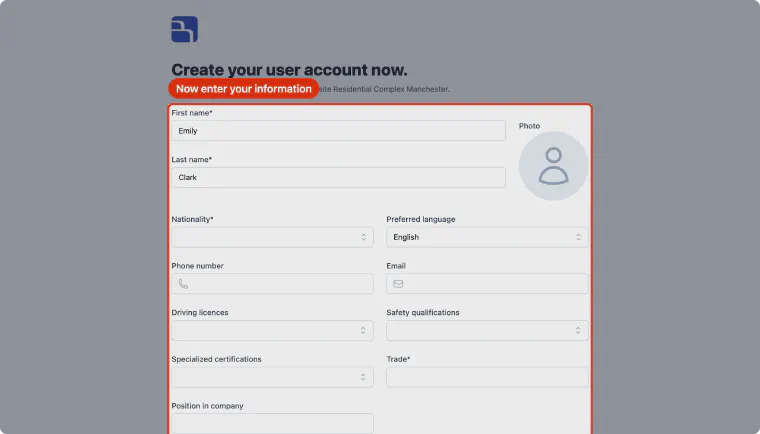
Step 4: Create your user account
Under “Create your user account now.”, your first and last name from the invitation are already filled in. Check them and add your details. Fields marked with an asterisk are required; all other fields are optional.
05
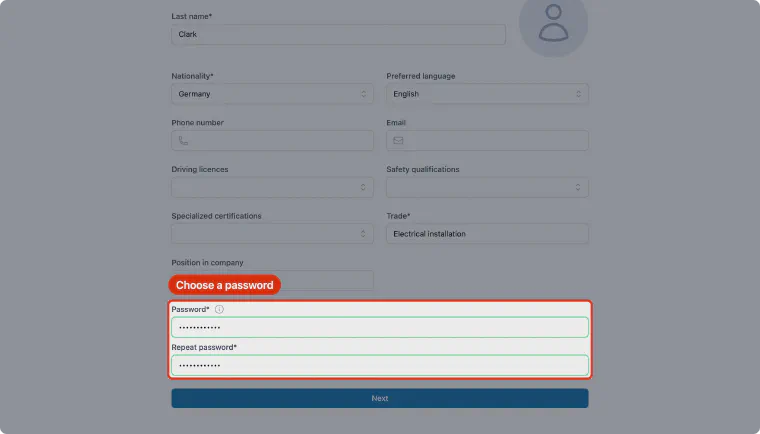
Step 5: Set a password
The password must be at least 8 characters long and contain upper and lower case letters as well as at least one number. Then repeat it in the “Repeat password” field.
06
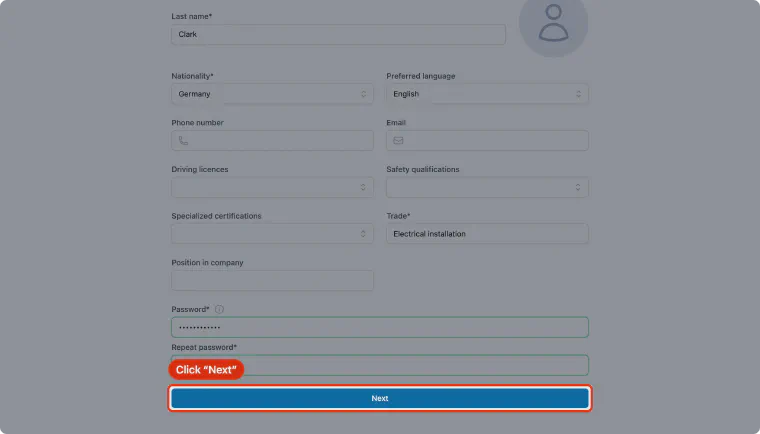
Step 6: Continue to the company profile
Click “Next”. If no required company details are missing, the button reads “Accept invitation” and completes the registration directly.
07
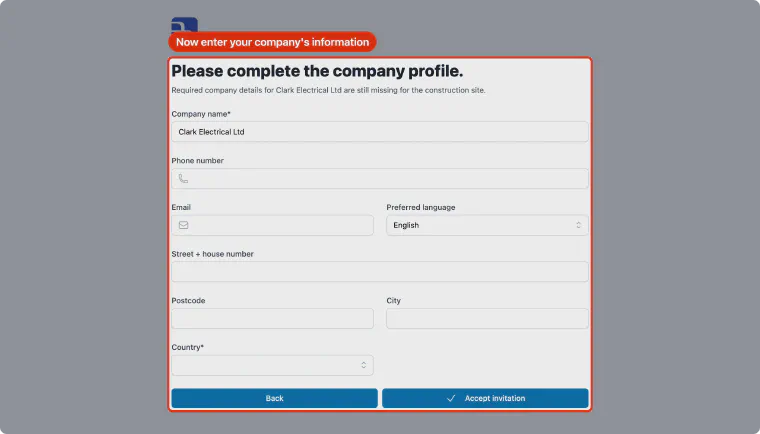
Step 7: Complete the company profile
Under “Please complete the company profile.”, add the details the construction site requires for your company, for example the country.
08
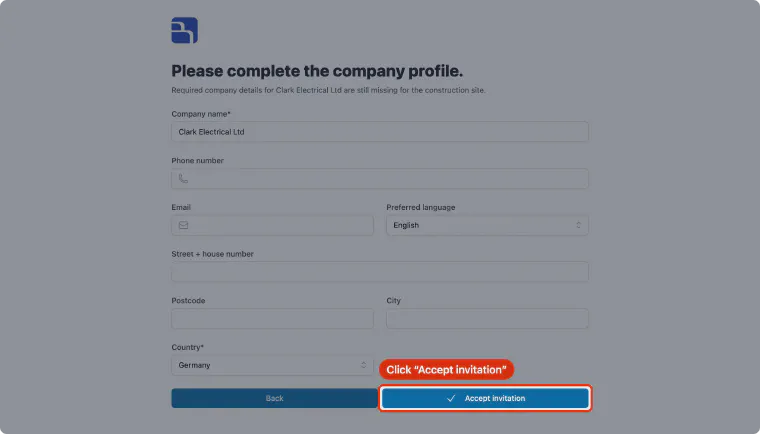
Step 8: Accept the invitation
Check all details and click “Accept invitation”. Your user account is now created and the invitation to the construction site is accepted.
09
Step 9: Finish and next steps
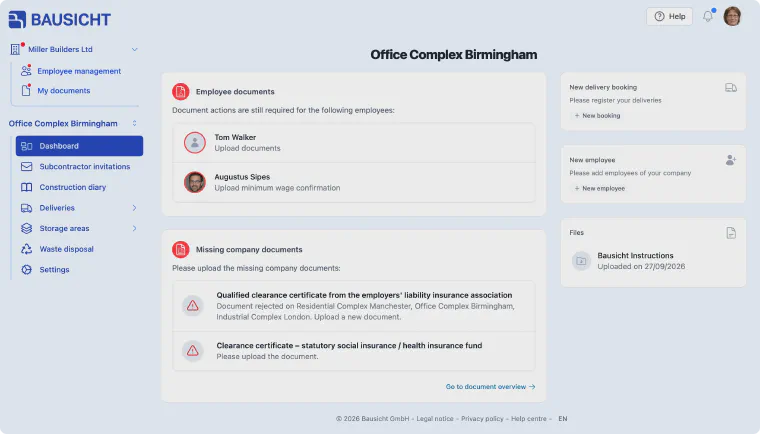
The invitation process is now successfully completed. The construction site dashboard gives you access to the following functions.
10
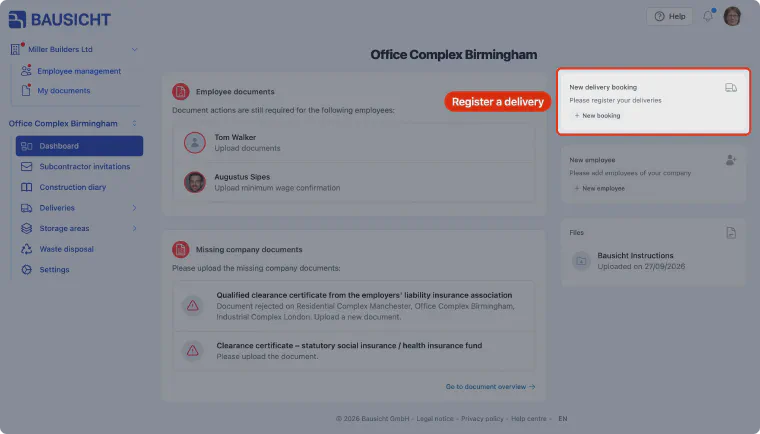
Step 10: Register deliveries
Use “New booking” in the “New delivery booking” card or the “Deliveries” section to register deliveries for the construction site.
11
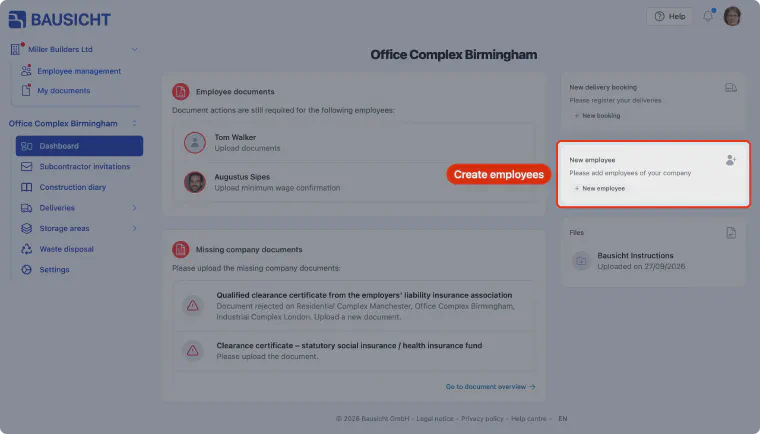
Step 11: Create employees
Use “New employee” to create the employees of your company or invite them to the Bausicht platform.
12
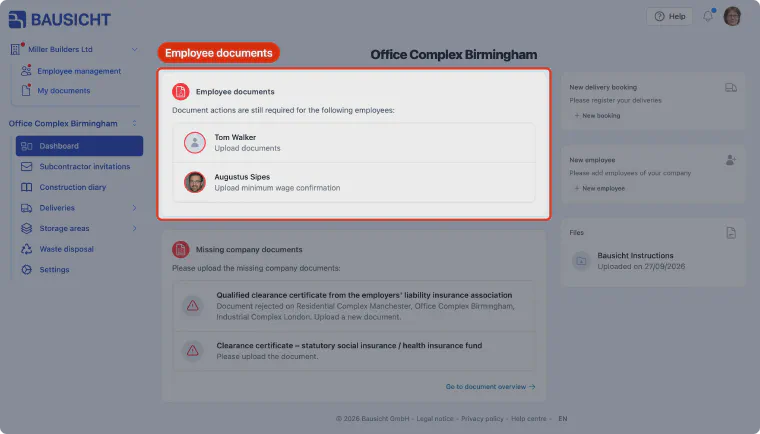
Step 12: Upload employee documents
The “Employee documents” card shows which of your employees still need documents. Click the respective person to upload the documents directly via drag & drop.
13
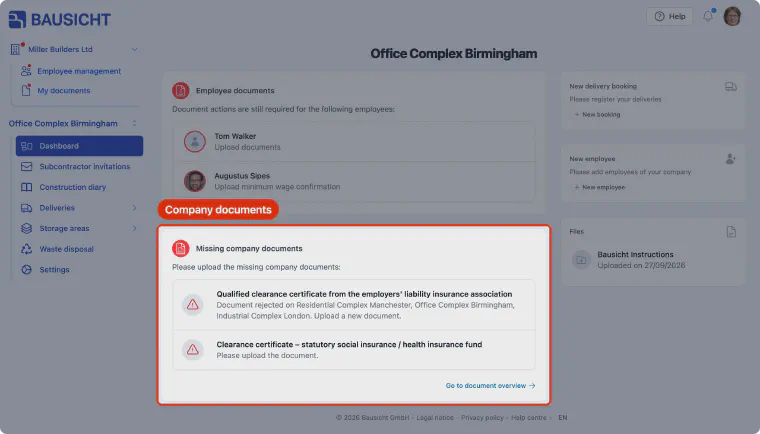
Step 13: Upload company documents
The “Missing company documents” card shows which company documents are still missing or were rejected. Upload them by clicking the respective document.
14
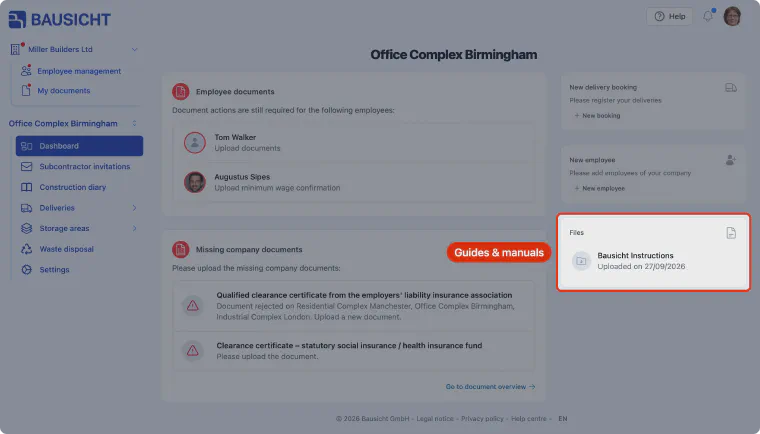
Step 14: View guides & manuals
The “Files” card lists all guides and manuals that have been made available. Logistics information as well as directions and the site plan may also be stored here.
01
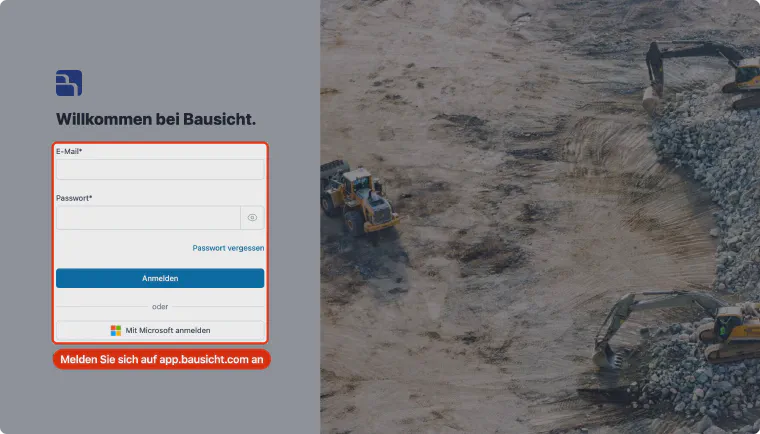
Step 1: Sign in to Bausicht
Open app.bausicht.com and sign in with your email address and password.
02
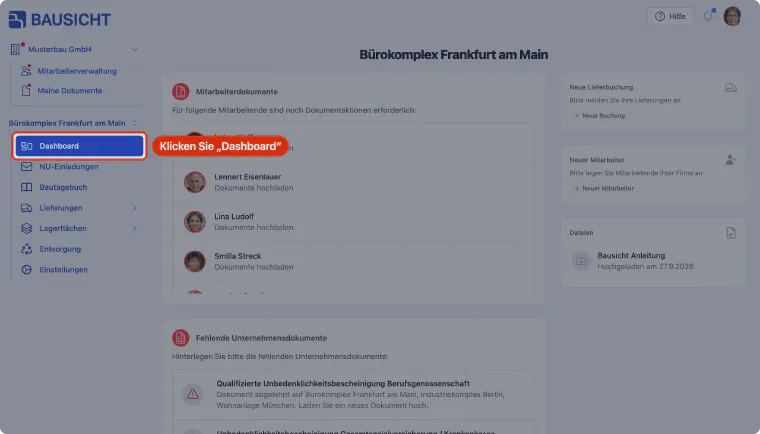
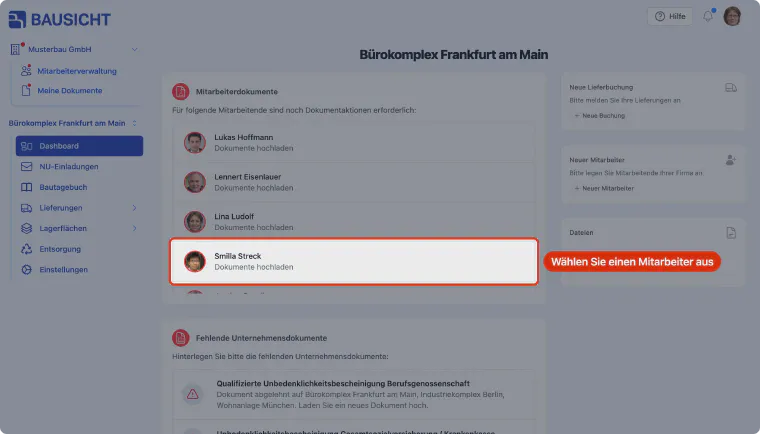
Step 2: Open the Dashboard
Click Dashboard in the left navigation to open the construction site overview.
03
Step 3: Select an employee
The "Employee documents" card shows the employees for whom documents are still missing. Select a person to upload documents for them.
04
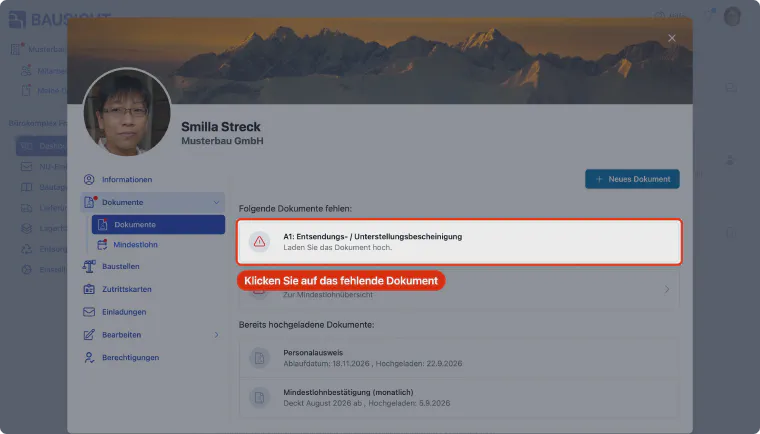
Step 4: Select a missing document
Under the "Documents" tab, the missing documents are listed at the top under "The following documents are missing". Select one of them to upload it.
05
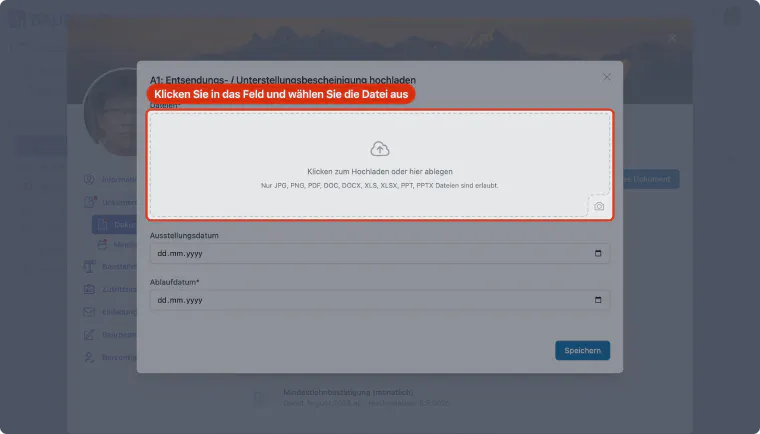
Step 5: Select the file
In the upload dialog, click "Click to upload or drop here" and choose the file you want to upload in your file explorer.
06
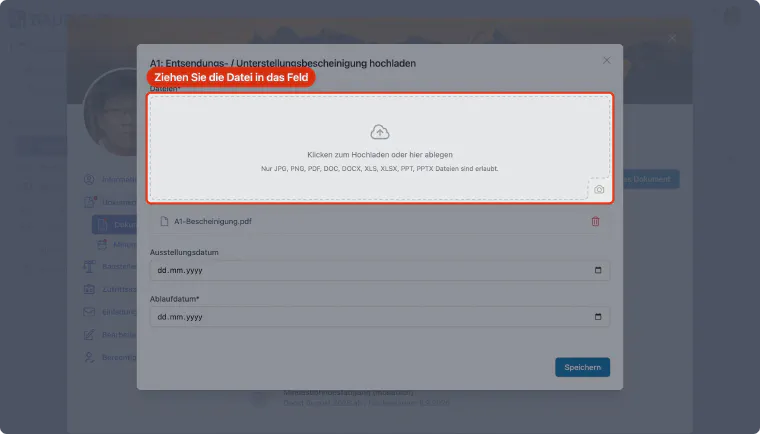
Step 6: Alternatively: drag and drop the file
Alternatively, you can drag the file into the "Click to upload or drop here" field. The selected file appears below the field. JPG, PNG, PDF as well as Word, Excel and PowerPoint files are allowed.
07
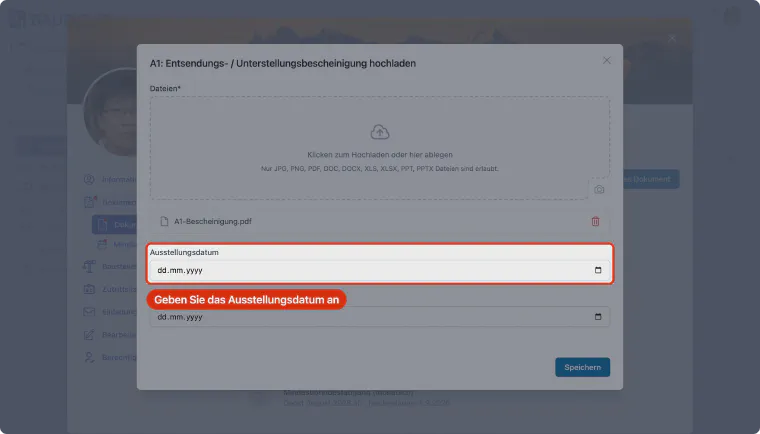
Step 7: Enter the issue date
Enter the document's issue date.
08
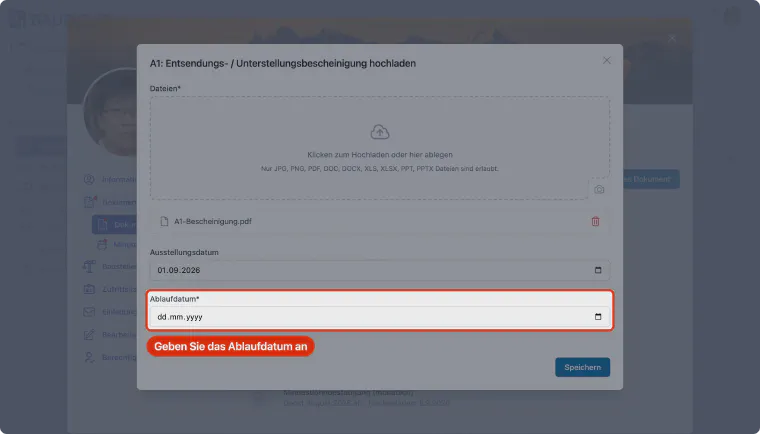
Step 8: Enter the expiry date
Enter the document's expiry date. Please make sure to enter the expiry date correctly.
09
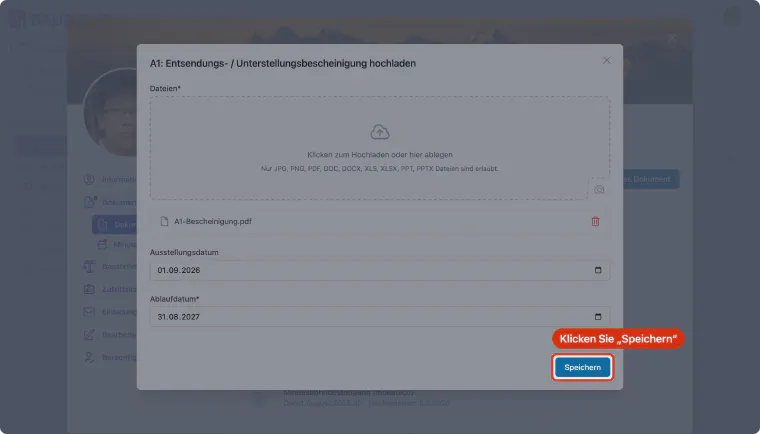
Step 9: Save the document
Click "Save" to upload the document.
10
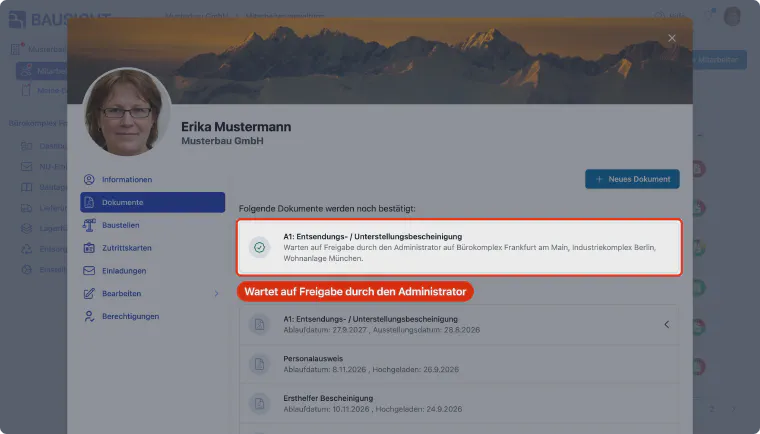
Step 10: Review by an administrator
The document has been uploaded and shared with the construction site. Until it is approved, it is listed under the "Documents" tab under "The following documents are yet to be confirmed". An administrator receives an email notification and can approve the document.
Congratulations! 🎉
You have completed all getting-started tutorials. You are now ready to use Bausicht productively!