
Accept an invitation and register
- Before you start
- The invitation email from your client
- Where to find it
- Invitation email from Bausicht → Accept invitation
- How to check the result
- After registering and saving your company details, the invitation process is complete.
On this page
Quick answer
Open the email from Bausicht with the subject “Invitation to register” and click “Accept invitation”. Fill in the registration form, set a password and click “Register”. Then complete your company details and click “Save”.
What does the invitation look like?
You receive your client’s invitation by email from Bausicht. The email contains an “Accept invitation” button that takes you to the registration form. The first two screenshots in the guide below show the invitation email and the button.
Step-by-step guide
This guide takes you from the invitation email through registration to your first tasks on the platform.
Step 1: Receive the invitation email
You receive an email from Bausicht with the subject “Invitation to register”. Important: please also check your spam folder if the email does not appear in your inbox.
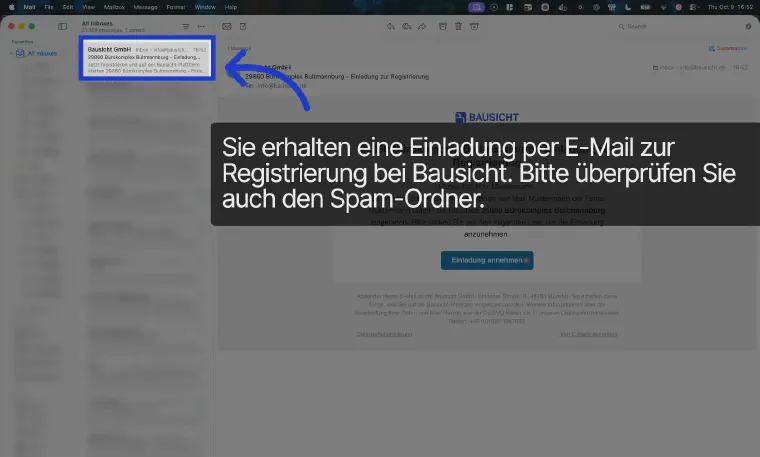
Step 2: Accept the invitation
The email contains an “Accept invitation” button. Click it to open the registration in Bausicht.
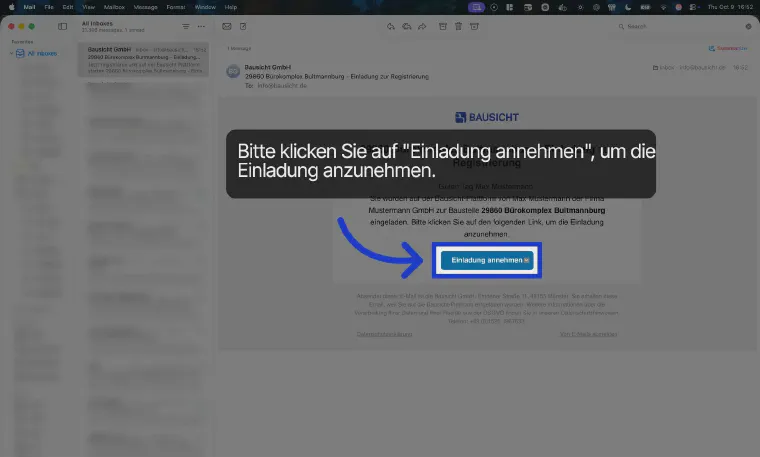
Step 3: Accept policies
Under “Accept policies”, tick both boxes to agree to the data processing agreement and the declaration of consent, then click “Next”.
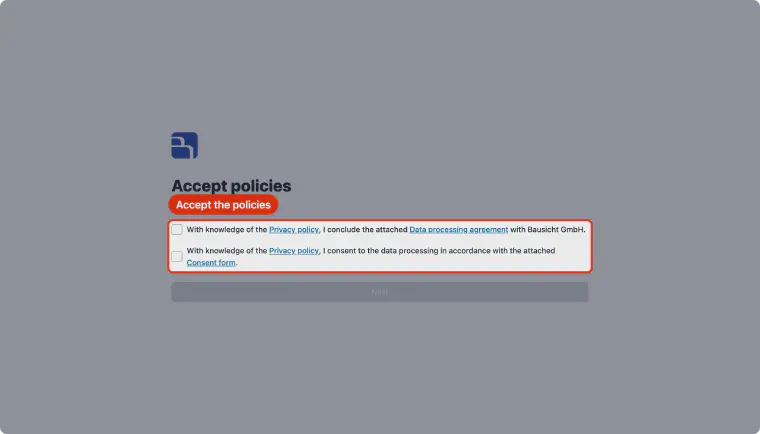
Step 4: Create your user account
Under “Create your user account now.”, your first and last name from the invitation are already filled in. Check them and add your details. Fields marked with an asterisk are required; all other fields are optional.
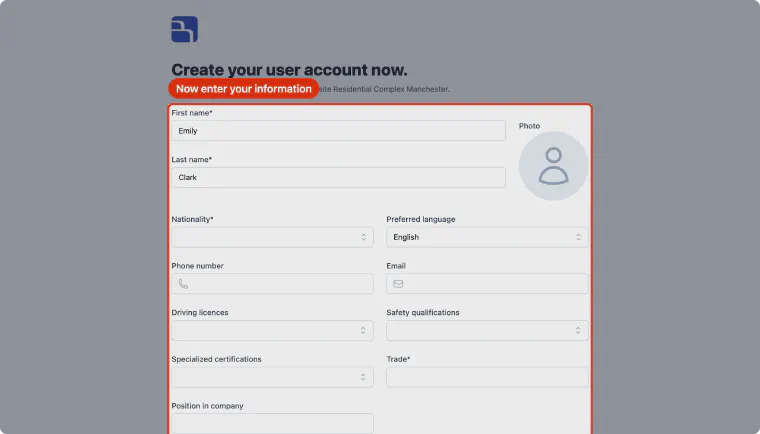
Step 5: Set a password
The password must be at least 8 characters long and contain upper and lower case letters as well as at least one number. Then repeat it in the “Repeat password” field.
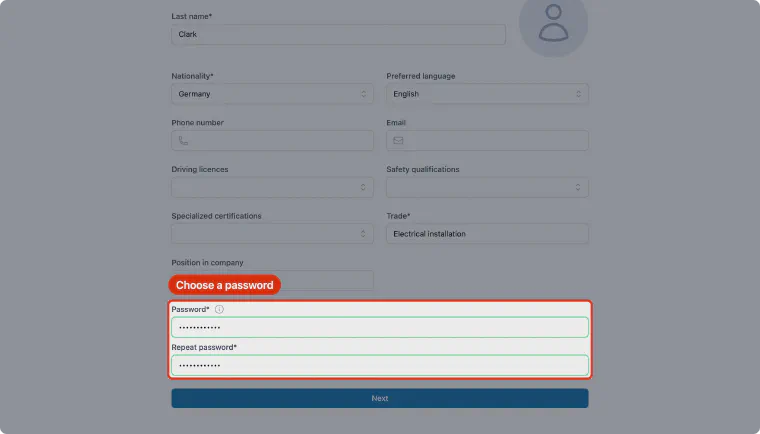
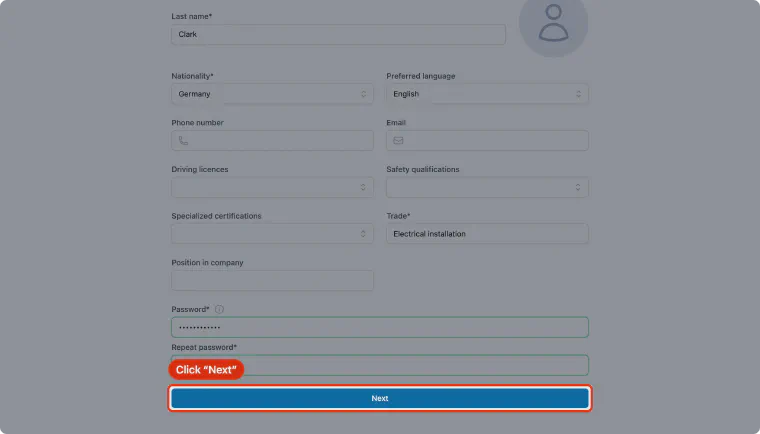
Step 6: Continue to the company profile
Click “Next”. If no required company details are missing, the button reads “Accept invitation” and completes the registration directly.
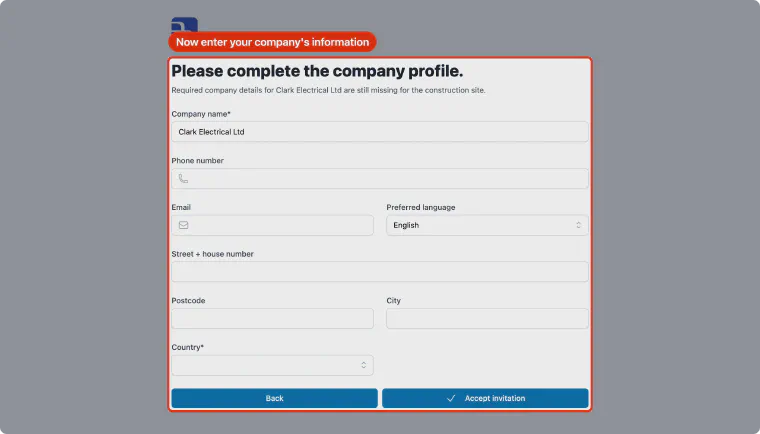
Step 7: Complete the company profile
Under “Please complete the company profile.”, add the details the construction site requires for your company, for example the country.
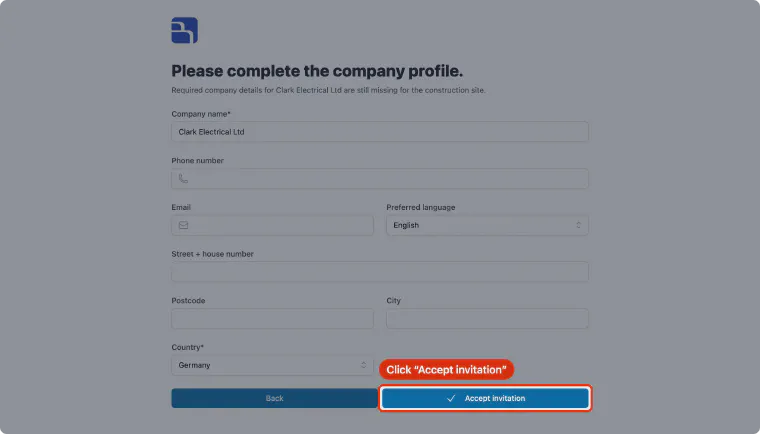
Step 8: Accept the invitation
Check all details and click “Accept invitation”. Your user account is now created and the invitation to the construction site is accepted.
Step 9: Finish and next steps
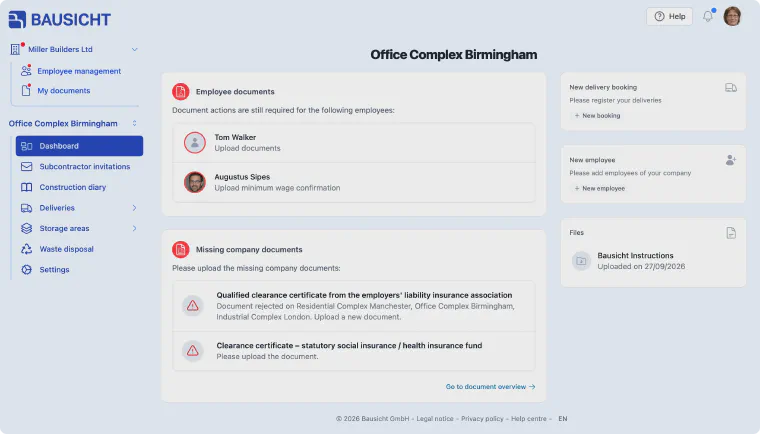
The invitation process is now successfully completed. The construction site dashboard gives you access to the following functions.
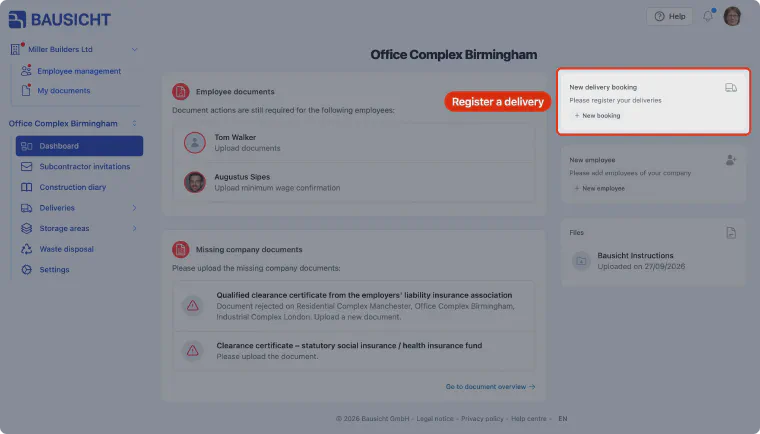
Step 10: Register deliveries
Use “New booking” in the “New delivery booking” card or the “Deliveries” section to register deliveries for the construction site.
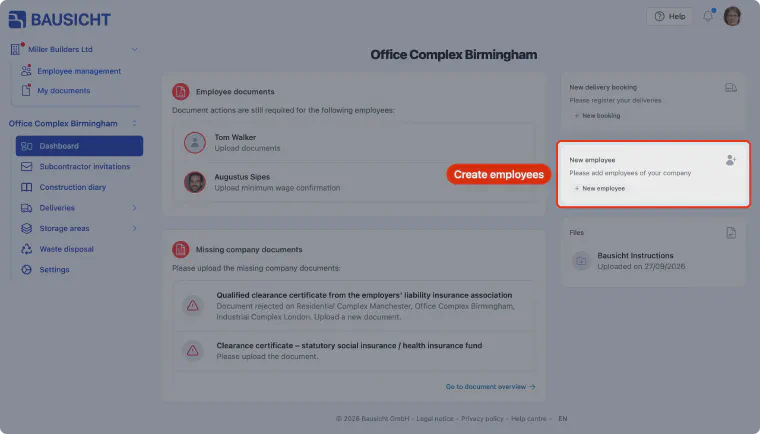
Step 11: Create employees
Use “New employee” to create the employees of your company or invite them to the Bausicht platform.
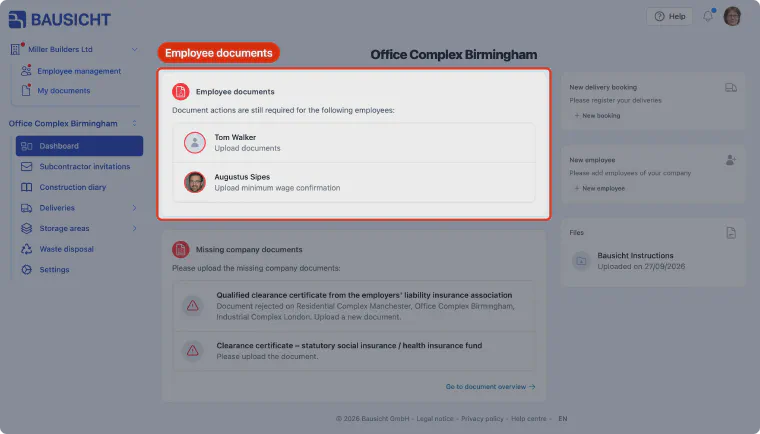
Step 12: Upload employee documents
The “Employee documents” card shows which of your employees still need documents. Click the respective person to upload the documents directly via drag & drop.
Step 13: Upload company documents
The “Missing company documents” card shows which company documents are still missing or were rejected. Upload them by clicking the respective document.
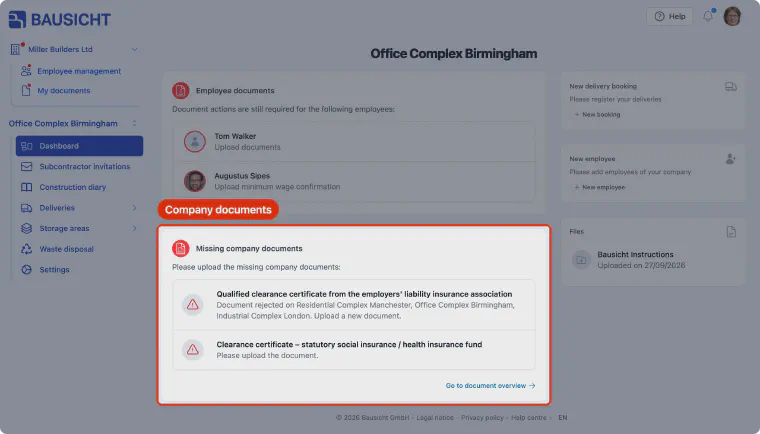
Step 14: View guides & manuals
The “Files” card lists all guides and manuals that have been made available. Logistics information as well as directions and the site plan may also be stored here.
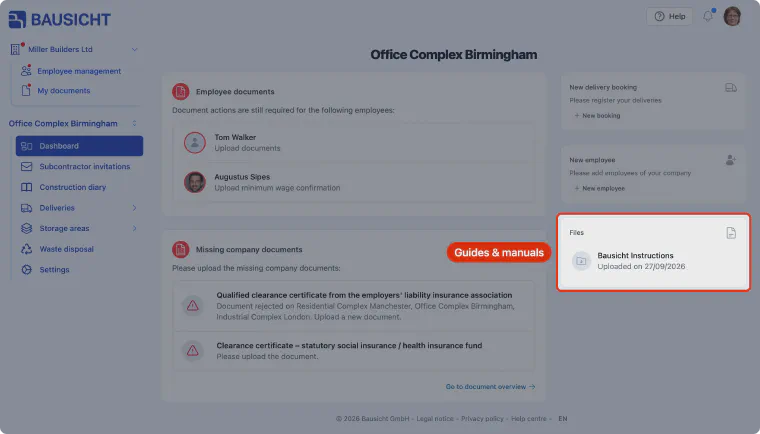
Video guide
Invitation not received?
Check your spam folder first. If you cannot find an invitation there, ask the person who invited you to resend it. For further steps, see My invitation never arrived.
After registration
After you save your company details, further approval steps may appear. The following articles help you with your next tasks:
Why do I see contract documents instead of the application?
Some companies need to approve their contract before continuing to use Bausicht. In this case, Bausicht takes you to Contract documents after sign-in. This step only appears when it is required for your company and your access.
If you are authorised to accept the contract, you can open the Terms and conditions and the Data processing agreement there. Review these documents and the order confirmation shown. To accept, you must confirm all three declarations, including your authority to represent the company. Then select Accept as binding.
If the page says “Approval by an authorised person at your company is still pending.”, an authorised person at your company must accept the contract. Setup access cannot be used to accept it. If this notice is unexpected, check the company shown and the signed-in user; use Sign out to switch accounts.
After approval, Bausicht takes you to the application. If loading the documents or completing approval fails, use the Try again button shown. Contact support if the problem persists or expected contract documents are missing.