
More articles and topics
Adding employees to construction sites
- Before you start
- The selectable construction site must be assigned to the user's company and to the user.
- Where to find it
- Employee management → person → Construction sites → Add to construction sites
- How to check the result
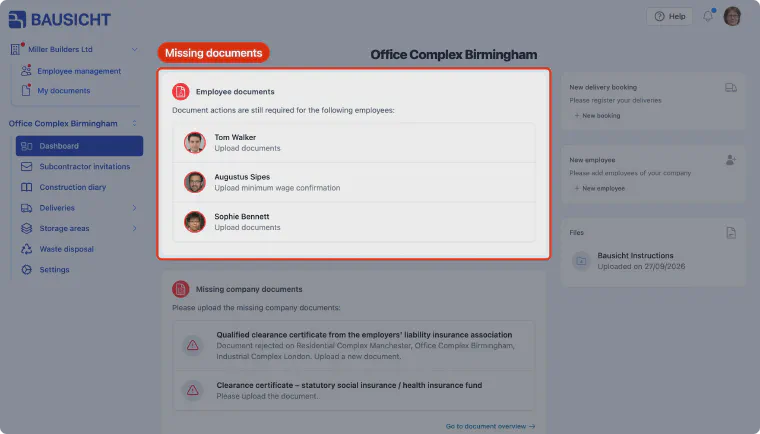
- The person is assigned to the construction site; the Dashboard then shows any missing documents.
Quick answer
Open Employee management, select the person and then Construction sites → Add to construction sites. Select a site, click Assign and then check the Dashboard for any missing documents.
With Select and share documents after assignment enabled, a dialog for existing documents opens after assignment. Select required documents, all available documents or specific document types, then confirm the summary with Share documents.
Video tutorial
Text
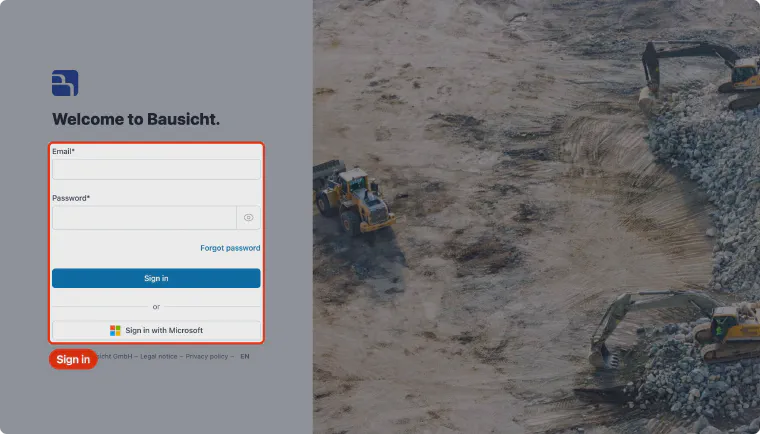
Step 1: Sign in to Bausicht
Open app.bausicht.com in your browser and sign in.
Step 2: Open Employee management
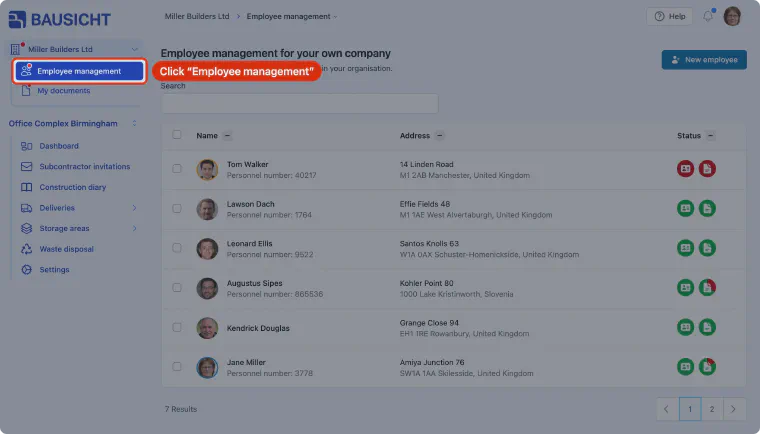
In the left-hand navigation, click Employee management below your company name to view and manage all of your company's employees.
Step 3: Select the employee
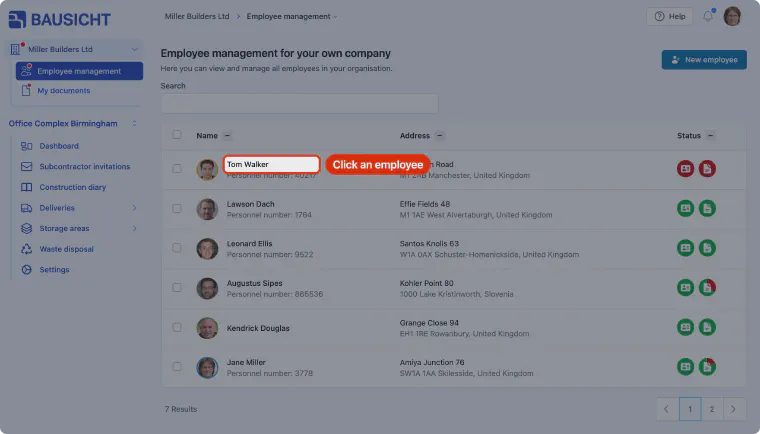
Click the person in the list whom you want to add to a construction site.
Step 4: Open the Construction sites section
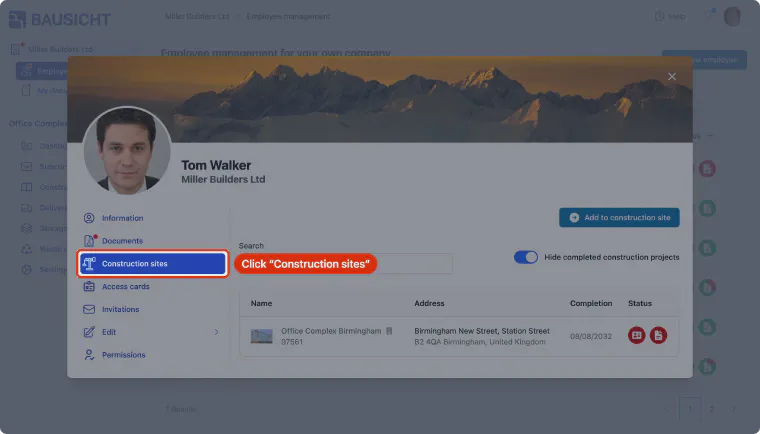
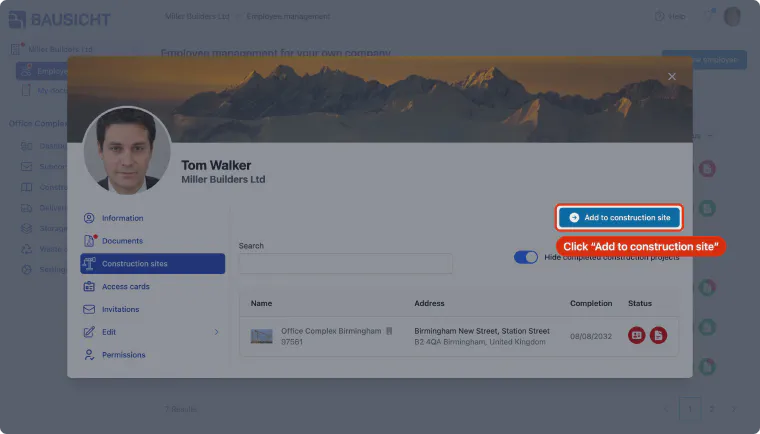
Open the Construction sites section in the person's dialog. It lists the construction sites the person is already assigned to.
Step 5: Add to construction site
Click "Add to construction site" to assign the employee to a construction site. The button appears as soon as your company is on a construction site the person is not yet assigned to.
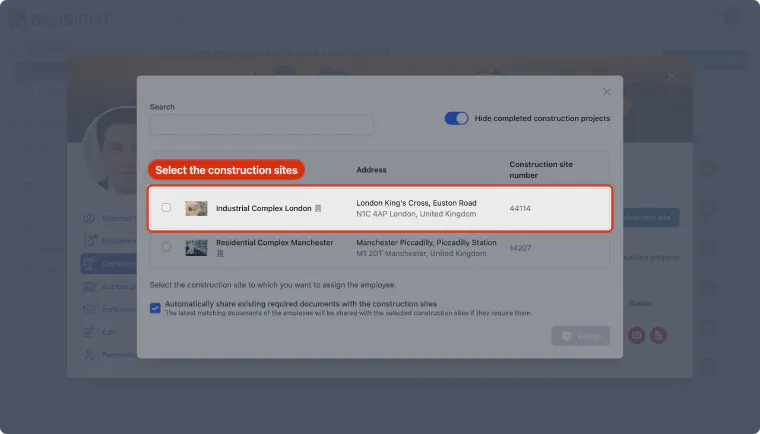
Step 6: Select the construction site
Select the construction site the employee should be added to. Note: Only construction sites that you and your company are assigned to are shown here. If the construction site you are looking for is missing, ask an administrator of that construction site to add or invite your company and you.
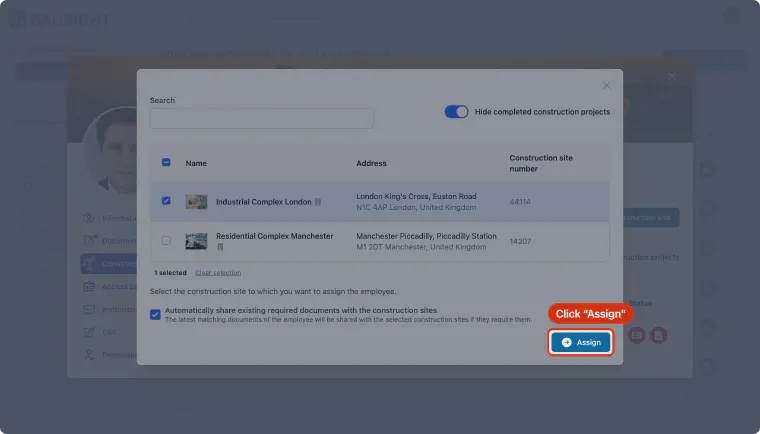
Step 7: Assign the employee
Confirm your selection with “Assign”. If “Automatically share existing required documents with the construction sites” is enabled, documents the person has already uploaded are shared with the construction site. The employee is now assigned to the construction site and you can close the window.
Step 8: Open the Dashboard
Use the construction site name at the top of the left-hand navigation to choose the assigned construction site, then click “Dashboard”.
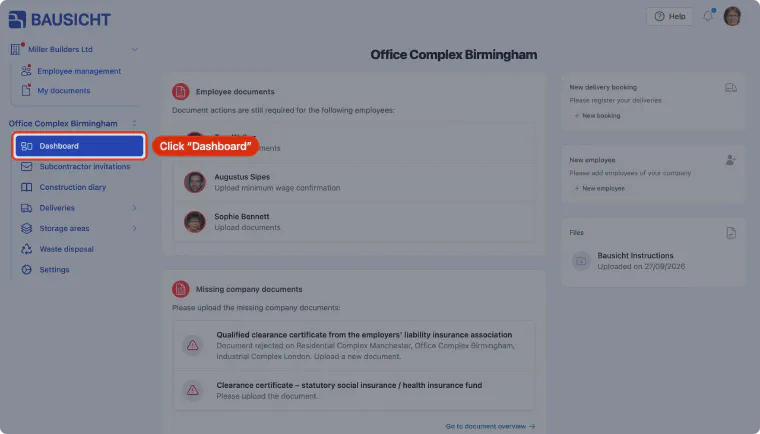
Step 9: Check employee documents
The "Employee documents" card shows which employees are still missing documents, including the newly assigned person. Click the person and upload the required documents.
Need further help?
If you need further assistance adding employees to construction sites, our support team is happy to help.