
More articles and topics
My document was rejected – what now?
- Before you start
- A corrected, fully readable file with the correct document type and matching date details
- Where to find it
- Employee management → person → Documents, or company name → Documents → New document
- How to check the result
- The new document is submitted for approval again; only after approval does it count as valid and the document status turn green.
On this page
Quick answer
Open the person in Employee management, or for company documents open My documents. The reason for the rejection is shown in the rejected document on the Information tab. Then upload a corrected file via New document; after the new approval, the document status turns green.
Every submitted document is reviewed by the administrator of the construction site. If it does not meet the requirements, it is rejected – and you are notified. The remedy is always the same: upload a corrected document.
Common reasons for a rejection
- The file is blurred, incomplete or cut off
- The document had already expired when it was uploaded
- The issue or expiry date entered does not match the file
- The wrong document type was selected
- The document belongs to a different person or company
Step 1: Open the person concerned
Open Employee management in the left navigation and click the person concerned.
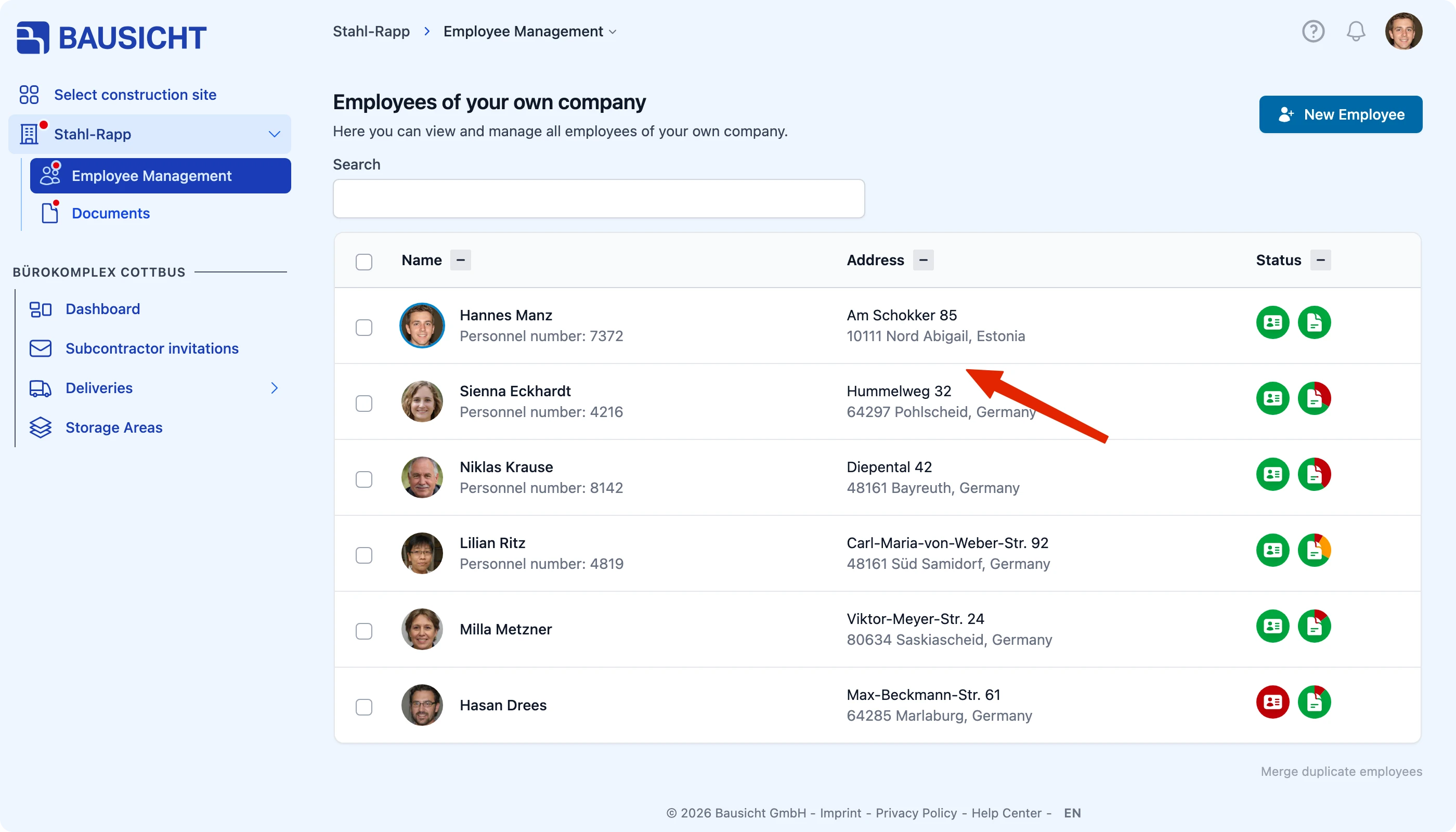
If it is a document about your company, open My documents instead and there the Company documents tab. You will find My documents under your company name in the left navigation if you are allowed to share company documents with construction sites – otherwise in the profile menu (your picture at the top right).
Step 2: Upload the corrected document
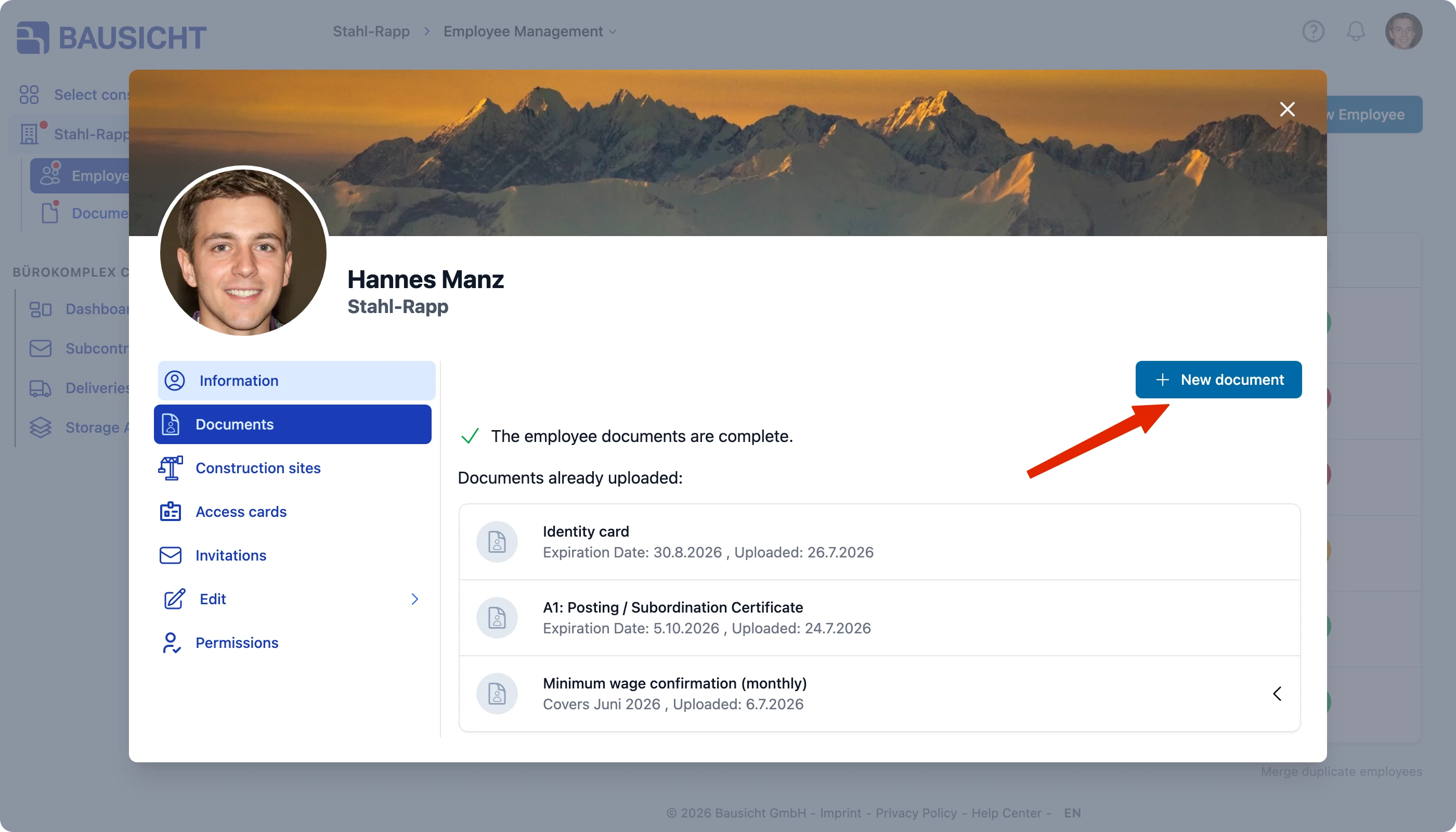
In the details view, switch to the Documents tab. There you can see under The following documents are missing: which records are still outstanding, and under Documents already uploaded: what has already been provided. A rejected document appears under The following documents are missing: with the note “Document rejected on …” and the affected construction sites.
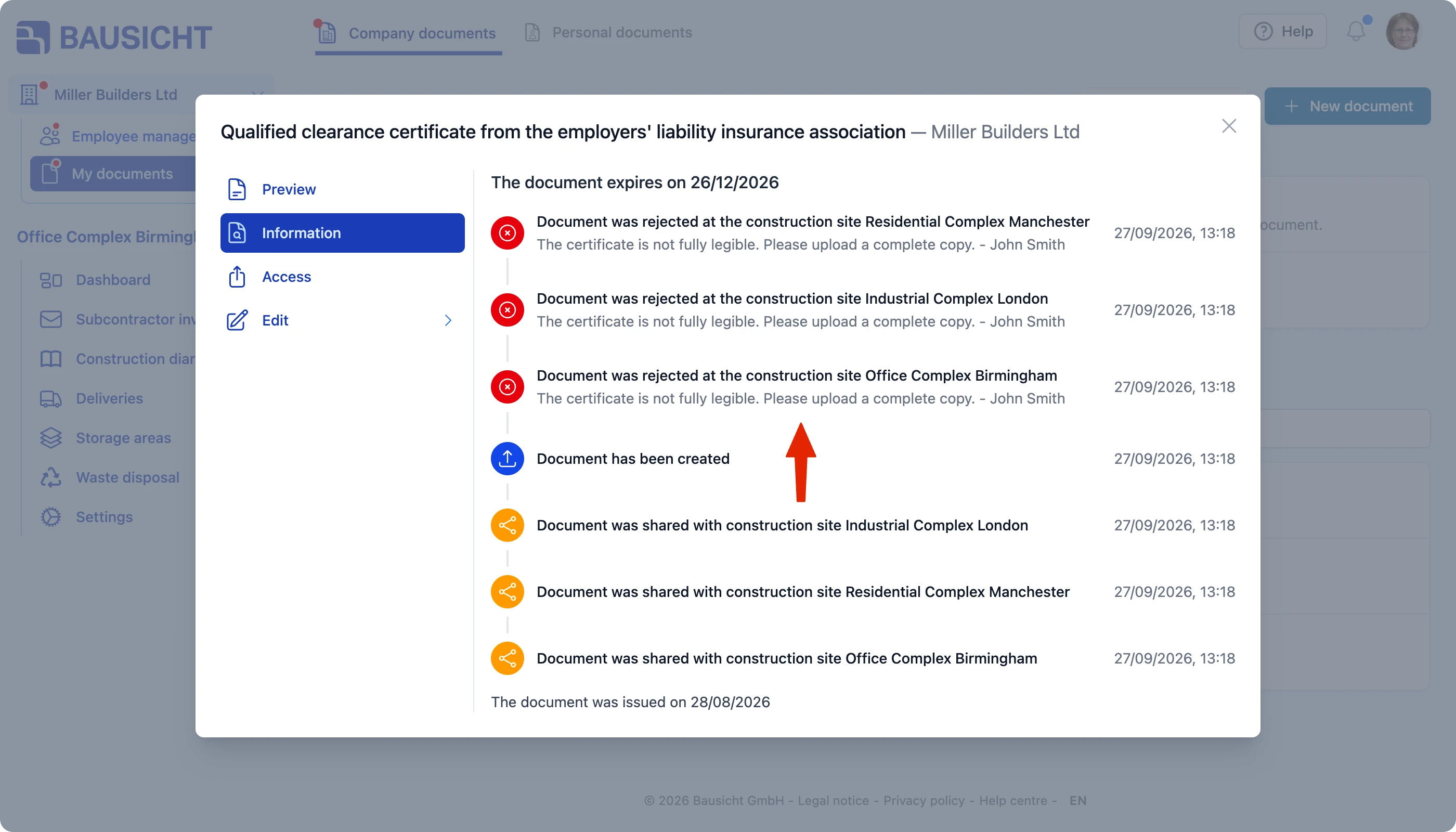
The rejected file itself is still listed under Documents already uploaded:. Click it to read the reason for the rejection: on the Information tab it is shown – if one was given – with the rejection entry, together with the name of the reviewer.
Click New document and upload the corrected file.
Pay particular attention to:
- the correct document type
- an expiry date in the future
- a fully legible file – with photos, as straight and well lit as possible
Step 3: Wait for the new review
The newly uploaded document is submitted to the administrator of the construction site again. Once approved, it counts as valid and the document status of the person turns green.

Tip: Make sure your notifications inform you about rejected and expiring documents. That way you notice a rejection immediately instead of at the next site entry.
Need further help?
If you need further assistance, our support team is happy to help.